How to Check Device Performance in Windows 11

You check your Windows 11 device performance using built-in tools like Task Manager and Performance Monitor.
These tools offer a real-time look at your PC’s resource usage, helping you pinpoint slowdowns and optimize your system.
Task Manager’s ‘Performance’ tab displays your CPU, memory, disk, and network usage, often highlighting resource-hungry applications. This insight is crucial when troubleshooting a slow computer.
For more in-depth analysis, Performance Monitor tracks specific metrics over time, allowing you to diagnose complex issues effectively.
Open Windows Security, click Device performance & health, and review Storage capacity, Apps and software, Battery life, and Windows Time service. You can also use Task Manager’s Performance tab for real-time CPU, memory, disk, and network usage.
Why check your device health?
Why check your device’s health? It’s important because it helps you find potential problems before they lead to system crashes or data loss. Keeping an eye on things regularly means you’ll know if your storage is getting full, if your software needs updating, or if your hardware isn’t working right. This proactive approach to checking your system keeps your PC running smoothly.
What happens when done?
What does the report tell you? After a scan, you’ll get a detailed health report. Green checkmarks mean your system is healthy and working as it should. Yellow marks suggest you need to address an issue, like a pending update or a storage warning. Taking care of these alerts quickly helps optimize your Windows 11 system.
Using the Windows Security App
The Windows Security app is your main hub for checking your system’s health. It watches your device for security threats and general performance issues.
- In the search box on your taskbar, type Windows Security.
- Select Windows Security from the search results.
Note: You don’t need administrator rights for this, though you might for some of the fixes the report suggests.
- Inside the Windows Security app, click on Device performance & health.
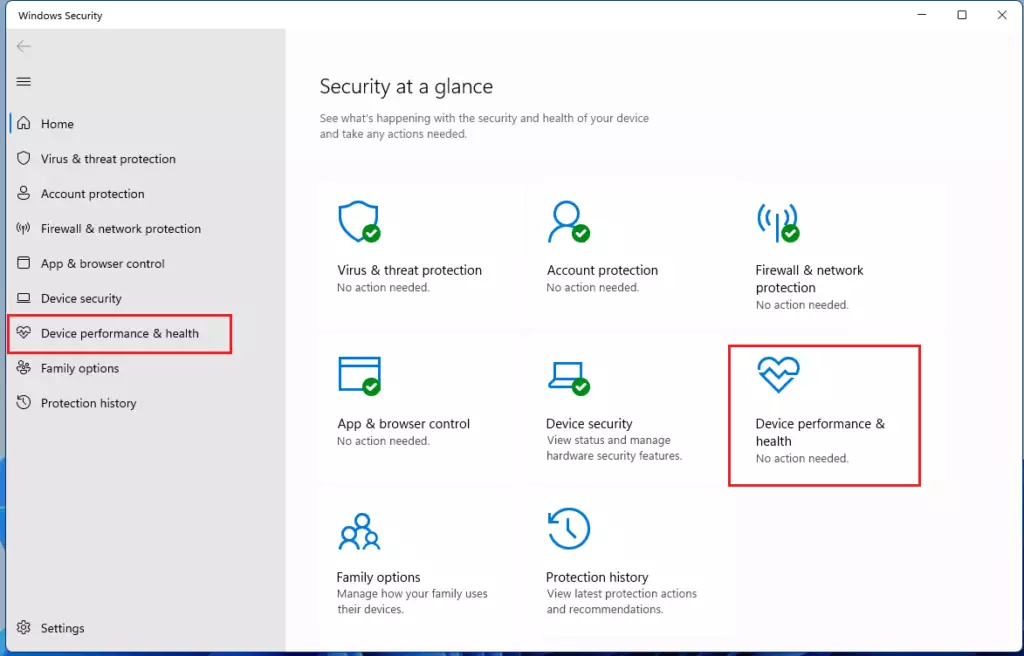
The report covers these main areas:
- Storage capacity: Checks if you are running out of disk space.
- Apps and software: Alerts you if programs are failing or need updates.
- Battery life: Shows if apps are draining your battery too quickly.
- Windows Time service: Ensures your clock is set correctly for system processes.
Using the PC Health Check App
Microsoft offers a specific PC Health Check App that helps you understand what your device can do. This free tool takes a closer look at your hardware and what your system needs to run properly.
You can download the app from Microsoft’s official website. Once it’s installed, it gives you a rundown of your device’s specs, like your processor, RAM, and how much storage you have. It also checks if your PC meets the requirements for the newest Windows updates.
Troubleshooting Performance Issues
If your report shows problems, you can take a few steps to troubleshoot performance issues. You can start by clearing temporary files with the Disk Cleanup tool. You’ll find it in the System32 folder, usually at 📁C:\Windows\System32\cleanmgr.exe. You should also check how fast your system starts up by opening Task Manager and turning off programs you don’t need from the Startup tab.
Hardware Diagnostics
If you have a laptop, checking your battery capacity report is a good idea. To generate a report, you’ll need to run the command powercfg /batteryreport in Command Prompt. This command saves an HTML file to your user folder (often found at 📁C:\Users\YourUsername\battery-report.html), which shows your battery’s health and how many charge cycles it has gone through.
Summary
Keeping an eye on your device’s health is a great way to ensure your computer stays fast and secure. Make it a habit to check the ‘Device performance & health’ page regularly, keep your storage tidy, and make sure your system is always updated. Catching issues early stops them from becoming bigger problems down the road.
Is the PC Health Check app free?
Yes, the PC Health Check app is completely free to download and use from Microsoft’s official website. It is designed to help users verify if their hardware meets Windows 11 system requirements and to provide basic diagnostics for device health and performance status.
How do I fix performance issues found by Windows Security?
When Windows Security identifies an issue, it will provide a recommended action button. Click the button to let Windows fix the problem automatically. For storage issues, you may need to manually delete large files or move data to an external drive to free up space.
Was this guide helpful?

About the Author
Richard
Tech Writer, IT Professional
Richard, a writer for Geek Rewind, is a tech enthusiast who loves breaking down complex IT topics into simple, easy-to-understand ideas. With years of hands-on experience in system administration and enterprise IT operations, he’s developed a knack for offering practical tips and solutions. Richard aims to make technology more accessible and actionable. He's deeply committed to the Geek Rewind community, always ready to answer questions and engage in discussions.

No comments yet — be the first to share your thoughts!