How to Enable Latest Windows Updates in Windows 11

Windows 11 includes a feature that lets you receive new updates and improvements as soon as they are ready. This guide shows you how to manage this setting.
Why use this feature?
Windows Update helps you get the latest fixes and security improvements. Using this feature keeps your device running smoothly and stays protected. Windows 11 build 22621.1635 introduced this option to give you more control over when your computer receives non-security updates.
What happens when done?
Once enabled, your computer will be prioritized to download the newest enhancements as soon as they are released for your device. If disabled, your computer will wait for the standard update schedule.
Method 1: Using the Settings App
This is the easiest way to change your update preferences.
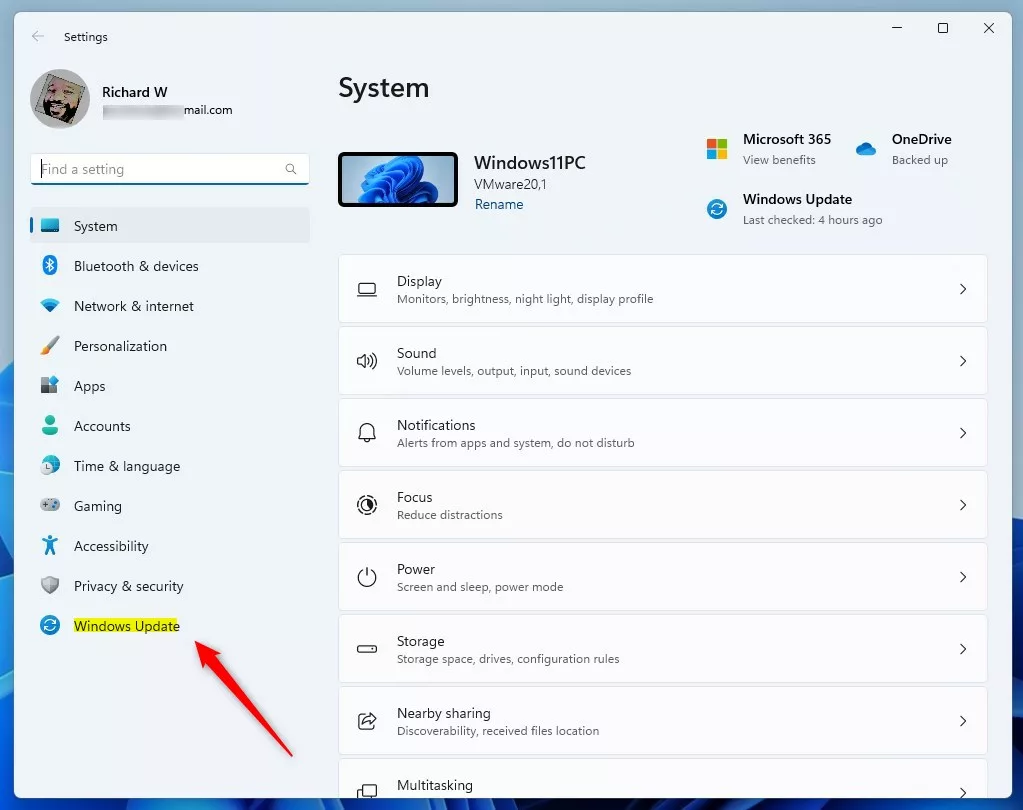
- Open the Windows Settings app. You can do this by clicking the Start menu or pressing the Windows key + I on your keyboard to launch the Settings app.
- Click on the Windows Update button located on the left side of the menu.
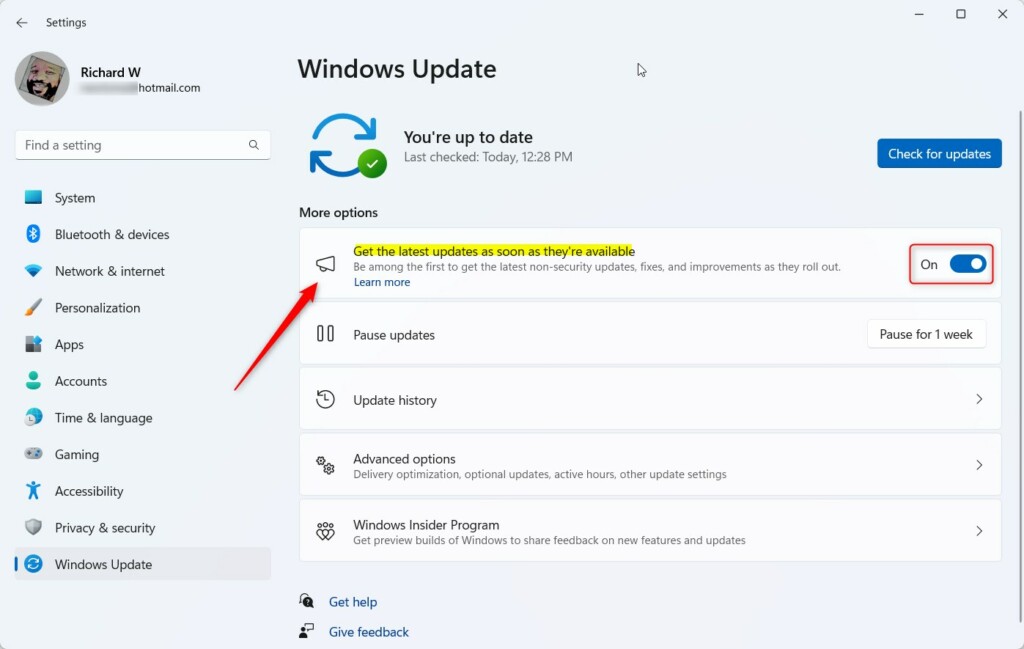
- On the right side, find the tile labeled “Get the latest updates as soon as they’re available.”
- Toggle the switch to On to enable it, or Off to disable it.
Close the Settings app when you are finished.
Method 2: Using the Windows Registry
Note: This method requires admin privileges. Editing the registry can be risky if you change the wrong settings. Be careful.
- Open the Windows Registry.
- Navigate to this path:
HKEY_LOCAL_MACHINE\SOFTWARE\Microsoft\WindowsUpdate\UX\Settings - If you do not see the Settings folder, right-click the UX folder, select New, and create a Key named Settings.
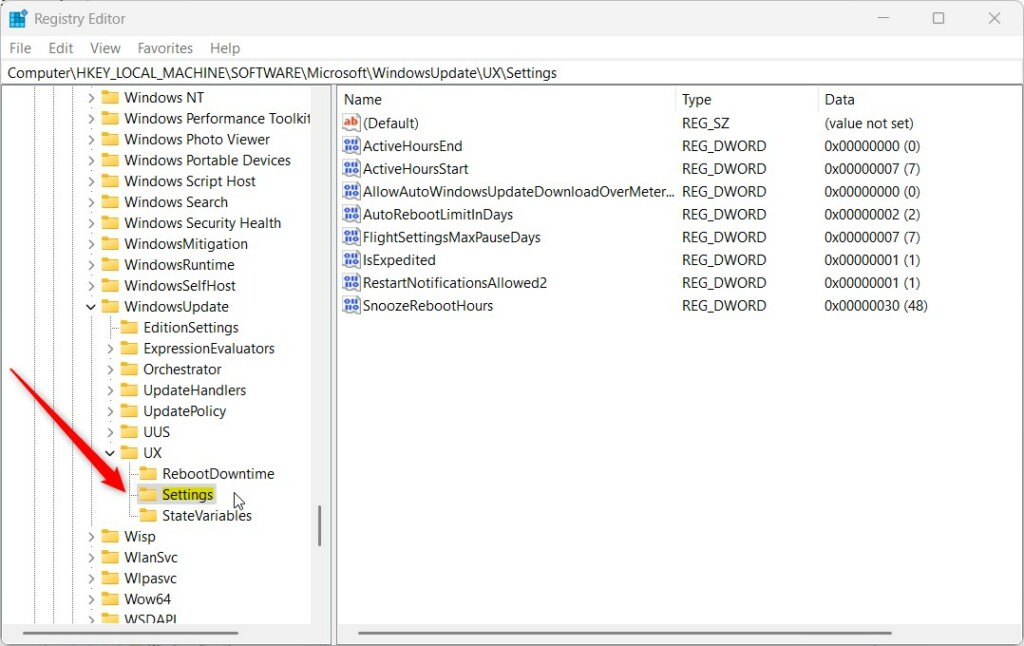
- Right-click in the empty space on the right side and select New -> DWORD (32-bit) Value.
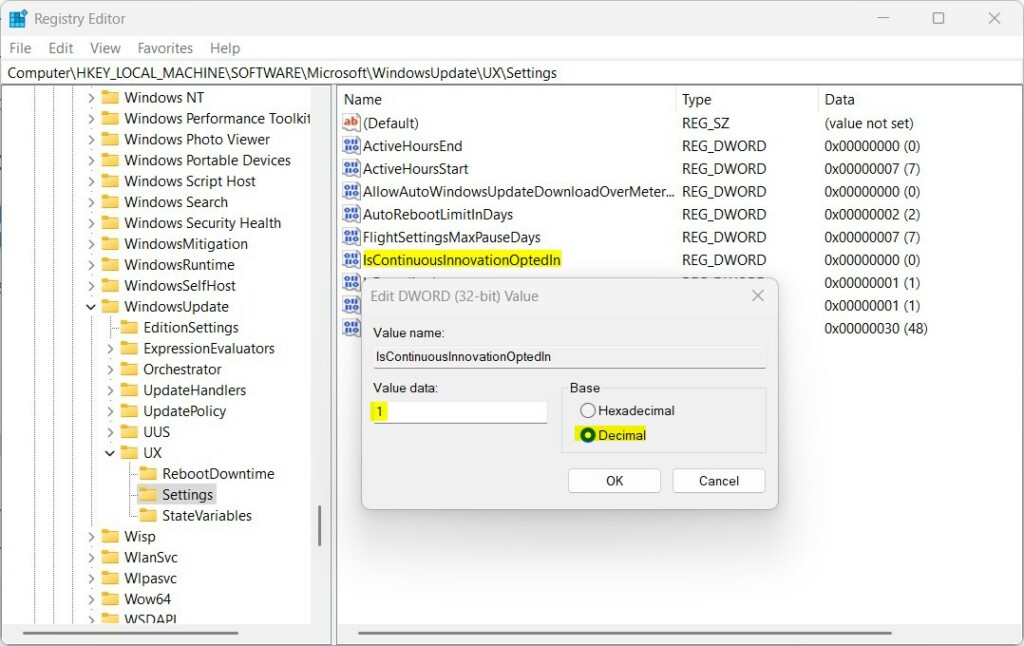
- Name this new item:
IsContinuousInnovationOptedIn - Double-click the new item. Set the Base to Decimal.
- In the Value data box, type
1to enable the feature or0to disable it.
Save your changes and restart your computer to apply the new settings. You can learn more here: Windows Registry Editor and Microsoft.com.
Summary
You can control how your computer receives non-security updates in Windows 11. By turning on the “Get the latest updates” feature, you ensure your device gets new enhancements immediately. You can toggle this setting easily within the Windows Update settings menu or by editing the registry key IsContinuousInnovationOptedIn.
Was this guide helpful?


Leave a Reply Cancel reply