How to View Windows Update Policies in Windows 11

You view Windows Update policies in Windows 11 by accessing the Group Policy Editor or the Registry Editor.
Windows Update policies are specific configurations that dictate how your operating system handles updates, including download schedules, installation timings, and deferral options, often implemented by IT administrators in business environments to maintain system security and uniformity.
Understanding these settings is crucial, especially if your Windows 11 PC isn’t updating as expected or if you suspect external controls are in place, such as those managed by a work or school network using Group Policy Objects (GPOs).
For example, a policy might prevent feature updates for 60 days or automatically install quality updates outside of business hours.
Knowing these rules empowers you to diagnose update issues and understand your system’s update behavior.
You can view Windows Update policies in Windows 11 through the Settings app under Advanced options, or by using the Registry Editor at 🗝️HKEY_LOCAL_MACHINE\SOFTWARE\Policies\Microsoft\Windows\WindowsUpdate. A command-line report can also be generated using gpresult /h.
How to View Your Update Policies
Windows 11 makes it easy to see your current update rules. Follow these steps to check your device status:
- Open the Settings app by pressing Windows key + I.
- Click on Windows Update in the left menu.
- Select the Advanced options tile.
- Click Configured update policies to see active rules.

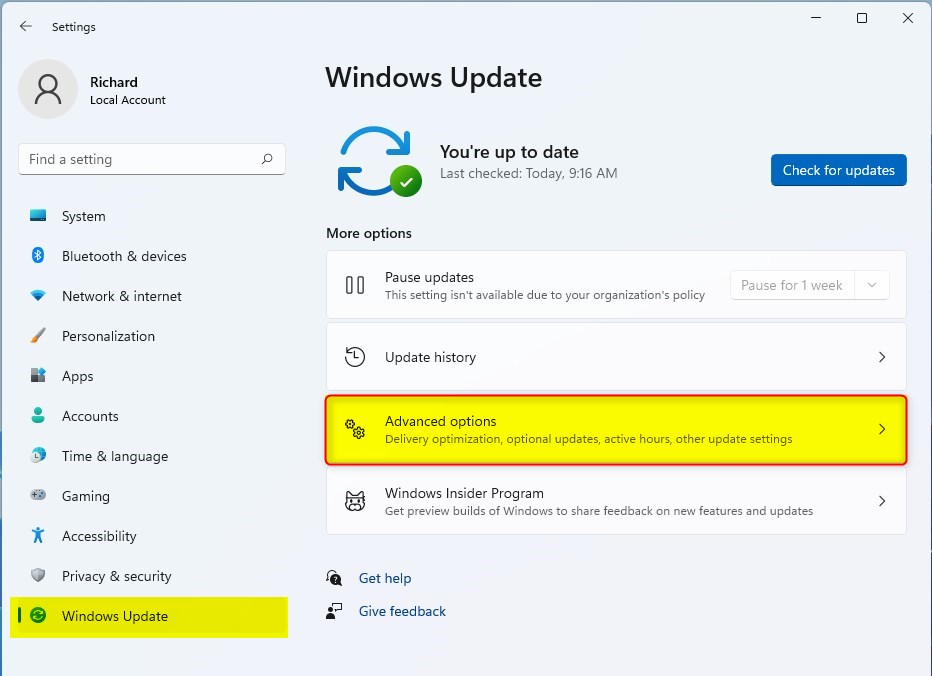
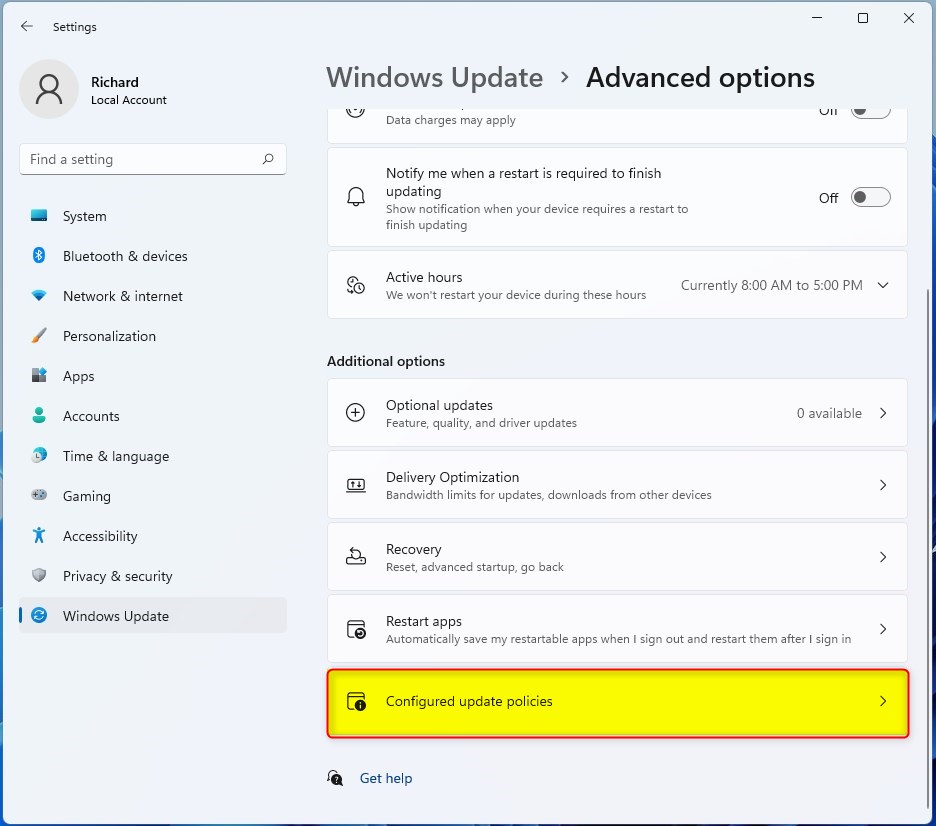
%📂%IMG3%
Note: Viewing these settings is safe for all users, but changing them requires admin privileges.
Registry Keys and Policy Management
Advanced users can check registry keys to see how policies are applied. The main path for these settings is HKEY_LOCAL_MACHINE\SOFTWARE\Policies\Microsoft\Windows\WindowsUpdate. You can use the Registry Editor (regedit) to view these values. Admin privileges are required to modify these keys.
Verifying Policies with Command Prompt
You can verify if policies are active using the Group Policy Management Console (GPMC) logic via the command line. Open Command Prompt as an administrator and run gpresult /h C:\report.html. This generates a report showing all applied settings. Admin privileges are required for this command.
Summary
Managing Windows Update policies in Windows 11 ensures your system stays secure. By using the Settings app, Registry Editor, or command-line tools, you can monitor how your PC handles updates. Always remember that changing these settings often requires admin privileges to take effect. For more technical details, refer to the official Microsoft Policy CSP documentation.” }
How do I troubleshoot Windows Update policies not applying?
If policies are not applying, try running the command gpupdate /force in an elevated Command Prompt. Ensure your device is connected to the network and check the Registry Editor at 🗝️HKEY_LOCAL_MACHINE\SOFTWARE\Policies\Microsoft\Windows\WindowsUpdate to see if the keys exist. If issues persist, contact your IT administrator for assistance.
What is the difference between Windows Update and Windows Update for Business policies?
Standard Windows Update is for home users to get updates automatically. Windows Update for Business (WUfB) allows administrators to control deployment validation, set update rings, and manage servicing channels. It provides more granular control over when feature updates and quality updates are installed on enterprise devices.
Was this guide helpful?

About the Author
Richard
Tech Writer, IT Professional
Richard, a writer for Geek Rewind, is a tech enthusiast who loves breaking down complex IT topics into simple, easy-to-understand ideas. With years of hands-on experience in system administration and enterprise IT operations, he’s developed a knack for offering practical tips and solutions. Richard aims to make technology more accessible and actionable. He's deeply committed to the Geek Rewind community, always ready to answer questions and engage in discussions.


No comments yet — be the first to share your thoughts!