How to Enable or Disable Diagnostic Data Viewer in Windows 11

You enable or disable the Windows 11 Diagnostic Data Viewer to control the telemetry data your PC sends to Microsoft.
The Diagnostic Data Viewer is a built-in Windows tool that shows you precisely what diagnostic information your computer collects and shares. This allows you to see details ranging from general usage patterns to specific system configurations.
By default, Windows 11 gathers diagnostic data to help Microsoft enhance its products and services, like improving system stability and security. For example, basic data collection is always on to maintain Windows’ core functions.
Enabling the viewer gives you real-time insight into this collected data. Disabling it stops the detailed logging, though essential security and operational data collection continues.
To enable or disable the Diagnostic Data Viewer in Windows 11, open Settings, navigate to Privacy & security, then Diagnostics & feedback. Expand the View diagnostic data section and use the toggle switch.
Is the Diagnostic Data Viewer Installed by Default?
The Diagnostic Data Viewer doesn’t come pre-installed on Windows 11; you need to get it from the Microsoft Store. Once you have it, it works with the privacy settings you choose in the Settings app. You can find the app by searching for ‘Diagnostic Data Viewer’ in the Microsoft Store.
Using the Settings App
You can easily turn the Diagnostic Data Viewer on or off using the Windows Settings app. Just go to Privacy & security, then click on Diagnostics & feedback. Find the ‘View diagnostic data’ option and use the toggle switch to make your choice.
- Open the Windows Settings app.
- Select Privacy & security on the left.
- Click the Diagnostics & feedback tile on the right.
- Select the View diagnostic data tile to expand it.
- Use the toggle switch to turn it On or Off.
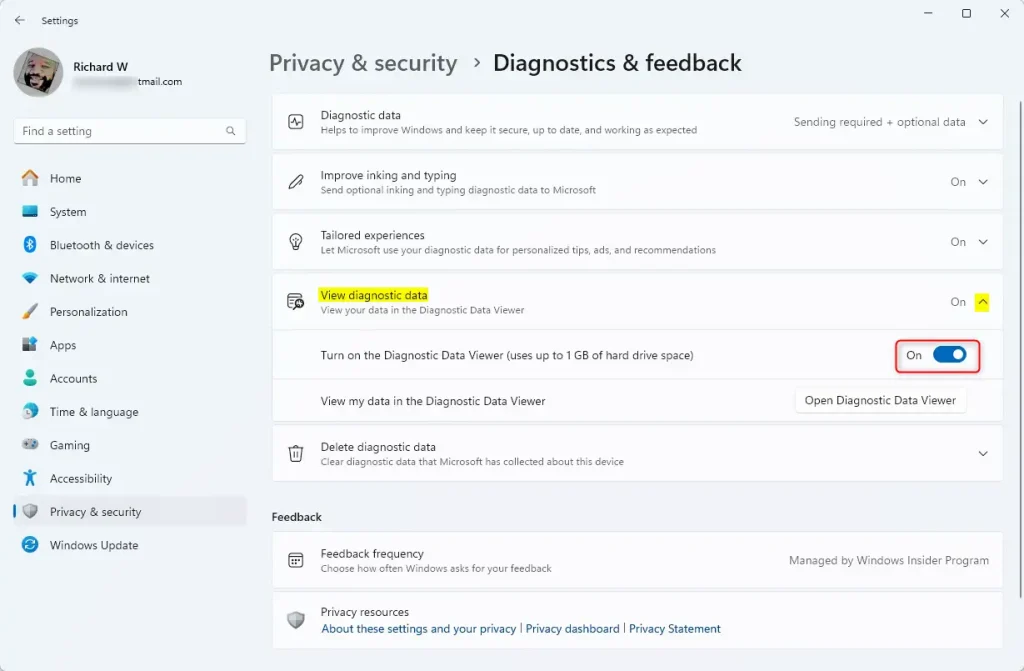
On the left, select Privacy & security. Then, click the Diagnostics & feedback tile on the right. Expand the View diagnostic data tile and use the toggle to turn it On or Off. You can exit the Settings app when you’re done.
Troubleshooting: Cannot Find or Enable the App
If you can’t find the Diagnostic Data Viewer, make sure you’ve downloaded it from the Microsoft Store. If the option to turn it on is greyed out, your computer might be managed by your work or school, meaning an IT admin controls these settings. Checking for Windows updates can also help, as older versions might not support the viewer.
Enterprise and Privacy Context
For businesses, IT administrators often use Group Policy to manage diagnostic data settings across many computers at once, ensuring everyone follows the same privacy rules. Home users, however, have full control over these settings themselves. You can also check your data history online through the Microsoft Privacy Dashboard.
Data Management and History
The Diagnostic Data Viewer lets you see how much data history your device has collected. You can clear this history directly from the Privacy & feedback settings menu by clicking the ‘Delete’ button. This action removes the data from your device and also tells Microsoft to delete the related data from their servers.
Using the Local Group Policy Editor
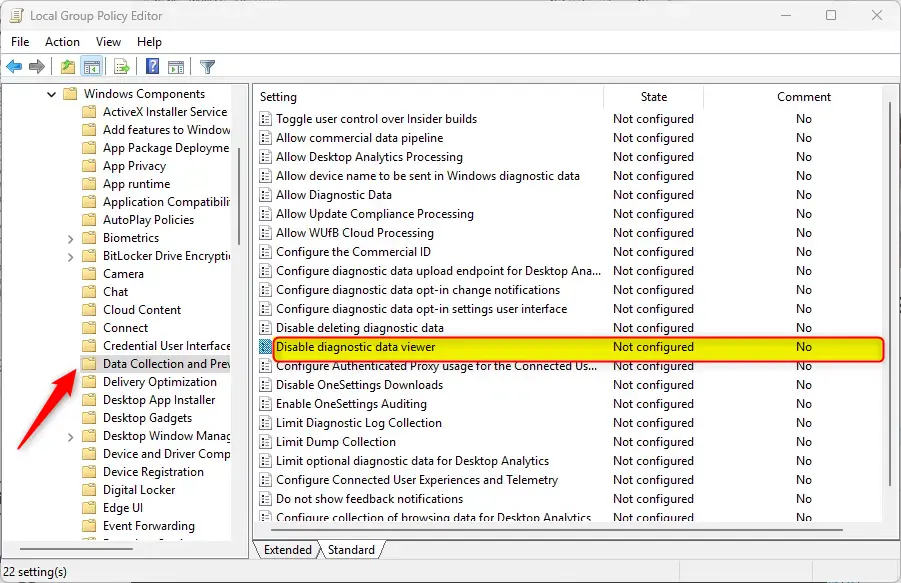
You can control the Diagnostic Data Viewer using the Local Group Policy Editor, but you’ll need admin rights to do this. Open the editor by typing ‘gpedit.msc’ in the Start menu. Then, go to Computer Configuration > Administrative Templates > Windows Components > Data Collection and Preview Builds, and find the ‘Disable diagnostic data viewer’ setting.
- Open the Start menu, type
gpedit.msc, and press Enter. - Navigate to this folder path: Computer Configuration > Administrative Templates > Windows Components > Data Collection and Preview Builds.
- Find Disable diagnostic data viewer in the list and double-click it.
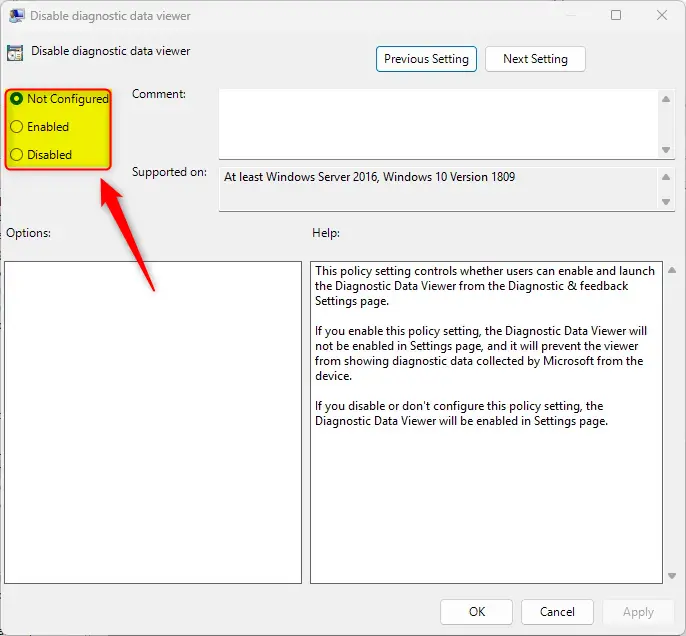
- Choose Not Configured, Enabled, or Disabled.
- Click OK to save. You may need to restart your computer for these changes to take effect.
Using the Registry Editor
For advanced users, the Registry Editor can also be used to manage the Diagnostic Data Viewer, though it requires admin privileges and caution. Open the Registry Editor and go to 🗝️HKEY_LOCAL_MACHINE\SOFTWARE\Policies\Microsoft\Windows\DataCollection. Look for ‘EnableEventTranscript’ and change its value to 1 to turn it on or 0 to turn it off.
- Open the Windows Registry.
- Go to the following path:
HKEY_LOCAL_MACHINE\SOFTWARE\Policies\Microsoft\Windows\DataCollection - Double-click EnableEventTranscript.
- Change the value to 1 to turn it on, or 0 to turn it off.
- If you do not see this item, right-click in the empty space, select New > DWORD (32-bit) Value, and name it
EnableEventTranscript.
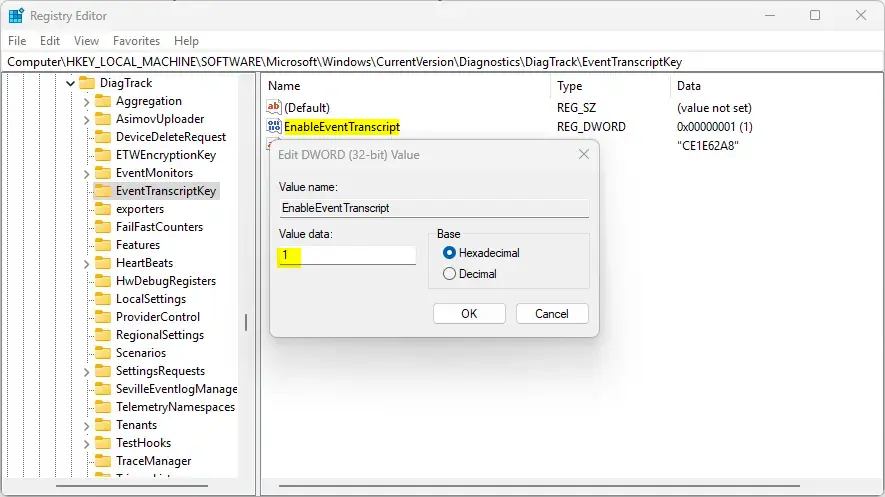
Save your changes and restart your computer.
Summary
You have several ways to manage how much data your Windows 11 computer sends to Microsoft, including the easy-to-use Settings app, the Group Policy Editor for more control, or the Registry Editor for advanced changes. These methods help you balance your privacy needs with your operating system’s performance, whether you want to view the data or stop collection entirely.
Can I view Microsoft 365 diagnostic data in the same viewer?
Yes, the Diagnostic Data Viewer is designed to show diagnostic information from Windows. If you have Microsoft 365 apps installed, the viewer can often display diagnostic logs for those applications as well, provided the diagnostic data settings are enabled within the individual Office application privacy settings.
Does disabling diagnostic data affect Windows updates?
Disabling diagnostic data does not stop your computer from receiving critical security updates. However, it may limit the information Microsoft receives to troubleshoot specific update errors. Essential data required for the Windows Update service to function remains active even if you turn off optional diagnostic data collection.
Was this guide helpful?

About the Author
Richard
Tech Writer, IT Professional
Richard, a writer for Geek Rewind, is a tech enthusiast who loves breaking down complex IT topics into simple, easy-to-understand ideas. With years of hands-on experience in system administration and enterprise IT operations, he’s developed a knack for offering practical tips and solutions. Richard aims to make technology more accessible and actionable. He's deeply committed to the Geek Rewind community, always ready to answer questions and engage in discussions.


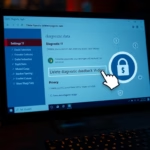

[…] can turn on or off required or optional diagnostic data collection, turn on or off diagnostic data viewer, enable or disable tailored experiences, and […]