How to Enable or Disable Send Required and Optional Diagnostic Data for Windows 11

This guide describes how to enable or disable sending diagnostic information your computer to Microsoft in Windows 11.
To disable optional diagnostic data in Windows 11, open Settings, navigate to Privacy & security > Diagnostics & feedback, and toggle off “Send optional diagnostic data.” For more advanced control, use Group Policy Editor or Registry Editor.
Understanding 🪟 Windows 11 Diagnostic Data
Microsoft collects information from your computer to keep Windows running smoothly. They call this diagnostic data, or telemetry. This helps them fix bugs, improve security, and make sure your apps work correctly. By understanding what is sent, you can make better choices about your privacy.
Required vs. Optional Diagnostic Data
Windows 11 diagnostic data comes in two types: required and optional, helping you understand what information your PC sends to Microsoft.
How to View Your Data
You can see exactly what Microsoft collects by using the Diagnostic Data Viewer. This tool lets you audit the events and logs sent from your PC. It provides full transparency into your privacy settings.
Method 1Using the Settings App
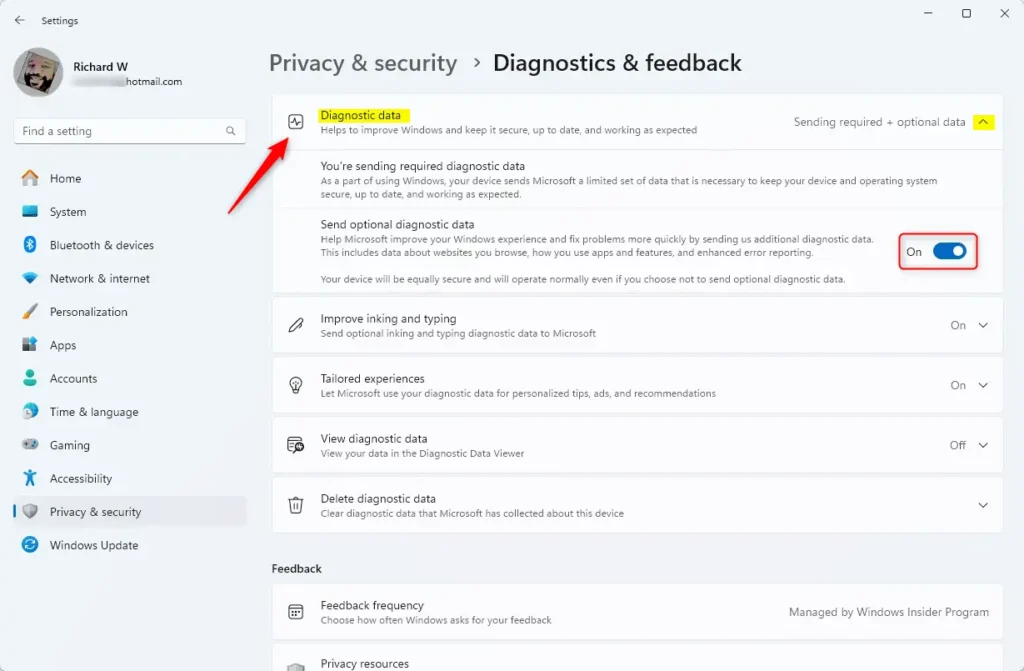
Method 1: Using the Settings App. Here’s what happens: You’ll change your privacy preferences directly through the Windows interface.
- Click Privacy & security on the left.
- Click Diagnostics & feedback.
- Toggle the switch for Send optional diagnostic data to On or Off.
Method 2Using Group Policy Editor
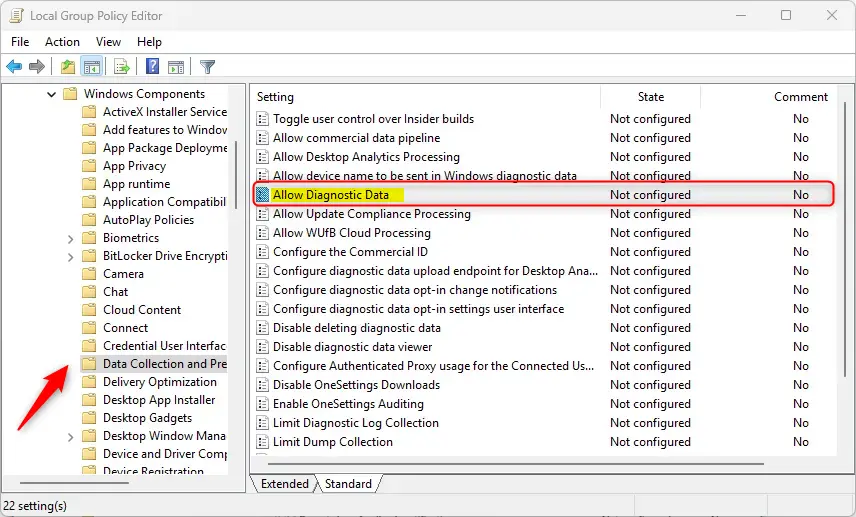
You can change Windows 11 diagnostic data settings for everyone on your computer using the Group Policy Editor, but you’ll need admin rights.
What this does: You’ll enforce system-wide privacy policies for everyone using the device.
- Press ⊞ Win+R, type
gpedit.msc, and hit Enter. - Go to:
Computer Configuration\Administrative Templates\Windows Components\Data Collection and Preview Builds. - Double-click Allow Diagnostic Data.
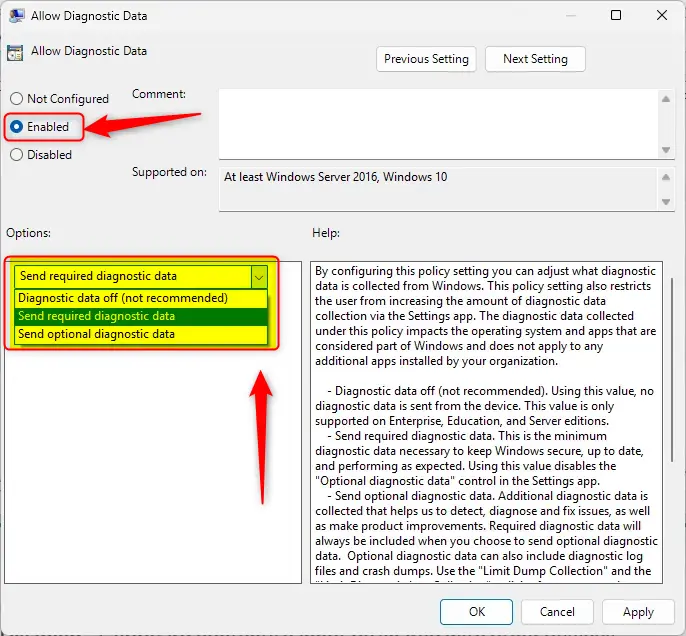
- Select Enabled and choose your preferred level from the dropdown menu.
Method 3Using Windows Registry Editor
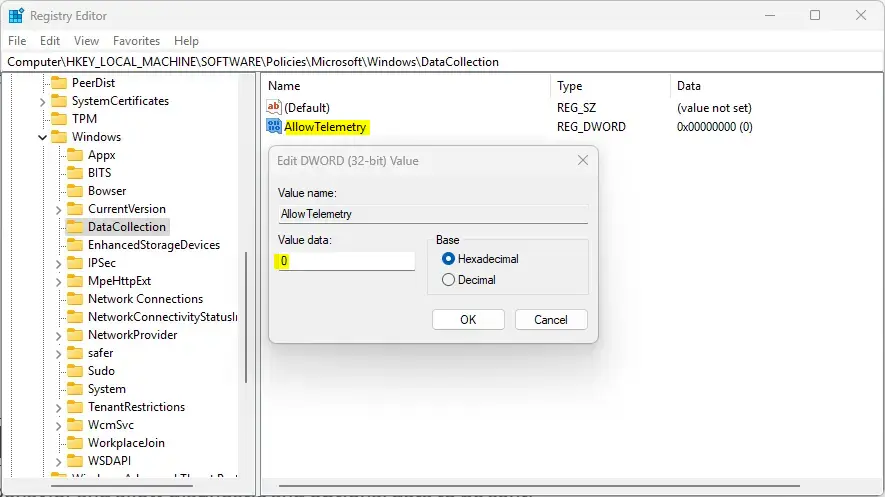
Changing Windows 11 diagnostic data settings with the Registry Editor lets you fine-tune privacy choices by editing your computer’s main settings, though admin rights are needed.
What this does: You’ll modify the core system registry, which is like the computer’s main settings book, to lock in your privacy choices.
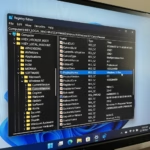
- Press ⊞ Win+R, type
regedit, and hit Enter. - Navigate to:
HKEY_LOCAL_MACHINE\SOFTWARE\Policies\Microsoft\Windows\DataCollection. - Right-click in the right pane, select New > DWORD (32-bit) Value, and name it
AllowTelemetry. - Set the value to
0for off,1for required, or3for optional.
Summary
Balancing your privacy with system performance is key when deciding how much Windows 11 diagnostic data to share.
Is it safe to turn off all diagnostic data in 🪟 Windows 11?
Turning off all diagnostic data in Windows 11 isn’t recommended because it can stop Microsoft from finding security issues or performance problems.
Does disabling diagnostic data affect Windows Updates?
Disabling diagnostic data does not stop Windows Updates. However, it may limit the data Microsoft uses to determine if your device is ready for specific updates. This might cause issues with driver compatibility or feature rollouts, as the system lacks the necessary telemetry to verify your current hardware state.
Was this guide helpful?

About the Author
Richard
Tech Writer, IT Professional
Richard, a writer for Geek Rewind, is a tech enthusiast who loves breaking down complex IT topics into simple, easy-to-understand ideas. With years of hands-on experience in system administration and enterprise IT operations, he’s developed a knack for offering practical tips and solutions. Richard aims to make technology more accessible and actionable. He's deeply committed to the Geek Rewind community, always ready to answer questions and engage in discussions.



[…] Microsoft collects information about your Windows devices through a feature called Diagnostic data and feedback. […]
[…] Microsoft collects information about your Windows devices through Diagnostic data and feedback. […]
[…] Microsoft collects information about your Windows device through Diagnostic data and Feedback. […]
[…] Diagnostic data in Windows refers to the information collected from your device by Microsoft to identify and troubleshoot issues related to the operating system and applications. […]
[…] also uses Diagnostic data and feedback to learn how you use your computer. Another feature, Tailored experiences, uses your data to give […]