How to Change Feedback Frequency in Windows 11

You can change how often Windows 11 asks for your feedback by modifying your privacy settings related to diagnostic data.
Windows collects diagnostic data, which is information about your PC’s performance and how you use it, to improve its stability and identify issues. Feedback frequency controls how often Windows will present prompts to gather your input on these features.
By default, Windows 11 might request feedback periodically to gather insights for future updates. You can find these controls within the ‘Privacy & security’ section, specifically under ‘Diagnostics & feedback’.
You can set your preference to ‘Never’ to completely disable feedback requests. This adjustment ensures you have full control over your computing experience without compromising system stability.
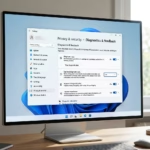
Go to Settings > Privacy & security > Diagnostics & feedback. Under “Feedback frequency,” use the dropdown menu to select “Never” or a less frequent interval. This adjusts how often Windows 11 prompts you for feedback.
Feedback Frequency Options
| Option | Description |
|---|---|
| Automatically | Microsoft decides when to ask based on usage. |
| Always | Frequent prompts for input. |
| Once a day | Limited to one request per 24 hours. |
| Once a week | Limited to one request per 7 days. |
| Never | Disables all feedback prompts. |
How to Change Feedback Frequency in 🪟 Windows 11
Follow these steps to manage your preferences:
- Click the Start button and open Settings.
- Select Privacy & security on the left sidebar.
- Click on Diagnostics & feedback.
- Locate the Feedback frequency section.
- Use the drop-down menu to select your preferred interval.
Your changes apply immediately without needing a restart.
Advanced Method: Registry Editor
You can change feedback frequency in Windows 11 using the Registry Editor for a more advanced tweak, but be careful as mistakes can cause problems.
For a more advanced change, you can use the Registry Editor:
- Press ⊞ Win+R, type regedit, and press Enter.
- Navigate to:
HKEY_CURRENT_USER\Software\Microsoft\Windows\CurrentVersion\Feedback - If the key does not exist, right-click the Feedback folder and create a new DWORD (32-bit) Value named FB_Frequency.
- Double-click FB_Frequency and set the value to your preference (e.g., 0 for Never, 1 for Automatically).
Summary
Managing feedback frequency in Windows 11 is a way to reduce distractions. By using the Settings menu or the Registry Editor, you can customize how often Microsoft requests your input. This ensures your privacy preferences are met while maintaining the health of your operating system.” }
Does changing feedback frequency affect system performance?
No, changing your feedback frequency settings has no impact on your computer’s speed or performance. These settings only control how often the Windows Feedback Hub asks for your opinion. It does not stop the background collection of essential diagnostic data required for system updates and security patches.
What is the difference between required and optional diagnostic data?
Required diagnostic data includes basic information like device configuration and error reports needed to keep Windows secure. Optional diagnostic data includes more detailed info about your app usage and website visits. You can toggle these in the Privacy & security settings to control what data is sent to Microsoft.
Was this guide helpful?

About the Author
Richard
Tech Writer, IT Professional
Richard, a writer for Geek Rewind, is a tech enthusiast who loves breaking down complex IT topics into simple, easy-to-understand ideas. With years of hands-on experience in system administration and enterprise IT operations, he’s developed a knack for offering practical tips and solutions. Richard aims to make technology more accessible and actionable. He's deeply committed to the Geek Rewind community, always ready to answer questions and engage in discussions.



No comments yet — be the first to share your thoughts!