How to Manage Tailored Experiences in Windows 11

You manage tailored experiences in Windows 11 by controlling diagnostic data and app recommendation settings.
Tailored experiences personalize your Windows 11 environment by using your diagnostic data and app usage to offer relevant tips, ads, and suggestions.
This means Windows 11 can proactively suggest apps or features based on how you use your PC, like recommending a photo editor if you frequently open image files.
You can adjust these settings, found in the Privacy & security > Diagnostics & feedback section, to either embrace these personalized recommendations or enhance your privacy by opting out.
You manage tailored experiences in Windows 11 through Settings > Privacy & security > Diagnostics & feedback. Flip the “Tailored experiences” switch to On or Off to control personalized tips and app suggestions based on your diagnostic data.
How to turn Tailored experiences On or Off in Settings
You can easily turn tailored experiences on or off in Windows 11 directly through the Settings app to control personalized tips and recommendations.
- Open the Windows Settings app.
- Select Privacy & security on the left.
- Click on the Diagnostics & feedback tile on the right.
- Click the Tailored experiences tile to open it.
- Flip the switch to On or Off based on your preference.
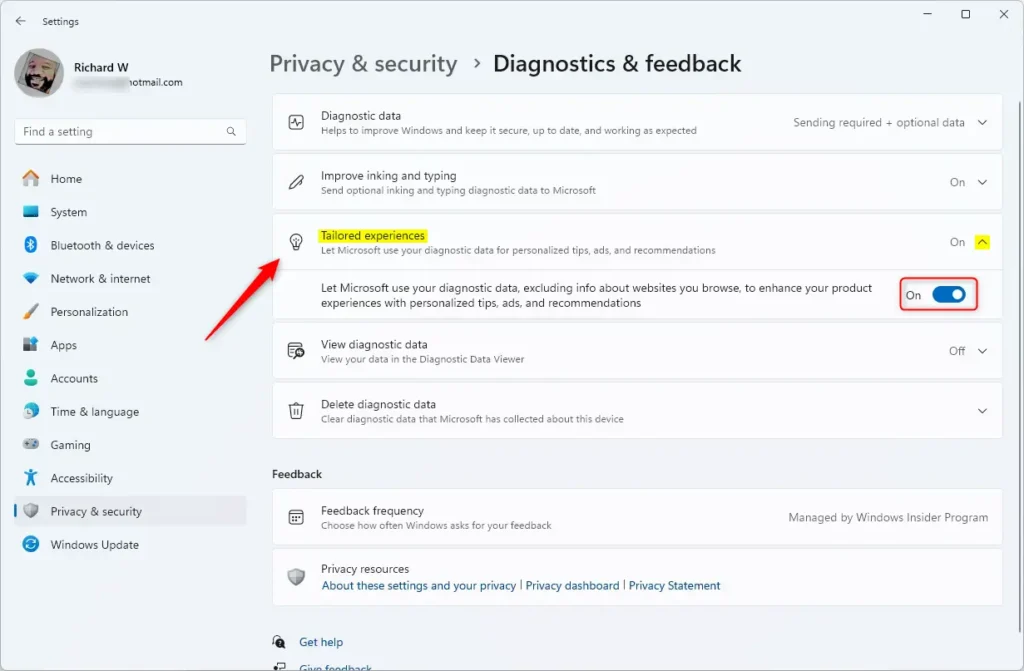
Close the Settings app when finished.
Manage Tailored experiences using Group Policy
For more advanced control, you can manage tailored experiences in Windows 11 using the Local Group Policy Editor, which requires administrator access.
You can also use the Local Group Policy Editor to manage this setting.
- Press the Windows key, type
gpedit.msc, and hit Enter. - Go to: User Configuration > Administrative Templates > Windows Components > Cloud Content.
- Double-click Do not use diagnostic data for tailored experiences.
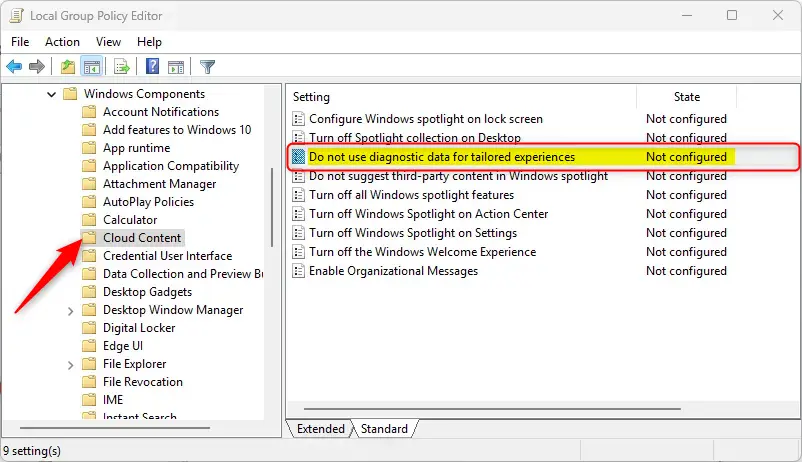
Choose your setting:
- Not Configured: Uses the default Windows setting.
- Enabled: Turns off tailored experiences (Microsoft will not use your data for ads or tips).
- Disabled: Turns on tailored experiences (Microsoft will use your data for personalized content).
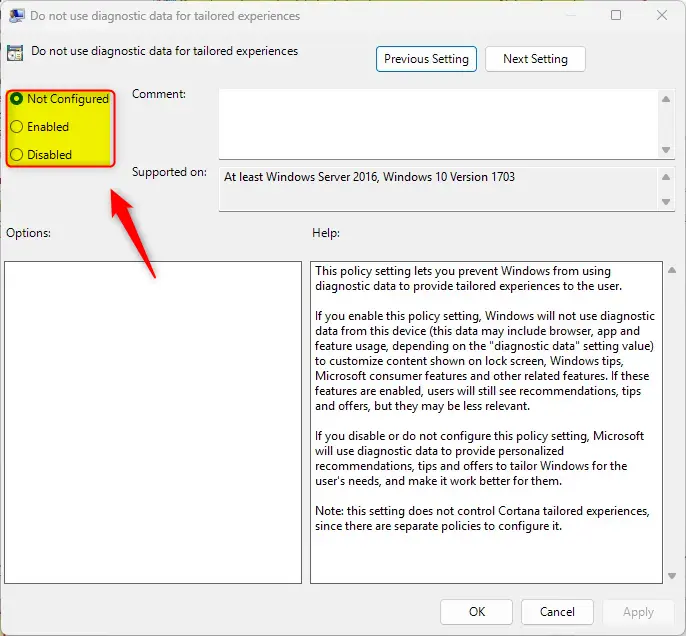
Click OK and restart your computer to apply the changes.
Manage Tailored experiences using the Registry Editor
If you’re comfortable with advanced settings, you can manage tailored experiences in Windows 11 by editing the Registry Editor, but this requires administrator privileges and careful attention.
- Open the Windows Registry by searching for
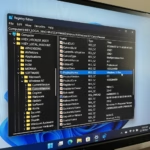
regeditin the Start menu. - Navigate to this path:
Computer\HKEY_CURRENT_USER\Software\Policies\Microsoft\Windows\CloudContent - If you do not see DisableTailoredExperiencesWithDiagnosticData, right-click in the empty space, select New > DWORD (32-bit) Value, and name it
DisableTailoredExperiencesWithDiagnosticData. - Double-click the value and set it to
1to turn off tailored experiences. Set it to0or delete the item to turn them back on.
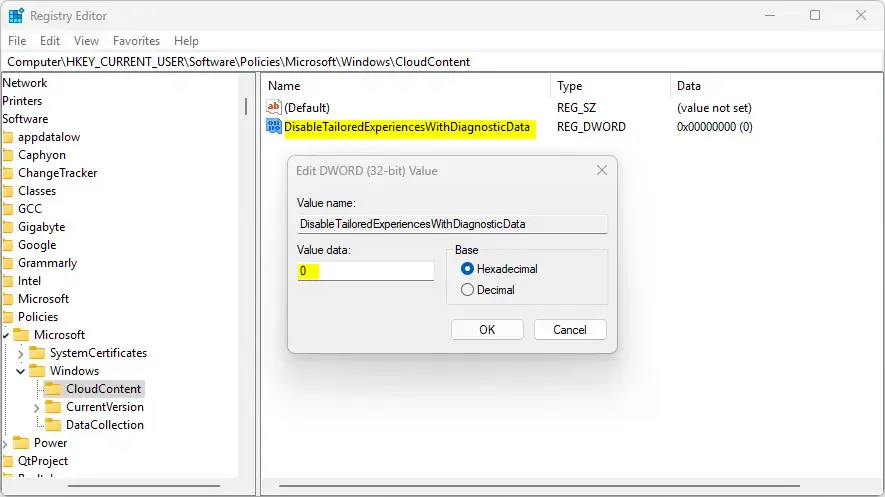
Restart your computer to save your changes.
Summary
Tailored experiences in Windows 11 offer personalized tips and recommendations, and you can easily switch them on or off through Settings, or use Group Policy and the Registry Editor for more detailed management.
Was this guide helpful?

About the Author
Richard
Tech Writer, IT Professional
Richard, a writer for Geek Rewind, is a tech enthusiast who loves breaking down complex IT topics into simple, easy-to-understand ideas. With years of hands-on experience in system administration and enterprise IT operations, he’s developed a knack for offering practical tips and solutions. Richard aims to make technology more accessible and actionable. He's deeply committed to the Geek Rewind community, always ready to answer questions and engage in discussions.



[…] setup, you can also choose whether or not you’d like Tailored experiences set to On or Off. On newer versions of Windows, you can choose whether or not you’d like […]
[…] related feature called Tailored experiences lets you use your device’s diagnostic data to offer personalized tips, ads, and […]
[…] related feature called Tailored experiences also uses your device’s diagnostic data to offer you personalized tips, ads, and […]
[…] on or off required or optional diagnostic data collection, turn on or off diagnostic data viewer, enable or disable tailored experiences, and […]