How to Enable or Disable Deleting Diagnostic Data in Windows 11

You can enable or disable deleting diagnostic data in Windows 11 through the Settings app’s Privacy & security section.
Diagnostic data is information your PC sends to Microsoft. Think of it as data that helps them improve their products and services, like fixing bugs and security issues.
Windows 11 lets you clear this collected diagnostic data by default, but you can also choose to disable that feature.
This setting directly controls whether the “Delete diagnostic data” button in Windows 11 is available to you.
To manage this, you’ll need administrator privileges on your PC.
You can enable or disable deleting diagnostic data in Windows 11 using the Local Group Policy Editor or Registry. For Pro, Enterprise, or Education editions, open gpedit.msc and navigate to Data Collection. For other editions, use the Registry Editor with administrator privileges and modify the DisableDeviceDelete value.
Option One
Enable or Disable Deleting Diagnostic Data in Local Group Policy Editor
You can choose whether to let Windows 11 delete diagnostic data using the Local Group Policy Editor, a tool available on Pro, Enterprise, and Education versions of Windows.
- Open the Local Group Policy Editor by searching for
gpedit.mscin the Start menu. - Navigate to the following path in the left menu:
Computer Configuration > Administrative Templates > Windows Components > Data Collection and Preview Builds
- In the right pane, double-click on Disable deleting diagnostic data.
To Enable Deleting Diagnostic Data (Default):
- Select Not Configured.
- Click OK.
To Disable Deleting Diagnostic Data:
- Select Enabled.
- Click OK.
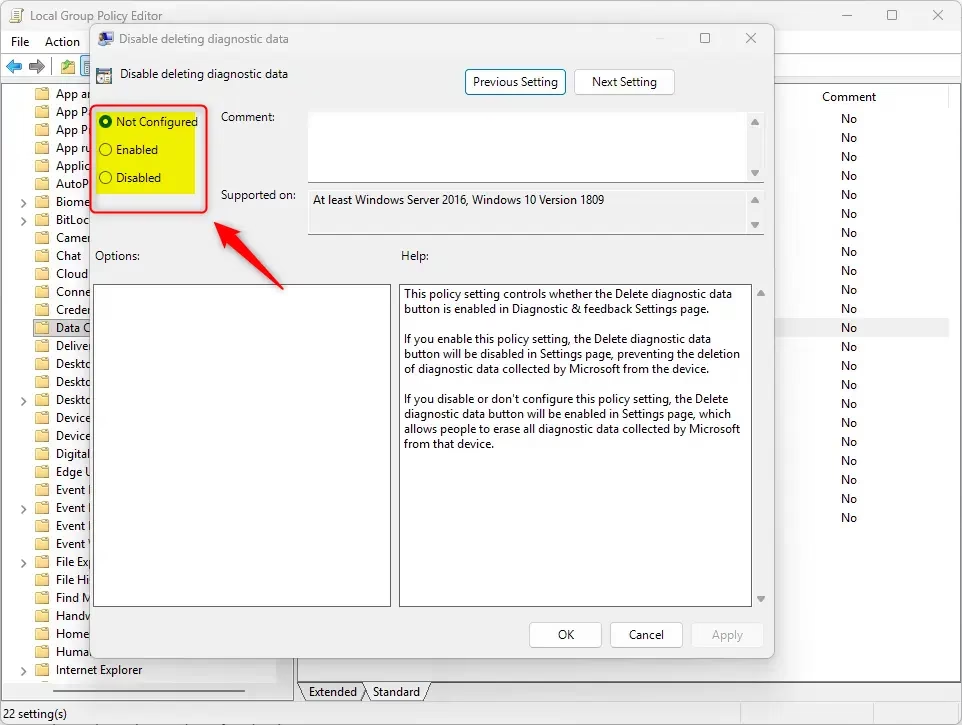
- Close the editor when finished.
Option Two
Enable or Disable Deleting Diagnostic Data using Registry
You can change if Windows 11 lets you delete diagnostic data by using the Registry Editor, but you’ll need to open Windows Terminal as an administrator first.
To Enable deleting diagnostic data (Default), run this command:
reg delete "HKEY_LOCAL_MACHINE\SOFTWARE\Policies\Microsoft\Windows\DataCollection" /v DisableDeviceDelete /f
To Disable deleting diagnostic data, run this command:
reg add "HKEY_LOCAL_MACHINE\SOFTWARE\Policies\Microsoft\Windows\DataCollection" /v DisableDeviceDelete /t REG_DWORD /d 1 /f
Summary
To sum up, you can manage your diagnostic data settings using either the Local Group Policy Editor or the Registry. By default, Windows allows you to delete this data. Using these steps, you can restrict that ability if you wish to lock these settings on your device.
What does deleting diagnostic data do?
Deleting diagnostic data means getting rid of the history of information Microsoft has collected from your computer, helping to keep your personal information private.
How do I delete diagnostic data?
You can delete diagnostic data in Windows 11 by going to Settings, then Privacy & security, and clicking on Diagnostics & feedback to find the delete option.
Where is diagnostic data stored in 🪟 Windows 11?
Diagnostic data in Windows 11 is kept in two places: on your computer itself and on Microsoft’s secure servers.
How do I delete diagnostics?
To delete diagnostics on your Windows 11 computer, simply go to Settings, then Privacy & security, and choose Diagnostics & feedback to find the delete button.
Was this guide helpful?

About the Author
Richard
Tech Writer, IT Professional
Richard, a writer for Geek Rewind, is a tech enthusiast who loves breaking down complex IT topics into simple, easy-to-understand ideas. With years of hands-on experience in system administration and enterprise IT operations, he’s developed a knack for offering practical tips and solutions. Richard aims to make technology more accessible and actionable. He's deeply committed to the Geek Rewind community, always ready to answer questions and engage in discussions.


No comments yet — be the first to share your thoughts!