How to Deny Removable Storage Access in Windows 11

This guide explains how to block or allow USB drives and other removable storage on Windows 11.
Deny access to removable storage in Windows 11 by opening gpedit.msc and navigating to Computer Configuration > System > Removable Storage Access, then enabling “All Removable Storage classes: Deny all access.” Windows Home users can achieve this via the Registry Editor at 🗝️HKEY_LOCAL_MACHINE\SOFTWARE\Policies\Microsoft\Windows\RemovableStorageDevices.
Why Deny Removable Storage Access?
USB drives are convenient, but they’re a major security risk. They can carry malware or viruses that infect your system the moment you plug them in. Restricting removable storage access in Windows 11 helps prevent unauthorized data copying and protects your computer from malicious files.
What Happens When You Restrict Access?
When you block removable storage access in Windows 11, your computer won’t recognize USB drives, meaning they won’t show up in File Explorer and you’ll get an ‘Access Denied’ message if you try to open them.
Using Group Policy to Block USB Drives
You can block USB drives on Windows 11 Pro or Enterprise using the Group Policy Editor, which lets you control system settings like removable storage access.
1. Press ⊞ Win+R, type gpedit.msc, and hit Enter.
2. Navigate to: Computer Configuration > Administrative Templates > System > Removable Storage Access.
3. Find All Removable Storage classes: Deny all access in the right pane.
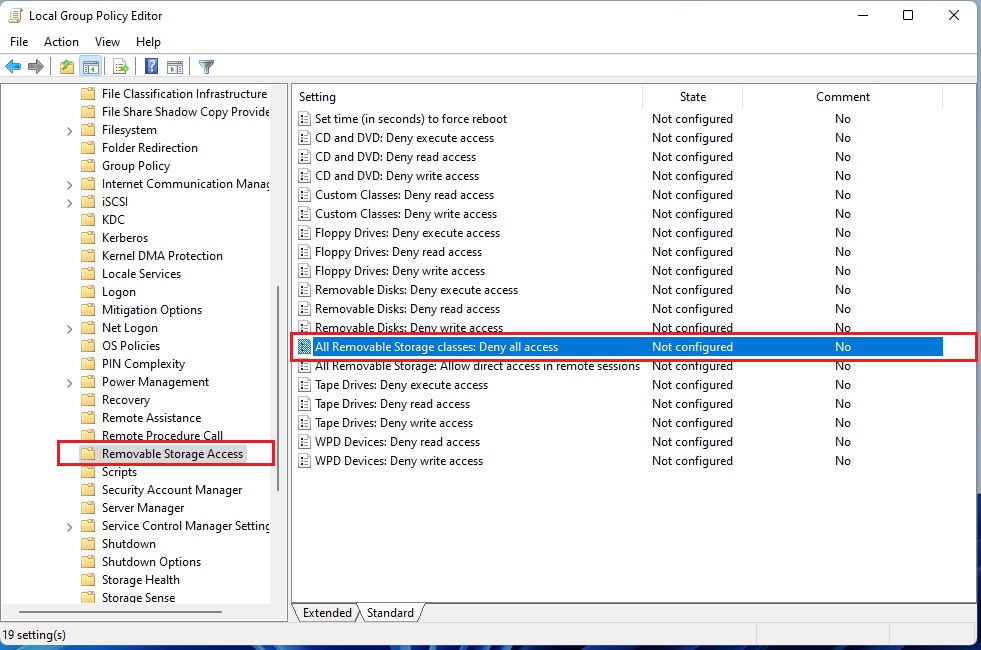
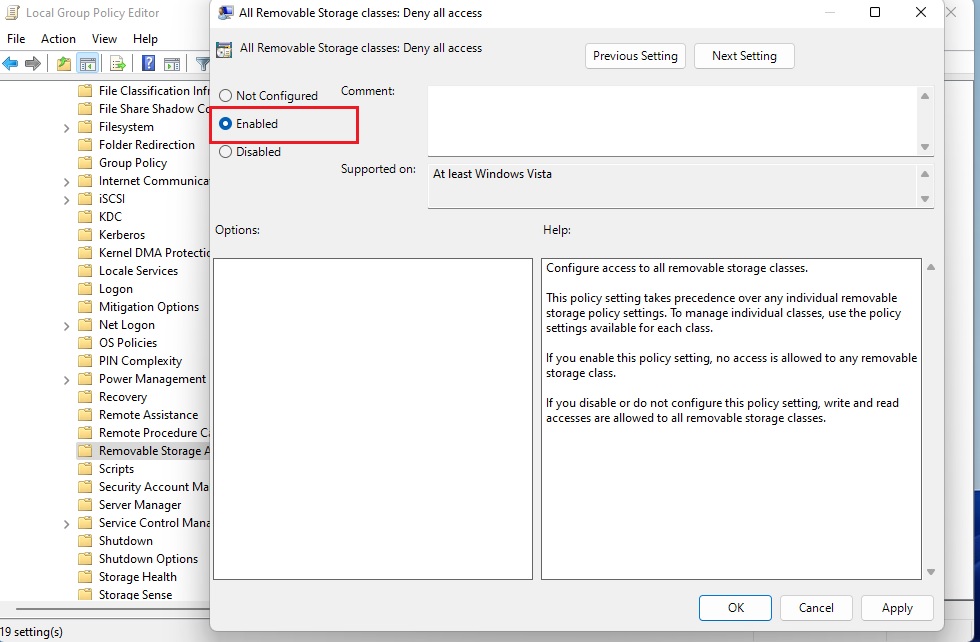
4. Double-click it, select Enabled, and click OK.
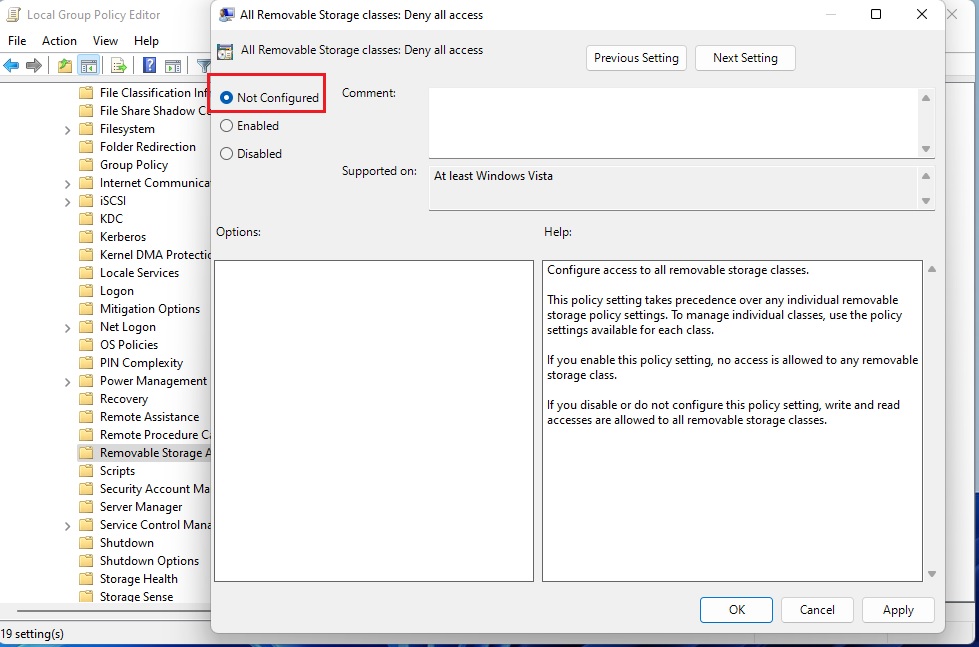
5. To revert, select Not configured.
Registry Editor Method for Windows Home
If you’re using Windows 11 Home, you can block USB drives by editing the Registry Editor, a powerful tool for changing system settings.
If you have Windows 11 Home, you must use the Registry Editor.
1. Press ⊞ Win+R, type regedit, and hit Enter.
2. Go to: HKEY_LOCAL_MACHINE\SOFTWARE\Policies\Microsoft\Windows\RemovableStorageDevices.
3. If the ‘RemovableStorageDevices’ key doesn’t exist, right-click on ‘Windows’ in the left pane, select New > Key, and name it RemovableStorageDevices.
4. Right-click the new key, select New > Key, and name it {53f5630d-b6bf-11d0-94f2-00a0c91efb8b}.
5. Right-click in the right pane, select New > DWORD (32-bit) Value, and name it Deny_Read. Set its value to 1. This blocks reading data from the drive.
6. You can repeat this for Deny_Write if you want to block saving files to the drive.
Best Practices for Administrators
- Always test policies on a single machine before deploying to a network.
- Use Deny write access if you want to allow users to read files but prevent them from stealing sensitive company data.
- Document all changes made to the registry or GPO to avoid confusion during troubleshooting.
Summary
Restricting removable storage is a vital step for data loss prevention. Whether you use the Group Policy Editor for professional editions or the Registry Editor for Home editions, you can effectively block unauthorized USB access. Always remember that these settings require administrator privileges to configure.
Can I disable USB access for specific users only?
Yes, you can use the User Configuration section in the Group Policy Editor instead of Computer Configuration. This allows you to apply the restriction to specific user accounts rather than the entire machine, ensuring that only authorized individuals can use removable storage devices on the computer.
Does disabling removable storage affect wireless mice or keyboards?
No, these policies specifically target USB mass storage class devices like flash drives and external hard drives. Your wireless mouse, keyboard, and other human interface devices (HID) will continue to function normally because they do not fall under the removable storage classification in Windows.
Was this guide helpful?

About the Author
Richard
Tech Writer, IT Professional
Richard, a writer for Geek Rewind, is a tech enthusiast who loves breaking down complex IT topics into simple, easy-to-understand ideas. With years of hands-on experience in system administration and enterprise IT operations, he’s developed a knack for offering practical tips and solutions. Richard aims to make technology more accessible and actionable. He's deeply committed to the Geek Rewind community, always ready to answer questions and engage in discussions.


No comments yet — be the first to share your thoughts!