How to Enable Recycle Bin for USB Drives and Other Removable Drives in Windows 11

You can enable a Recycle Bin for USB drives and other removable drives in Windows 11 to prevent accidental data loss.
By default, Windows 11 sends deleted files from your internal hard drive to the Recycle Bin, offering a safety net. However, files deleted directly from USB flash drives, SD cards, or external hard drives are permanently erased.
This tutorial shows you how to configure Windows 11 so that files deleted from removable media are also sent to a dedicated Recycle Bin for that drive. This simple adjustment ensures you have a chance to recover accidentally deleted files from your portable storage.
Enable a Recycle Bin for removable drives by editing the Windows Registry. Navigate to 🗝️HKEY_CURRENT_USERSoftwareMicrosoftWindowsCurrentVersionPoliciesExplorer and 🗝️HKEY_LOCAL_MACHINESOFTWAREMicrosoftWindowsCurrentVersionPoliciesExplorer, create a DWORD value named RecycleBinDrives, and set its data to ffffffff. Restart your computer to apply the changes.
Why Enable Recycle Bin for Removable Drives?
- Protect your files from being lost by mistake.
- Deleted files from USB drives will go to Recycle Bin first, so you can restore them.
- You get extra peace of mind when working with external drives.
Step-by-Step: How to Enable Recycle Bin for USB and Other Removable Drives
Follow these easy steps carefully. You will be using the Windows Registry Editor — a tool that controls important settings for your system. Don’t worry, we’ll guide you through!
Step 1Open the Registry Editor
- Press Windows key + R on your keyboard.
- Type
regeditand press Enter. - [Admin Privileges Required] If asked “Do you want to allow this app to make changes?”, click Yes.
Opening the Registry Editor is the first step to making your recycle bin work on removable drives like USB sticks.
Step 2Go to the First Folder Path
In the Registry Editor, use the left sidebar to navigate to:
HKEY_CURRENT_USER\Software\Microsoft\Windows\CurrentVersion\Policies\ExplorerStep 3Check for the Explorer Folder
If you don’t see the Explorer folder under Policies, right-click on Policies, select New > Key, and name it Explorer.
Step 4Create a New Value
- Click on the Explorer folder.
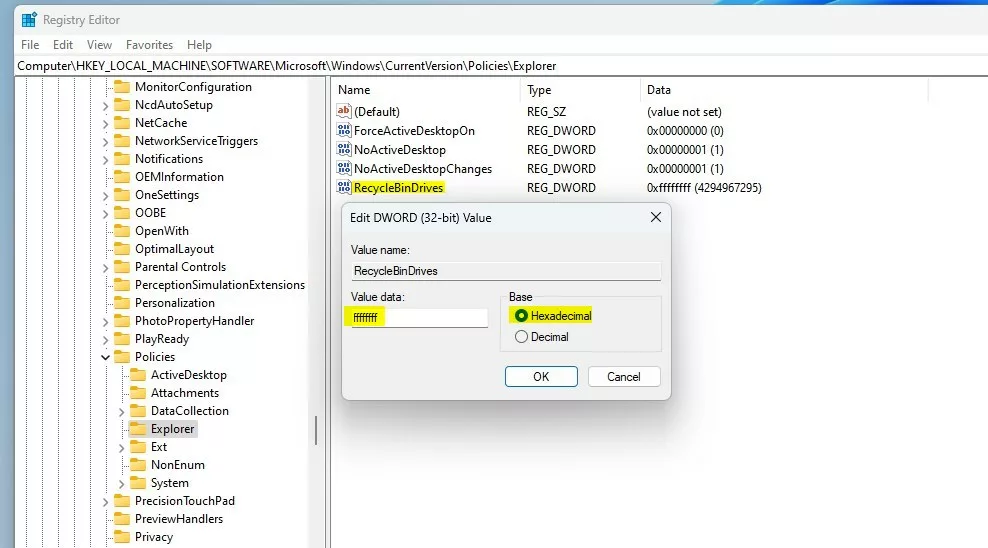
- On the right side, right-click on empty space, select New > DWORD (32-bit) Value.
- Name it RecycleBinDrives.
Step 5Set the Value to Enable Recycle Bin
- Double-click the new RecycleBinDrives entry.
- In the window that opens, select Hexadecimal under Base.
- Type
ffffffffin the Value data box. - Click OK.
Step 6Repeat for the Second Folder Path
Navigate to:
HKEY_LOCAL_MACHINE\SOFTWARE\Microsoft\Windows\CurrentVersion\Policies\ExplorerThen repeat Steps 3 to 5 here as well.
Step 7Close the Registry Editor
Exit the Registry Editor when you’re done.
Step 8 Restart Your Computer
Restart your computer to apply the changes.
What to Expect Now
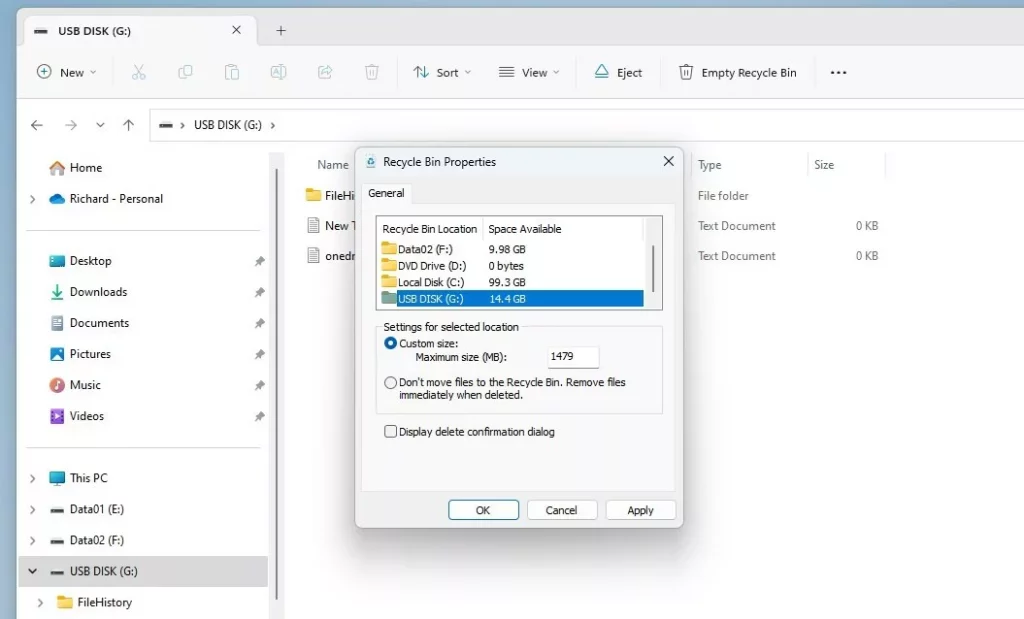
Once you’ve made this change, files you delete from your USB drive or memory card will go to a special recycle bin right on that drive, hidden inside a folder called $Recycle.Bin.
This folder is named $Recycle.Bin and is hidden by default.
To see hidden files and folders, you can follow this simple guide: Show Hidden Files in Windows 11.
Summary
Turning on the recycle bin for removable drives gives you an extra layer of safety for your files on USB sticks and memory cards. This process involves editing the Windows Registry, but it’s straightforward if you follow the steps carefully.
How to create a Recycle Bin in a USB drive?
And set the value data as FF f. Once done click the okay. Button close all windows. And sign out of your user. Account then sign into your account to get the change.
How to get rid of old USB drives?
if the USB device has never contained sensitive information simply remove all files from it and throw it away. if it contains or may have contained low to medium sensitive informations, use a wiping software to erase it more securely and throw it away.
Was this guide helpful?

About the Author
Richard
Tech Writer, IT Professional
Richard, a writer for Geek Rewind, is a tech enthusiast who loves breaking down complex IT topics into simple, easy-to-understand ideas. With years of hands-on experience in system administration and enterprise IT operations, he’s developed a knack for offering practical tips and solutions. Richard aims to make technology more accessible and actionable. He's deeply committed to the Geek Rewind community, always ready to answer questions and engage in discussions.



No comments yet — be the first to share your thoughts!