How to Enable or Disable Windows Update Delivery Optimization

Windows Update Delivery Optimization is a feature that lets your PC share update files with other computers, speeding up downloads.
This peer-to-peer technology allows your Windows 10 or Windows 11 device to download update pieces from nearby PCs and the internet, and in turn, upload those pieces to other devices. It’s designed to reduce bandwidth usage and download times, especially when you have multiple Windows machines.
By default, Delivery Optimization is often enabled in Windows, and it works in the background. You can choose to disable it if you prefer your PC to only download updates directly from Microsoft’s official servers, giving you full control over your internet traffic.
Enable or disable Windows Update Delivery Optimization by going to Settings, then Windows Update, Advanced options, and toggling “Allow downloads from other PCs” on or off. This setting controls whether your PC shares update files with other devices on your network or the internet.
Security and Privacy Implications
Windows Update Delivery Optimization is generally safe, as Microsoft checks that update files are real, but some people prefer to turn it off to stop background data sharing.
Bandwidth Throttling and Network Impact
Yes, Windows Update Delivery Optimization can use your internet bandwidth to upload updates to other PCs on the network.
How to Check if Delivery Optimization is Active
You can see if it is working by opening Task Manager. Press Ctrl+Shift+Esc. Click the Performance tab and look at your Ethernet or Wi-Fi usage. If you see high activity while no apps are open, Delivery Optimization might be sharing files.
How to Change Settings in 🪟 Windows 11
- Open the Windows Settings app.
- Select Windows Update on the left side.
- Click on Advanced options.
- Look for the Delivery Optimization tile under “Additional options” and click it.
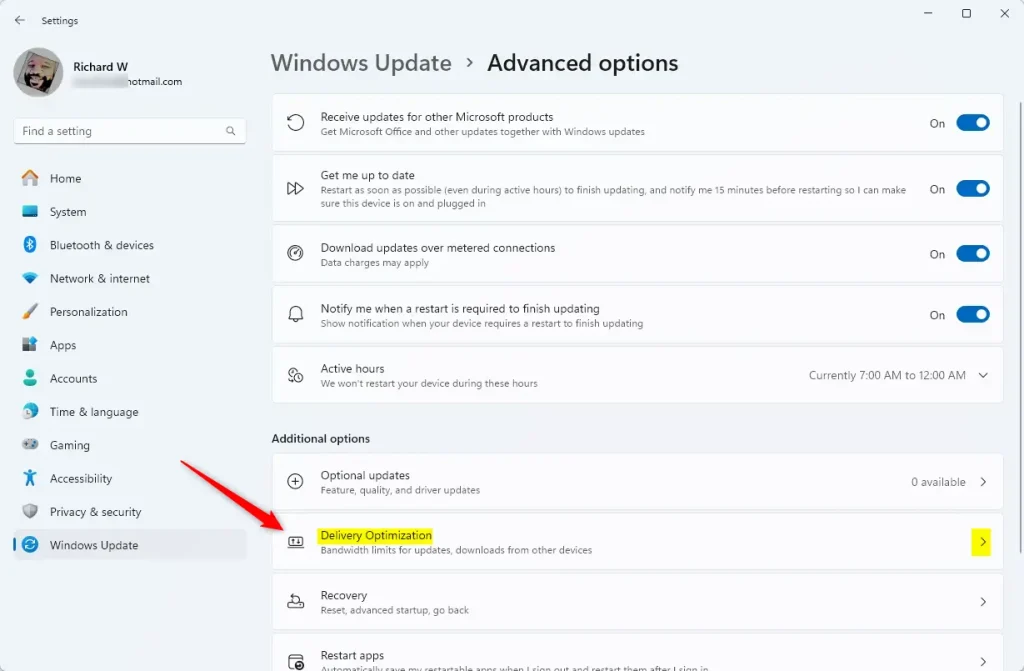
- Click on Allow downloads from other PCs.
- Toggle the switch to On or Off.
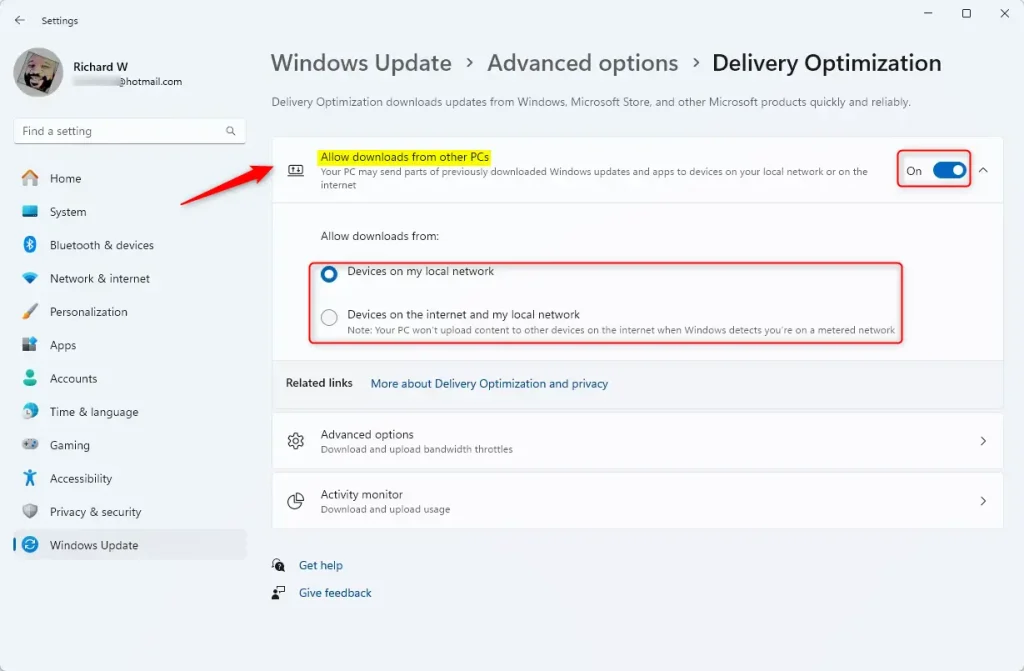
Changing your Windows Update Delivery Optimization settings in Windows 11 is straightforward and can be done directly through the Settings app.
Advanced Method: Using the Registry Editor
You can disable or change Windows Update Delivery Optimization using the Registry Editor, but this advanced method requires administrator access and caution.
- Press the Windows key, type
regedit, and press Enter. - Navigate to:
HKEY_LOCAL_MACHINE\SOFTWARE\Policies\Microsoft\Windows\DeliveryOptimization - Look for
DODownloadMode. If it is not there, right-click, select New > DWORD (32-bit) Value, and name itDODownloadMode. - Double-click
DODownloadModeand enter:- 0: Disable Delivery Optimization.
- 1: Enable for local network only.
- 3: Enable for local network and the internet.
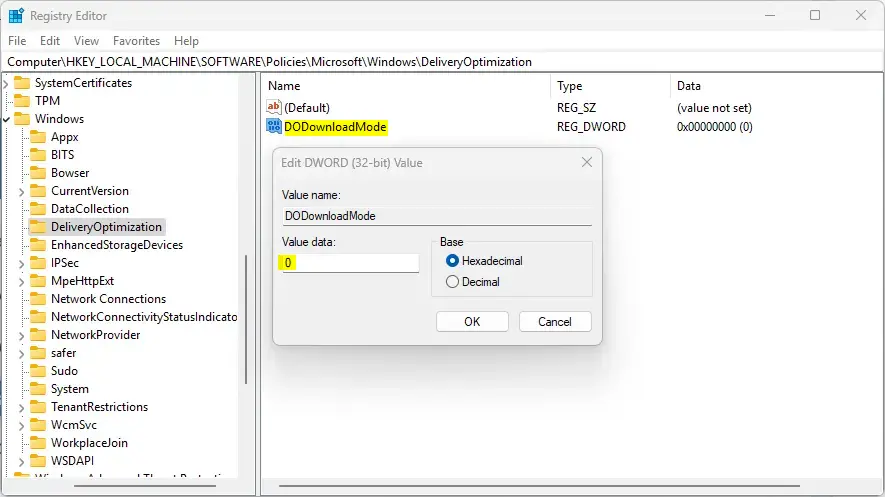
Restart your computer to apply the changes.
How to Clear the Delivery Optimization Cache
If you have disk space issues, you can clear the cache. Go to Settings > System > Storage > Temporary files. Select Delivery Optimization Files and click Remove files.
Summary
Windows Update Delivery Optimization is a tool for faster updates using P2P technology. While efficient, it can impact your bandwidth. You can manage these settings in the Windows Settings app or via the Registry Editor. Always monitor your data usage if you have a limited internet plan.
Is Delivery Optimization safe for metered connections?
Yes, Windows is smart enough to detect metered connections. If you set your Wi-Fi or Ethernet connection as metered in Windows settings, Delivery Optimization will automatically pause background uploads and downloads to prevent you from exceeding your data limit.
Was this guide helpful?

About the Author
Richard
Tech Writer, IT Professional
Richard, a writer for Geek Rewind, is a tech enthusiast who loves breaking down complex IT topics into simple, easy-to-understand ideas. With years of hands-on experience in system administration and enterprise IT operations, he’s developed a knack for offering practical tips and solutions. Richard aims to make technology more accessible and actionable. He's deeply committed to the Geek Rewind community, always ready to answer questions and engage in discussions.



Absolutely DOES NOT WORK.,
it is not working