How to Reset Network Data Usage Stats in Windows 11

You reset your Windows 11 network data usage stats by clearing the operating system’s tracked usage history.
Windows 11 monitors your internet data consumption to help you manage monthly limits or diagnose slow connections. This action specifically removes the usage history, leaving your network adapters and saved Wi-Fi passwords untouched.
This is incredibly useful when you need to accurately monitor your current month’s data usage, especially if you have a strict data cap. It gives you a clean slate for tracking without affecting your internet connectivity or forcing you to re-enter Wi-Fi details.
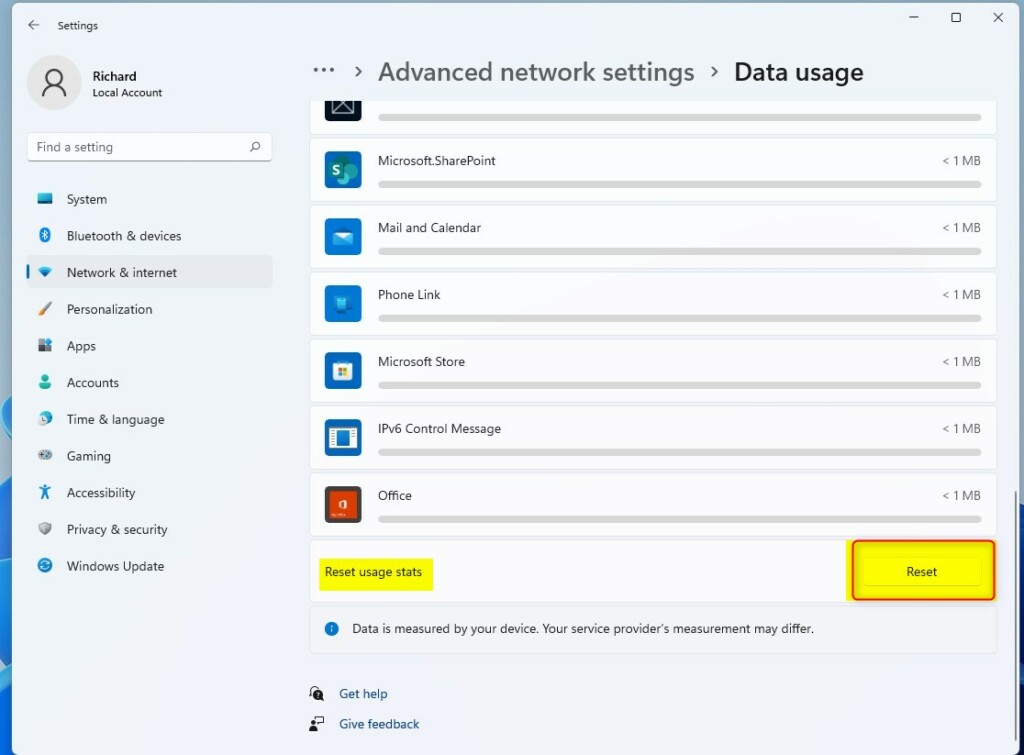
You reset network data usage stats by going to Settings > Network & internet > Data usage, then clicking Reset next to Reset usage stats. This clears your tracked data history, allowing you to start fresh.
How to Reset Network Data Usage
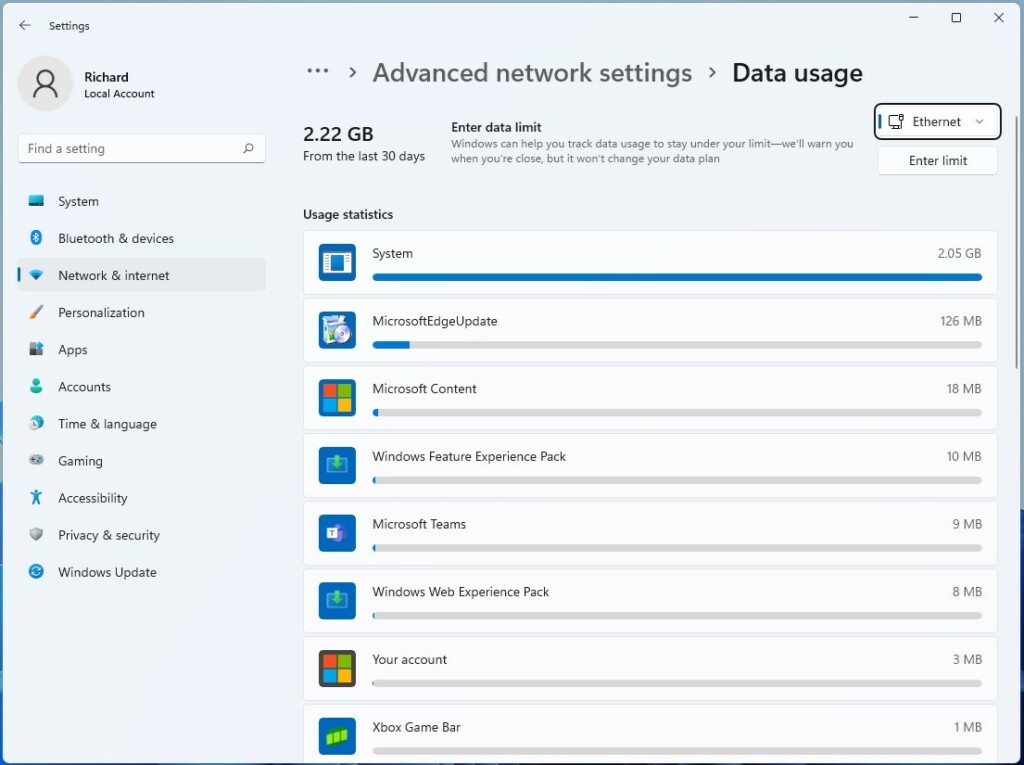
Resetting your network data usage stats in Windows 11 clears the counter, showing you exactly how much data apps have used over the last 30 days.
1. Open Settings by pressing Windows key + I.
2. Click Network & internet on the left.
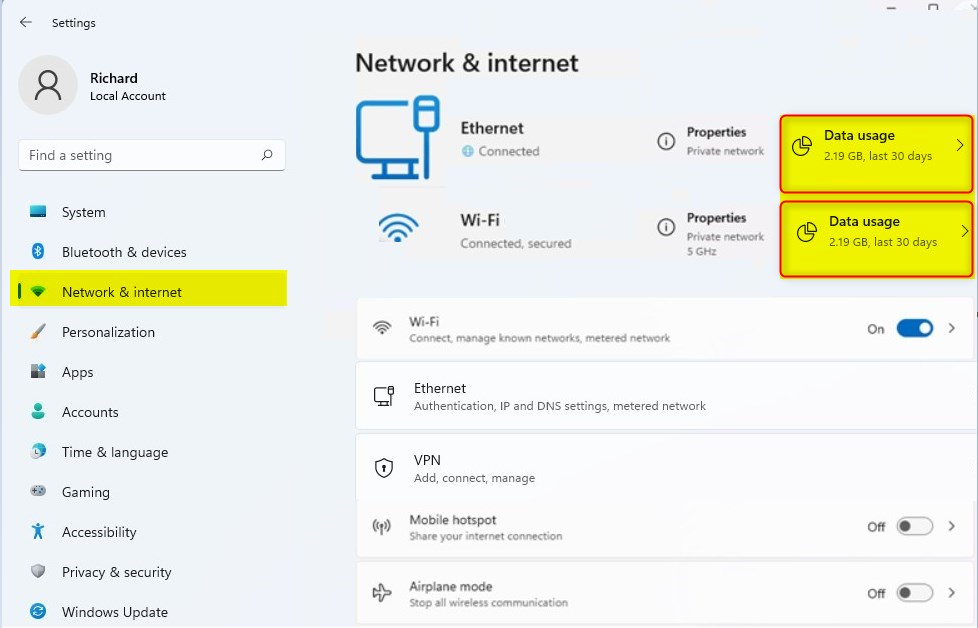
3. Click Data usage.
4. Scroll down and click Reset next to Reset usage stats.
Full Network Adapter Reset
A full network adapter reset in Windows 11 can fix slow internet or connection problems by refreshing your network settings, but be aware it removes saved Wi-Fi passwords and VPN setups.
Admin Privilege Required: You must be signed in as an administrator.
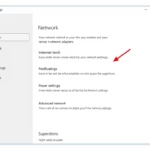
- Open Settings and go to Network & internet.
- Click Advanced network settings.
- Select Network reset.
- Click Reset now and confirm.
What happens when done? Your computer will restart. Windows will reinstall your network drivers and set all network components back to their original factory state.
Pro Tip: Command Line Troubleshooting
For those comfortable with advanced tools, you can also fix connectivity issues using the command line. Admin Privilege Required: Run Command Prompt as an administrator.
netsh winsock reset
ipconfig /flushdns
Why bother? This clears out the TCP/IP stack and DNS cache, which often solves tricky connection problems.
Summary
You now know how to clear your data usage stats and perform a full network reset. Use the data reset to track your monthly bandwidth. Use the network reset only when you face persistent connectivity issues. Always remember to back up your Wi-Fi passwords before performing a full reset.
Does resetting network settings delete my files?
No, resetting your network settings does not delete your personal files or documents. It only removes network-related information, such as saved Wi-Fi passwords, Bluetooth pairings, and VPN settings. Your apps and personal data remain completely safe during this process.
Why do I need to restart my PC after a network reset?
You need to restart your PC after a network reset because Windows must fully reload your network adapter drivers, ensuring all old settings are cleared and new ones are applied correctly.
Was this guide helpful?

About the Author
Richard
Tech Writer, IT Professional
Richard, a writer for Geek Rewind, is a tech enthusiast who loves breaking down complex IT topics into simple, easy-to-understand ideas. With years of hands-on experience in system administration and enterprise IT operations, he’s developed a knack for offering practical tips and solutions. Richard aims to make technology more accessible and actionable. He's deeply committed to the Geek Rewind community, always ready to answer questions and engage in discussions.

No comments yet — be the first to share your thoughts!