How to View Delivery Optimization Activity Monitor in Windows 11

Did you know your Windows 11 computer shares update files with other PCs? This feature, called Delivery Optimization, helps your computer get updates faster. It also saves your internet data by sharing files with other PCs on your network or online.
Why does this matter? If your internet plan has a data limit, it’s helpful to know how much data your PC is using. Checking this helps you manage your network usage.
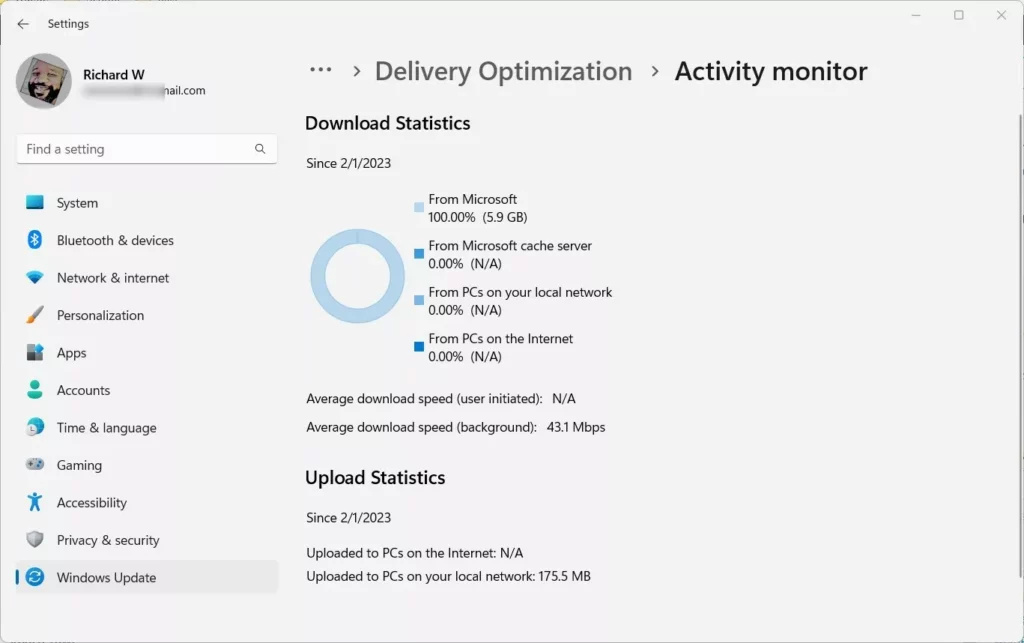
What happens when done? You will see a clear report of how much data your computer has downloaded or uploaded while updating Windows.
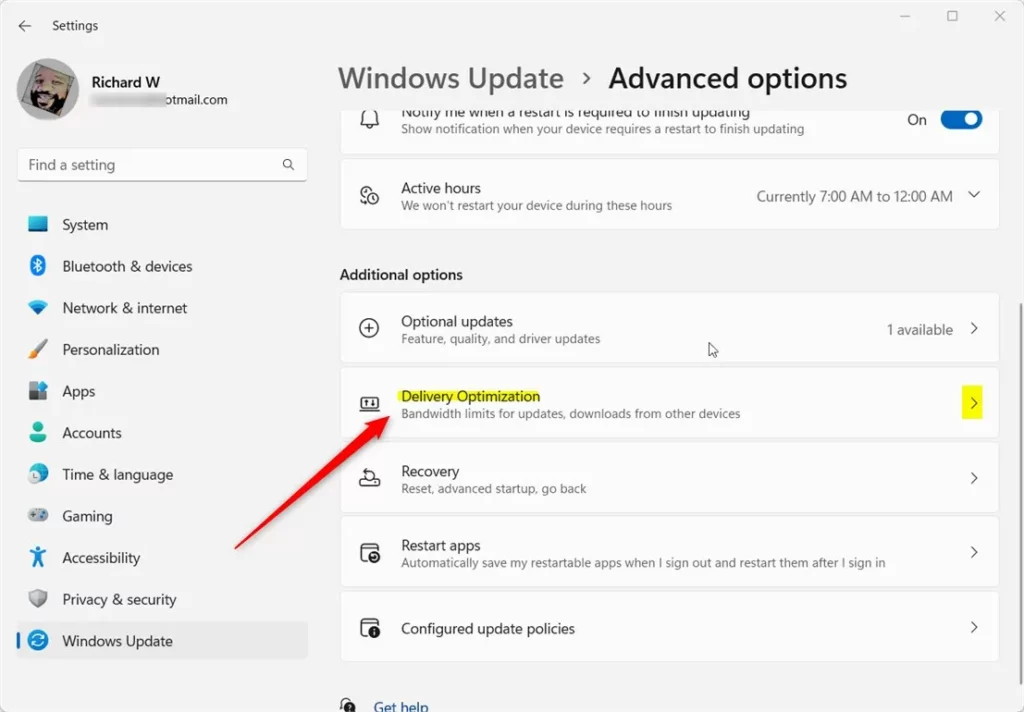
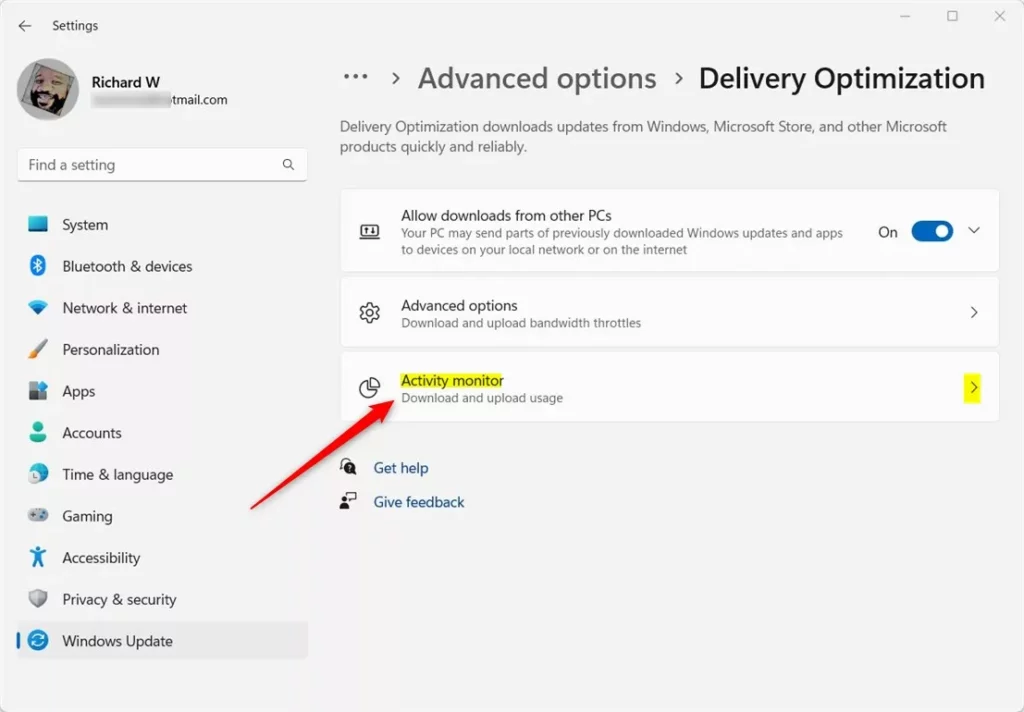
Open Settings, navigate to Windows Update, then Advanced options, and select Delivery Optimization. Click Activity monitor to view your download and upload data usage for Windows updates.
How to Check Your Windows Update Data Usage
You can easily check your Windows update data usage by opening the Settings app and navigating to the Windows Update section. From there, you’ll find advanced options where Delivery Optimization keeps track of how much bandwidth your PC uses for downloads and uploads.
- Open Settings: Click the Start menu, then click Settings. You can also press
Windows key + Ion your keyboard to open Settings quickly. - Go to Windows Update: Click Windows Update on the left menu.
- Open Advanced Options: Click the Advanced options button on the right.
- Find Delivery Optimization: Scroll down and click on the Delivery Optimization section.
- Open Activity Monitor: Click on Activity monitor
- View Your Data Usage: Here you can see how much data your PC has downloaded and uploaded.
Note: These steps do not require admin privileges. You can view this information using any standard user account.
More Information
If you want to turn this feature off or change how it works, check out this guide: How to Turn Off or On Update Delivery Optimization in Windows 11.
Summary
The Delivery Optimization Activity monitor in Windows 11 shows you how much internet bandwidth your PC uses for updates by sharing files with other computers. You can find this tool in Settings under Windows Update, helping you manage your data usage effectively.
How do you stop Windows from taking your bandwidth?
Off. You have now stopped your PC from being a distribution hub for everyone else on the web. By disabling it, you tell Windows to only download updates from Microsoft.
Was this guide helpful?

About the Author
Richard
Tech Writer, IT Professional
Richard, a writer for Geek Rewind, is a tech enthusiast who loves breaking down complex IT topics into simple, easy-to-understand ideas. With years of hands-on experience in system administration and enterprise IT operations, he’s developed a knack for offering practical tips and solutions. Richard aims to make technology more accessible and actionable. He's deeply committed to the Geek Rewind community, always ready to answer questions and engage in discussions.


No comments yet — be the first to share your thoughts!