How to Turn On or Off Narrator Emphasis in Windows 11

You can turn Narrator emphasis on or off in Windows 11 to control how it highlights important text during read-aloud.
Narrator is Windows 11’s built-in screen reader. It reads out on-screen content aloud, helping users with visual impairments or anyone who prefers audio feedback.
Emphasis is a Narrator setting that makes certain text stand out when read. Think of things like headings or links. You can enable or disable this feature to tailor your listening experience.
For instance, when emphasis is on, Narrator might say “Heading level 1” before announcing the text of a heading.
Open Settings, go to Accessibility, then Narrator, and under Verbosity, toggle “Emphasize formatted text” on or off. This feature adds vocal cues for headings or links when Narrator reads them.
Why Turn On Narrator Emphasis?
- It helps you notice important words or phrases when Narrator reads.
- Some people like hearing this extra emphasis to understand the text better.
- Others prefer a simple, clear voice without extra emphasis.
How to Enable or Disable Narrator Emphasis on Formatted Text
You can turn Narrator emphasis on or off in Windows 11 settings to help you focus on important text when the screen reader is active.
- Open Windows Settings: Click the Start menu (the Windows icon at the bottom left). Then click Settings. Or press Windows key + I on your keyboard to open Settings directly. Learn more about opening Settings.
- Go to Accessibility: In the Settings window, click Accessibility from the menu on the left side.
- Find Narrator settings: On the right side, scroll down and click on the Narrator section to open more options.
- Change the emphasis setting: Look for the section called Verbosity. Click on Verbosity level to expand it. You will see an option labeled “Emphasize formatted text.” Use the switch to turn this on or off.
- Close Settings: When you’re done, just close the Settings window. Your choice will be saved automatically.
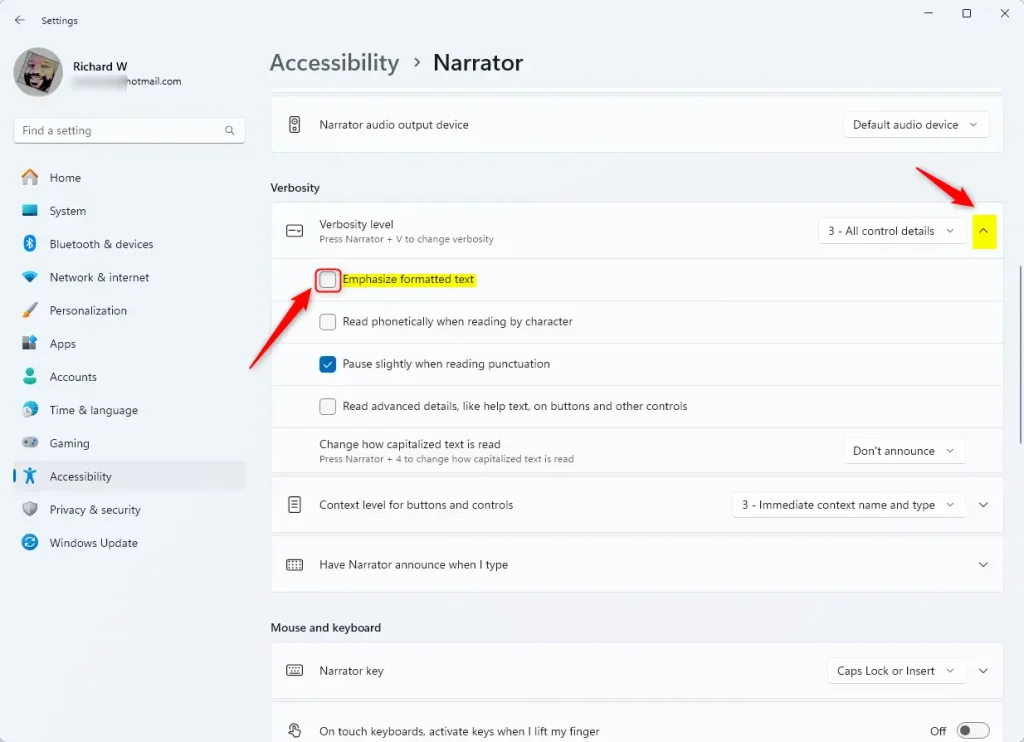
That’s it! Now Narrator will read formatted text with or without extra emphasis, based on your choice.
Summary
Narrator emphasis in Windows 11 helps you focus on key words when the screen reader is active, and you can easily turn this feature on or off in your Accessibility settings.
You can turn this emphasis on or off in Settings under Accessibility > Narrator > Verbosity.
This feature makes Narrator more helpful for people with low vision, or for people who want clearer audio cues.
Follow the steps above anytime you want to change this setting.
If you want to learn more about using Narrator, check out this full Narrator guide.
How do I reset Narrator settings?
To restore all commands to their default settings, select ‘Restore all defaults’. To find this setting, press Alt+Tab after Narrator launches, select the Narrator Settings window, and choose Commands.
Was this guide helpful?

About the Author
Richard
Tech Writer, IT Professional
Richard, a writer for Geek Rewind, is a tech enthusiast who loves breaking down complex IT topics into simple, easy-to-understand ideas. With years of hands-on experience in system administration and enterprise IT operations, he’s developed a knack for offering practical tips and solutions. Richard aims to make technology more accessible and actionable. He's deeply committed to the Geek Rewind community, always ready to answer questions and engage in discussions.



No comments yet — be the first to share your thoughts!