How to Enable or Disable Narrator in Windows 11

You can easily enable or disable Narrator, Windows 11’s built-in screen reader, through the Settings app to manage your PC’s accessibility.
Narrator is a powerful tool that reads aloud on-screen text, buttons, and other elements, making it essential for users with visual impairments to navigate their computer effectively.
It announces application content as you interact with it, and its Scan Mode even helps you navigate web pages by letting you jump between headings, links, and paragraphs just by listening.
Press ⊞ Win+Ctrl+Enter to instantly enable or disable Narrator. You can also open Settings, go to Accessibility, then Narrator, and use the “Use Narrator” toggle.
Ways to Launch Narrator
| Method | Action |
|---|---|
| Keyboard Shortcut | Press ⊞ Win+Ctrl+Enter |
| Settings Menu | Go to Settings > Accessibility > Narrator |
| Voice Command | Say “Hey Cortana, turn on Narrator” |
How to Enable or Disable Narrator
You can manage this feature through the Windows Settings menu. No special software is needed.
1. Open the Settings app. You can do this by pressing Windows key + I.
2. In the menu on the left, click Accessibility. Then, select Narrator.
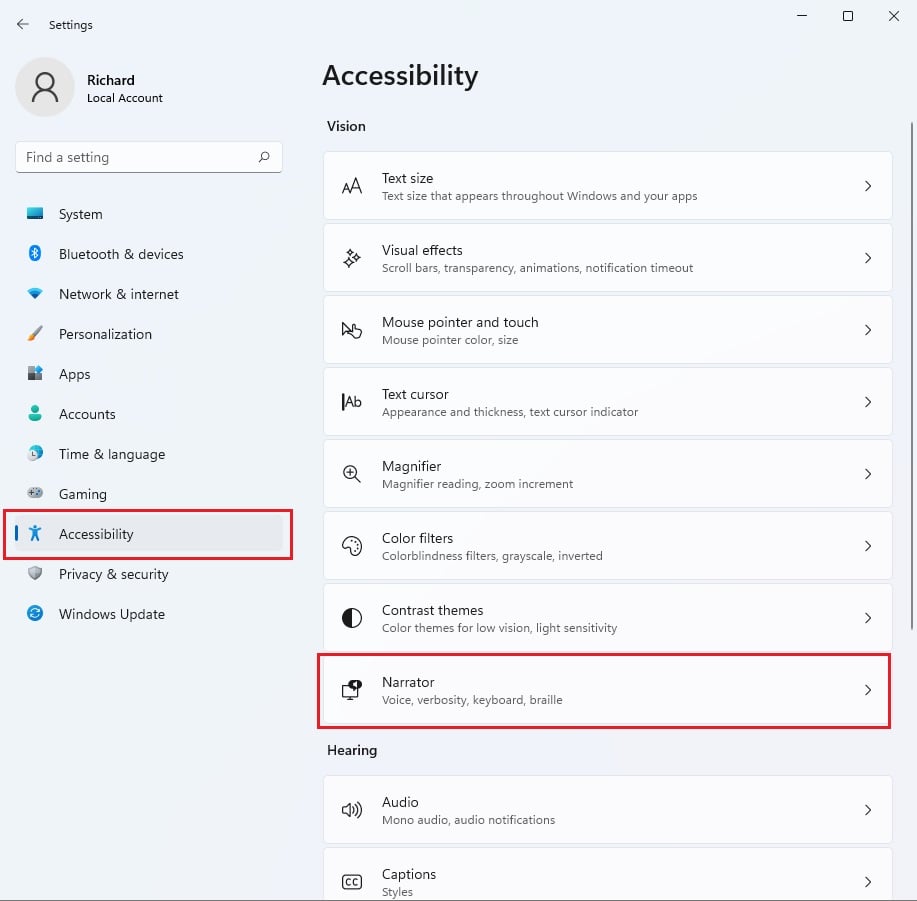
3. Look for the Use Narrator toggle. Click it to turn the feature On or Off.
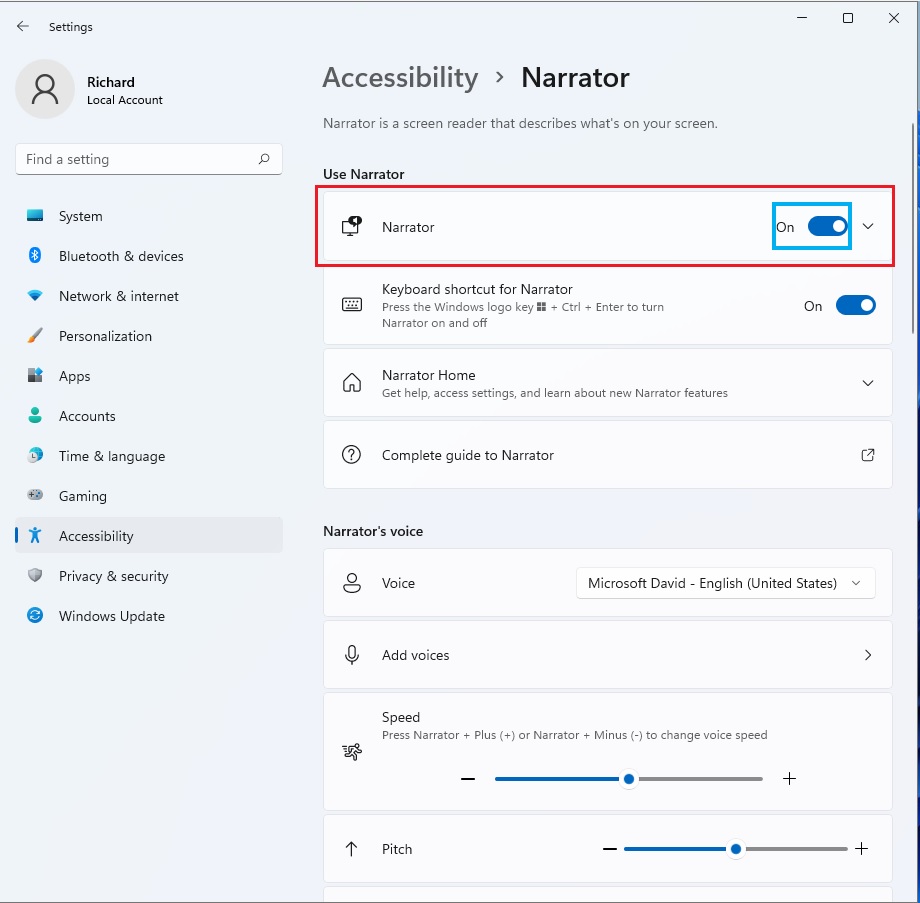
Customizing Narrator: Voice, Speed, and Pitch
You can make Narrator sound more natural. In the Narrator settings menu, look for Narrator’s voice. You can choose different Natural Voices for a smoother experience. Use the sliders to adjust the Speed, Pitch, and Volume until it sounds comfortable for you.
How to Stop Narrator from Starting Automatically
If Narrator starts every time you log in, you can disable this behavior. Go to Settings > Accessibility > Narrator. Uncheck the box labeled Start Narrator after sign-in. This ensures you only use it when you actually need it.
Narrator Keyboard Shortcuts
You do not need a mouse to use Narrator. Use the Caps Lock key or Insert key as your main control key. For example, press Caps Lock + F1 to see a full list of commands. Use Caps Lock + Arrow Keys to move through items on the screen.
Troubleshooting Narrator
If Narrator stops working, try restarting the process. Press Ctrl+Shift+Esc to open Task Manager. Find Narrator in the list, right-click it, and select ‘End task’. Then, press ⊞ Win+Ctrl+Enter to restart it. If you encounter errors with system files, you might need to check your installation. You can do this using the command prompt, which requires administrator privileges:
sfc /scannow
Summary
Narrator is a powerful accessibility tool in Windows 11. You can control it using the ⊞ Win+Ctrl+Enter shortcut or the Accessibility settings menu. By customizing the voice, speed, and pitch, you can create a comfortable text-to-speech experience. Remember to use keyboard shortcuts like Caps Lock to navigate without a mouse.
How do I change the Narrator voice in 🪟 Windows 11?
Open Settings and go to Accessibility, then Narrator. Under the Narrator voice section, click the dropdown menu to select a new voice. You can also click ‘Add’ to download additional Natural Voices provided by Microsoft for a more human-like reading experience while using your computer.
Can I use Narrator without a mouse?
Yes, Narrator is designed to be fully functional with just a keyboard. You can use the Tab key to move between items, the Arrow keys to navigate menus, and the Enter key to select options. The Caps Lock key acts as a modifier for advanced navigation commands.
Was this guide helpful?

About the Author
Richard
Tech Writer, IT Professional
Richard, a writer for Geek Rewind, is a tech enthusiast who loves breaking down complex IT topics into simple, easy-to-understand ideas. With years of hands-on experience in system administration and enterprise IT operations, he’s developed a knack for offering practical tips and solutions. Richard aims to make technology more accessible and actionable. He's deeply committed to the Geek Rewind community, always ready to answer questions and engage in discussions.



What is a printer driver and how to find the path where file is located? I followed you until the completeing thank you
w
how too,find the printer driver i followed you along but at the end did not know how to find printer driver,file and path