How to Auto Start Narrator in Windows 11

You auto-start Narrator in Windows 11 by enabling the “Start Narrator when I sign in” option within the Narrator settings. Narrator is Windows 11’s powerful built-in screen reader, designed to vocalize on-screen text for users who benefit from auditory feedback.
This quick configuration ensures Narrator launches automatically every time you sign in to your PC. It’s a vital step for users who rely on its accessibility features from the moment Windows 11 starts up, eliminating the need for manual activation like the ⊞ Win+Ctrl+Enter shortcut.
By default, Narrator requires manual activation, but setting it to auto-start provides immediate auditory assistance. This feature makes your Windows 11 experience more accessible right from the login screen.
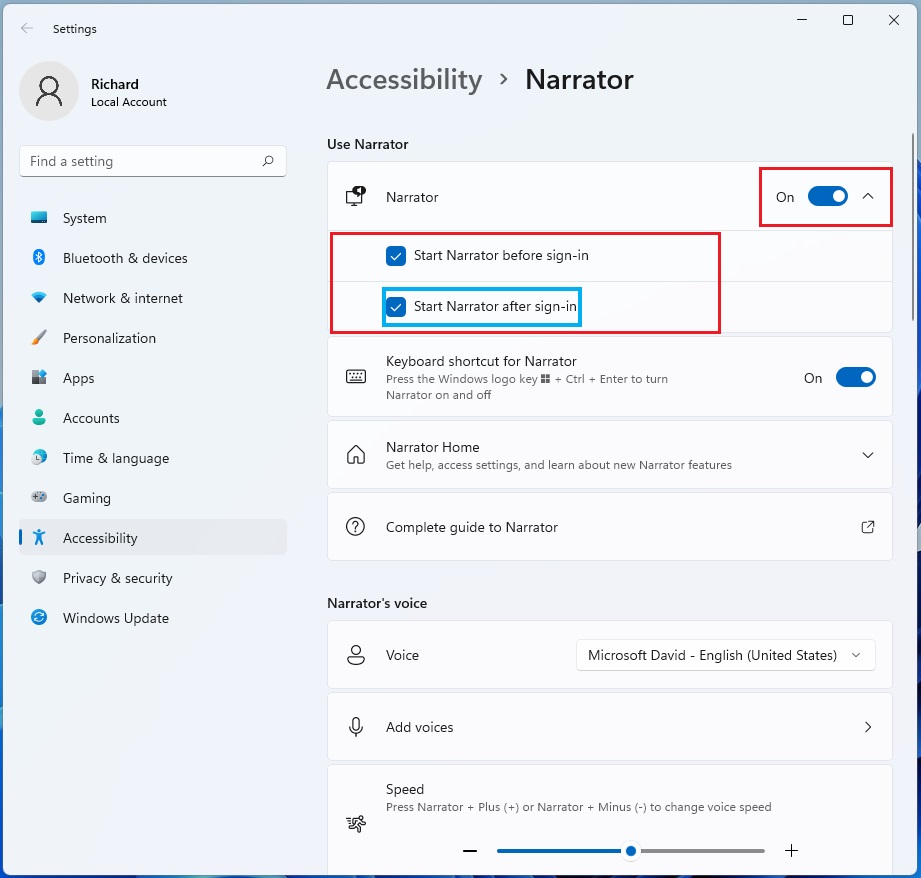
Open Settings, go to Accessibility, then Narrator. Expand Narrator settings and check “Start Narrator before sign-in” and “Start Narrator after sign-in” to enable automatic startup.
How to turn on automatic Narrator
You can auto start Narrator in Windows 11 directly from the Settings app by following a few simple steps.
You can also type “Settings” into the search bar on your taskbar. Once the Settings window opens, click on Accessibility on the left side. Then, click on Narrator on the right side of the screen.
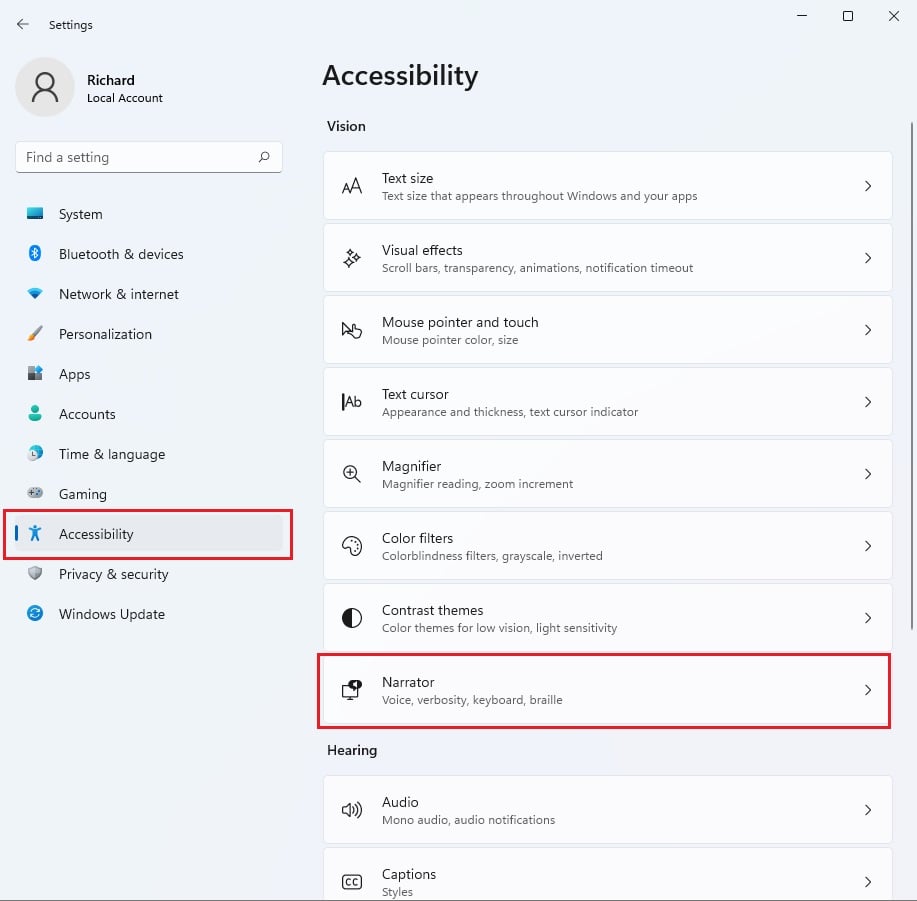
Look for the Use Narrator section. You can toggle the switch to On to activate it. To have it start automatically, click the arrow to expand the Narrator settings. Check the boxes for the following options:
- Start Narrator before sign-in
- Start Narrator after sign-in
If you want to open these settings quickly in the future, press the Windows key + Ctrl+N on your keyboard.
Advanced Configuration via Registry
For advanced users wanting to auto start Narrator in Windows 11, you can use the Registry Editor.
HKEY_CURRENT_USER\Software\Microsoft\Narrator\NoRoam
Navigate to the path above. You can modify the AutoStart value to 1 to enable it. Be careful: changing registry settings can affect system stability.
How to disable Narrator
If you no longer need it, go to Settings > Accessibility > Narrator. Toggle the switch to Off. You should also uncheck the boxes for starting before and after sign-in to prevent it from launching on its own.
Troubleshooting Common Issues
If Narrator fails to start, check your Ease of Access settings. Ensure your audio drivers are updated. If the ⊞ Win+Ctrl+Enter shortcut isn’t working, check if your keyboard has a custom profile that might be blocking system shortcuts. For more technical details, visit the official Microsoft accessibility documentation.
Summary
Making Narrator auto start in Windows 11 is a simple way to boost your PC’s accessibility right from login.
Does Narrator start automatically after a Windows update?
Generally, Windows updates preserve your existing accessibility settings. However, if a major feature update resets your preferences, you may need to navigate back to the Accessibility settings menu to re-enable the automatic startup options for Narrator to ensure it continues to launch as expected during your login process.
Was this guide helpful?

About the Author
Richard
Tech Writer, IT Professional
Richard, a writer for Geek Rewind, is a tech enthusiast who loves breaking down complex IT topics into simple, easy-to-understand ideas. With years of hands-on experience in system administration and enterprise IT operations, he’s developed a knack for offering practical tips and solutions. Richard aims to make technology more accessible and actionable. He's deeply committed to the Geek Rewind community, always ready to answer questions and engage in discussions.



No comments yet — be the first to share your thoughts!