How to Auto Start Narrator in Windows 11

You can auto-start Narrator in Windows 11 by configuring its settings to launch at sign-in.
Narrator is Windows 11’s built-in screen reader, designed to read on-screen text aloud to assist users. This guide shows you how to make it launch automatically when you turn on your PC.
Setting up Narrator to start automatically is a key accessibility feature, ensuring users with visual impairments have immediate audio feedback upon system startup. This bypasses the need to manually activate the screen reader with the ⊞ Win+Ctrl+Enter shortcut each time.
Once configured, Narrator will begin reading aloud as soon as you log in, providing a seamless accessibility experience from the moment your Windows 11 PC is ready.
How to turn on automatic Narrator
You can get to your settings by pressing the Windows key + I on your keyboard. You can also click Start, then click Settings.
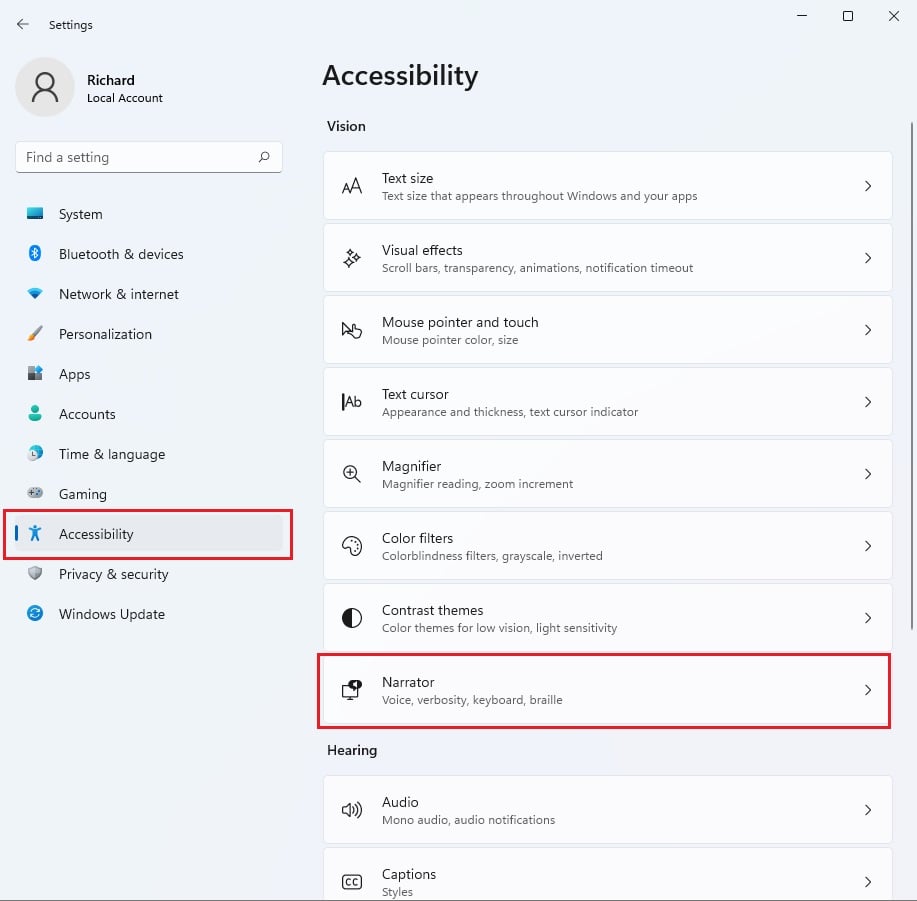
You can also type “Settings” into the search bar on your taskbar to find it quickly. Once the Settings window opens, click on Accessibility on the left side. Then, click on Narrator on the right side of the screen.
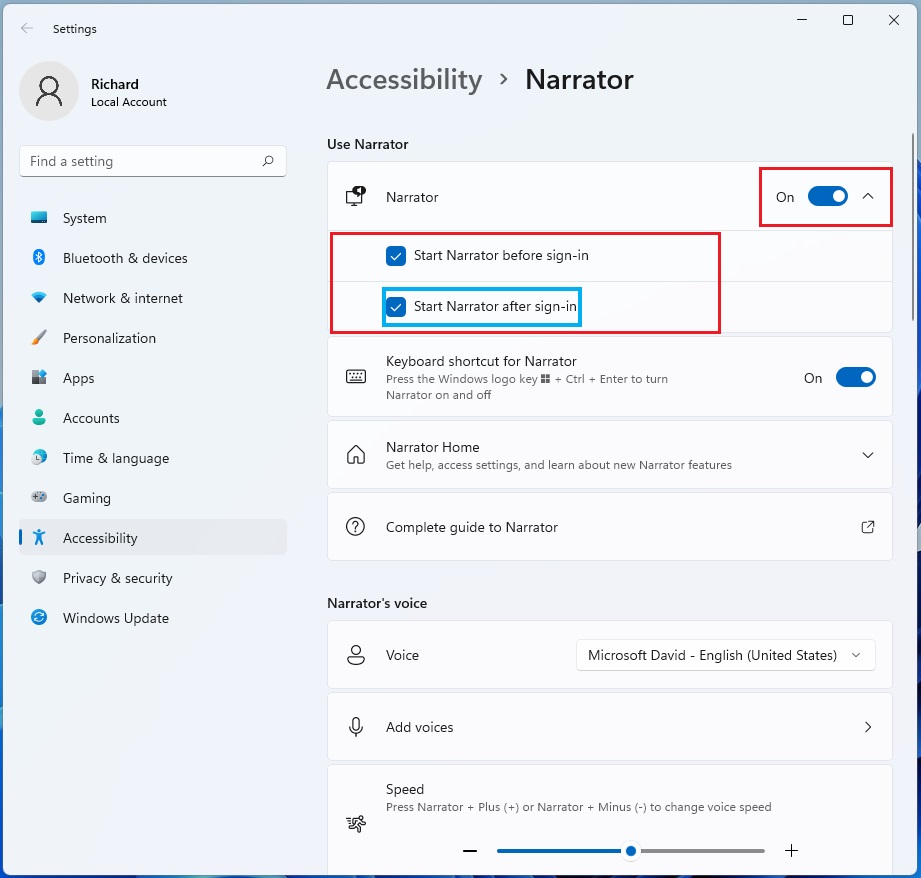
Look for the Use Narrator section. You can toggle the switch to On to activate it. To have it start automatically, click the arrow to expand the Narrator settings. Check the boxes for the following options:
- Start Narrator before sign-in
- Start Narrator after sign-in
If you want to open these settings quickly in the future, just press the Windows key + Ctrl+N on your keyboard.
Advanced Configuration via Registry
Note: This step requires admin privileges. You can also force Narrator to start using the Registry Editor. Press ⊞ Win+R, type regedit, and press Enter.
HKEY_CURRENT_USER\Software\Microsoft\Narrator\NoRoam
Navigate to the path above. You can modify the AutoStart value to 1 to enable it. Be careful, as changing registry settings can affect system stability.
How to disable Narrator
If you no longer need it, go to Settings > Accessibility > Narrator. Toggle the switch to Off. You should also uncheck the boxes for starting before and after sign-in to prevent it from launching on its own.
Troubleshooting Common Issues
If Narrator fails to start, check your Ease of Access settings. Ensure your audio drivers are updated. If the shortcut ⊞ Win+Ctrl+Enter does not work, verify that your keyboard is not using a custom profile that blocks system shortcuts. For more technical details, visit the official Microsoft accessibility documentation.
Summary
Setting up Narrator to start automatically is a great way to make your PC more accessible. By visiting the Accessibility section in your Settings, you can choose to have the tool start before or after you log in. This ensures you have the support you need as soon as you sit down at your computer. For more tips, check out How to turn On or Off Narrator in Windows 11.
Does Narrator start automatically after a Windows update?
Generally, Windows updates preserve your existing accessibility settings. However, if a major feature update resets your preferences, you may need to navigate back to the Accessibility settings menu to re-enable the automatic startup options for Narrator to ensure it continues to launch as expected during your login process.
Was this guide helpful?

About the Author
Richard
Tech Writer, IT Professional
Richard, a writer for Geek Rewind, is a tech enthusiast who loves breaking down complex IT topics into simple, easy-to-understand ideas. With years of hands-on experience in system administration and enterprise IT operations, he’s developed a knack for offering practical tips and solutions. Richard aims to make technology more accessible and actionable. He's deeply committed to the Geek Rewind community, always ready to answer questions and engage in discussions.



No comments yet — be the first to share your thoughts!