How to Turn On or Off Narrator Emphasis in Windows 11

This guide will help you learn how to make the Windows Narrator highlight important text when it reads aloud. Or turn this feature off if you prefer.
Narrator is a tool built into Windows 11 that reads what’s on your screen out loud. It’s very useful if you have trouble seeing the screen. Or if you just want to listen instead of read.
You can customize Narrator in many ways. You can change its voice, speed, and volume. You can also decide if it should make important or formatted text stand out when reading. This guide focuses on how to turn on or off the feature that emphasizes formatted text.
Why Turn On Narrator Emphasis?
- It helps you notice important words or phrases when Narrator reads.
- Some people like hearing this extra emphasis to understand the text better.
- Others prefer a simple, clear voice without extra emphasis.
How to Enable or Disable Narrator Emphasis on Formatted Text
Follow these easy steps to change the Narrator emphasis setting on your Windows 11 PC:
- Open Windows Settings: Click the Start menu (the Windows icon at the bottom left). Then click Settings. Or press Windows key + I on your keyboard to open Settings directly. Learn more about opening Settings.
- Go to Accessibility: In the Settings window, click Accessibility from the menu on the left side.
- Find Narrator settings: On the right side, scroll down and click on the Narrator section to open more options.
- Change the emphasis setting: Look for the section called Verbosity. Click on Verbosity level to expand it. You will see an option labeled “Emphasize formatted text.” Use the switch to turn this on or off.
- Close Settings: When you’re done, just close the Settings window. Your choice will be saved automatically.
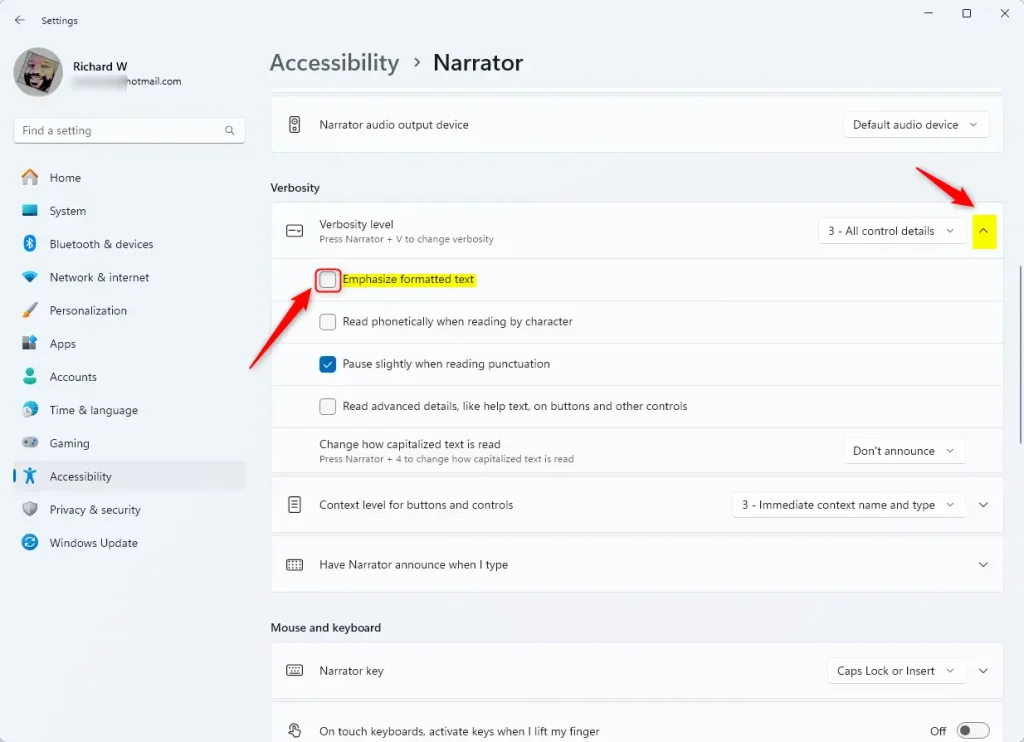
That’s it! Now Narrator will read formatted text with or without extra emphasis. It’s based on your choice.
Summary
Windows Narrator can emphasize important text when reading aloud. This helps you focus on key words.
You can easily turn this emphasis on or off in Settings under Accessibility > Narrator > Verbosity.
This feature makes Narrator more helpful for people with low vision. Or for people who want clearer audio cues.
Follow the simple steps above anytime you want to change this setting.
If you want to learn more about using Narrator, check out this full Narrator guide.
Was this guide helpful?


Leave a Reply Cancel reply