How to Change WiFi Network Profile in Windows 11

You change your WiFi network profile in Windows 11 to Public or Private to control how your PC interacts with other devices on that network.
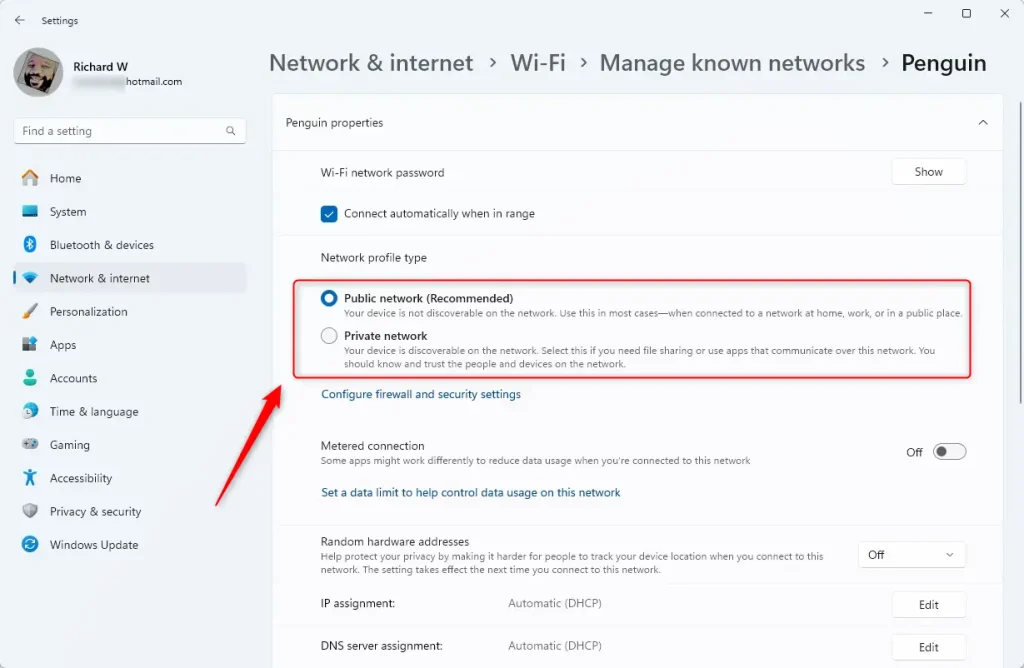
A Public profile protects your PC by hiding it from other devices, enhancing security on untrusted networks like public Wi-Fi. A Private profile allows your PC to be visible and interact with other devices, ideal for trusted networks such as your home or office where file sharing is common.
Windows 11 typically defaults to a Private profile for your home network, enabling features like network discovery and file sharing automatically. Knowing how to switch this setting ensures you maintain the right security and functionality balance.
Change your WiFi network profile in Windows 11 by going to Settings, then Network & internet, and selecting WiFi. Click your network name under Manage known networks and switch the Network profile type between Public and Private.
Quick Summary: Network Profile Settings
| Profile | Best For | Security Level | Sharing |
|---|---|---|---|
| Public | Coffee shops, Airports | High | Disabled |
| Private | Home, Office | Medium | Enabled |
Windows 11 network profile settings help control how your computer talks to other devices on a network, keeping your data safe.
Understanding Public vs. Private Profiles
Understanding the difference between Public and Private network profiles is key to keeping your Windows 11 PC secure.
Why does my network keep reverting to Public?
Windows sometimes resets the profile to Public for security reasons. If your router settings change or you connect to a new access point, Windows treats it as a fresh, untrusted connection.
Is it safe to set my home network to Public?
You can set it to Public, but it will block your ability to use network printers or shared folders. Only use Public at home if you have no need for local device communication.
Method 1Using Windows Settings (Easiest)
- Open Settings (⊞ Win+I).
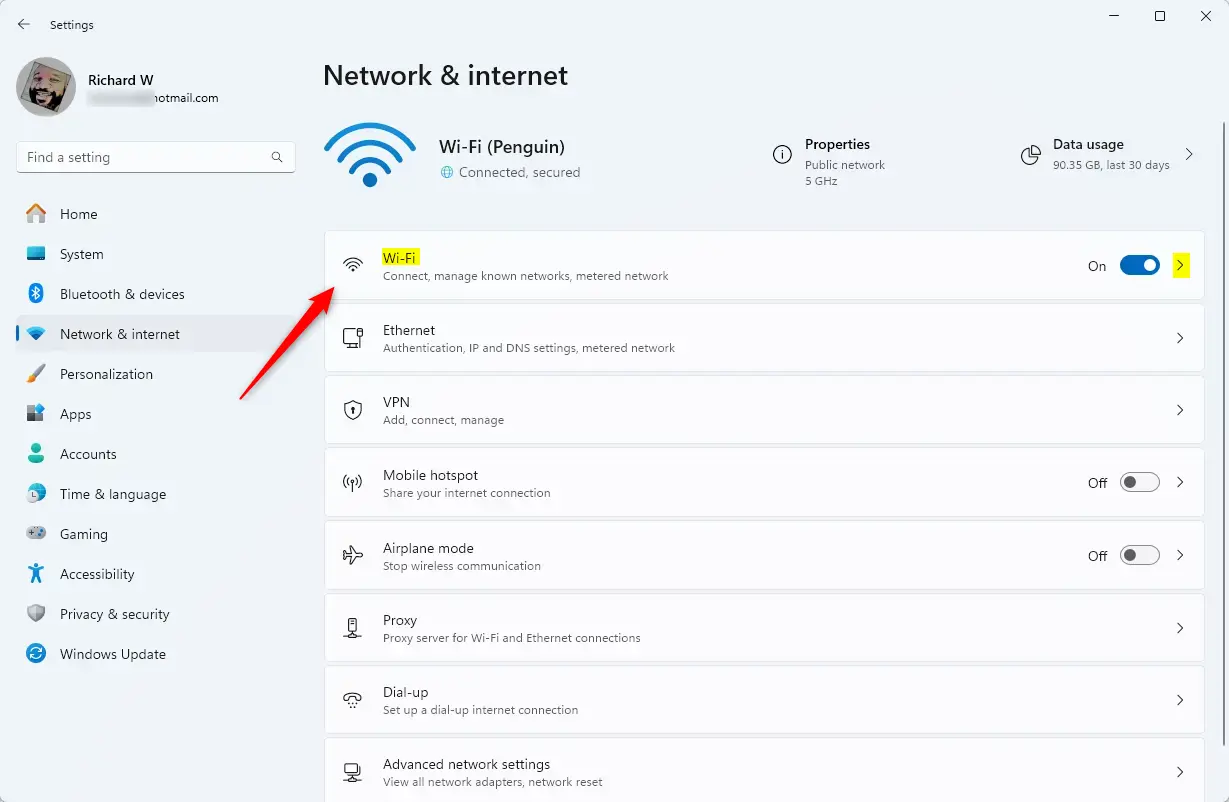
- Go to Network & internet.
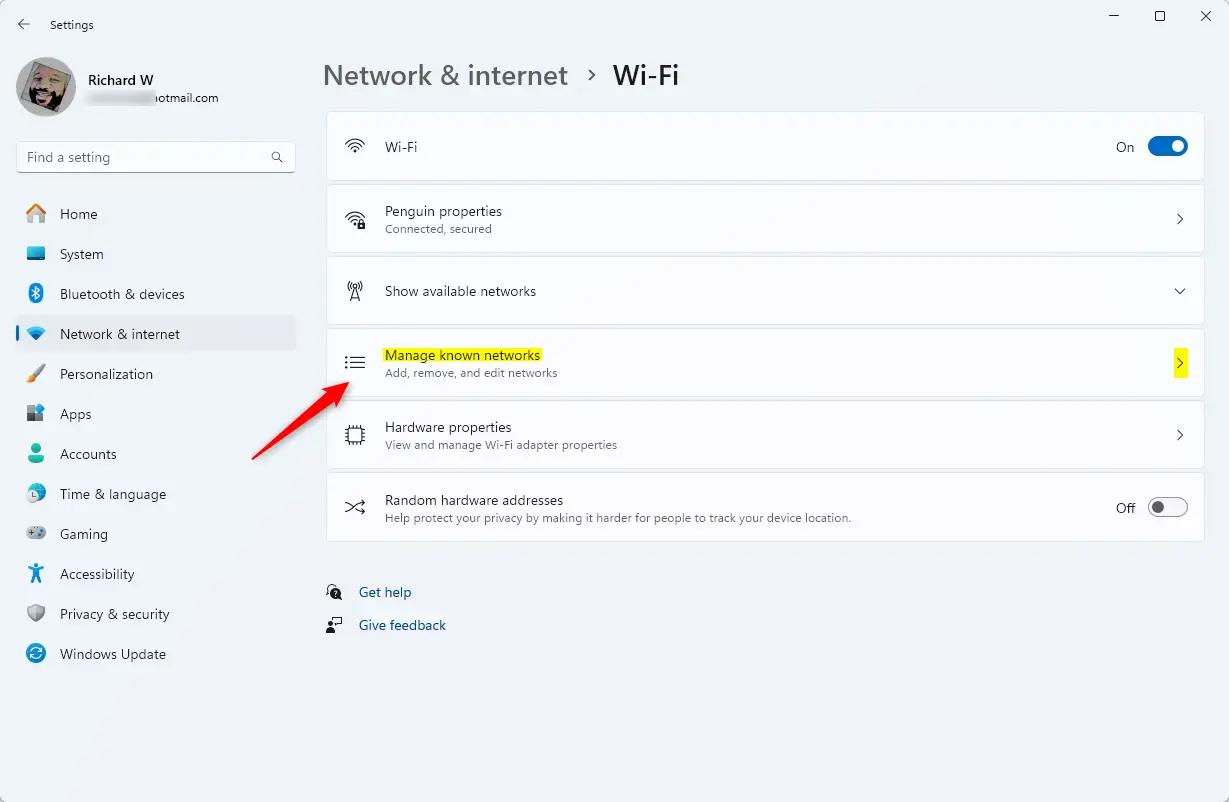
- Click WiFi.
4. Select Manage known networks.
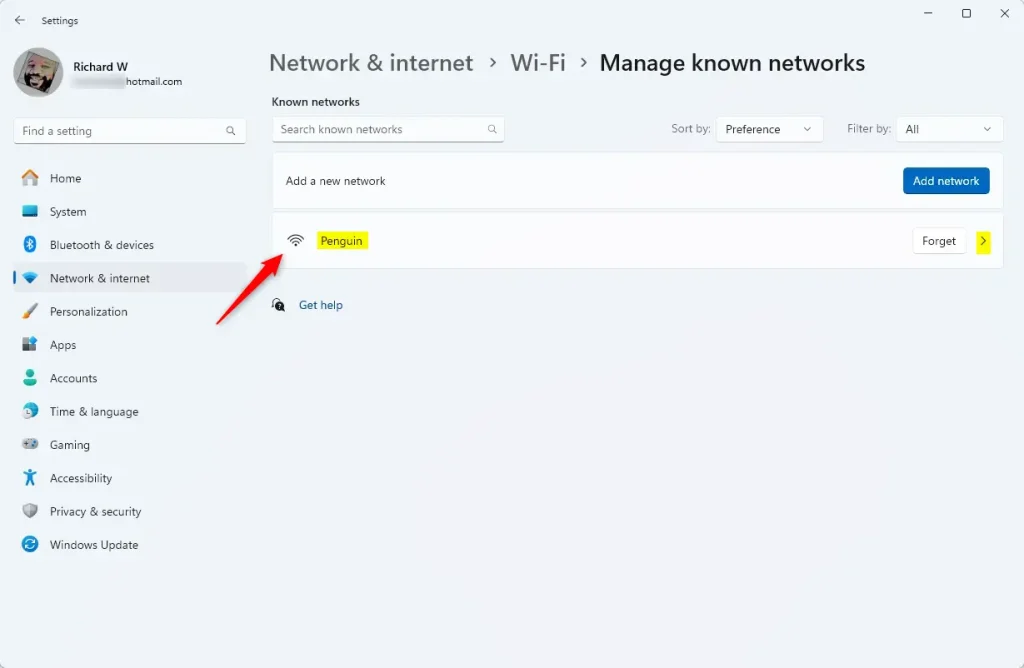
5. Click your network name.
6. Change Network profile type to Public or Private.
Method 2PowerShell (Admin Required)
You can change your WiFi network profile in Windows 11 using PowerShell if you run it as an administrator, which is a quick way to set your network type.
Use the Get-NetConnectionProfile command to see your current status. To change it, use the Set-NetConnectionProfile command:
Set-NetConnectionProfile -Name "YourNetworkName" -NetworkCategory Private
Replace “YourNetworkName” with your actual network name. This works for both WiFi and Ethernet.
Method 3Windows Registry (Advanced)
Changing your WiFi network profile in Windows 11 through the Registry is an advanced method, best for users who are comfortable editing system settings directly.
- Press ⊞ Win+R, type
regedit, and hit Enter. - Navigate to:
HKEY_LOCAL_MACHINE\SOFTWARE\Microsoft\Windows NT\CurrentVersion\NetworkList\Profiles - Look through the folders to find your network name in the ProfileName value.
4. Change the Category value: 0 for Public, 1 for Private.
Troubleshooting Connectivity
If you cannot see other devices, ensure your profile is set to Private. If you still have issues, check your Windows firewall settings to ensure file and printer sharing is allowed through the firewall.
Summary
You’ve learned how to change your network profile using Settings, PowerShell, and the Registry. Always use Public for untrusted networks and Private for home. This change helps balance your security needs with the convenience of sharing files across your local network.
Can I change the network profile for an Ethernet connection?
Yes, you can change the profile for Ethernet connections using the same methods. In Settings, go to Network & internet, click Ethernet, and toggle the Network profile type. You can also use the PowerShell method, which applies to both WiFi and wired connections equally.
Was this guide helpful?

About the Author
Richard
Tech Writer, IT Professional
Richard, a writer for Geek Rewind, is a tech enthusiast who loves breaking down complex IT topics into simple, easy-to-understand ideas. With years of hands-on experience in system administration and enterprise IT operations, he’s developed a knack for offering practical tips and solutions. Richard aims to make technology more accessible and actionable. He's deeply committed to the Geek Rewind community, always ready to answer questions and engage in discussions.


[…] default, your Windows device with WiFi adapters will allow users to enable or disable the ability to connect to a WiFi network. No particular […]
[…] More details here: Change network profile in Windows 11 […]