How to Show or Hide Empty Drives in Windows 11

This guide explains how to show or hide empty drives in your File Explorer on Windows 11.
Open Settings and navigate to System > For developers, then toggle “Show empty drives.” Alternatively, open File Explorer, click the three dots, select Options, go to the View tab, and check or uncheck “Hide empty drives.
What Are Empty Drives?
Empty drives are storage slots that appear in File Explorer but contain no data. These often include empty SD card readers, unused USB ports, or partitioned drives that haven’t been formatted. Windows 11 hides these by default to keep your file list clean. Why? To prevent confusion and reduce visual clutter. What happens when done? You gain a cleaner view of your active storage devices.
Why Manage Drive Visibility?
Managing drive visibility helps you organize your workspace. If you have a multi-slot card reader, your computer might show four or five empty drive letters. This makes it hard to find your actual hard drive. Hiding them makes your computer easier to navigate. Showing them helps you identify which ports are ready for new media.
Best Method for Your Needs
| Method | Best For | Difficulty |
|---|---|---|
| Settings App | Quick toggling | Easy |
| File Explorer Options | Standard users | Easy |
| Registry Editor | Advanced power users | Hard |
| PowerShell | Automation | Advanced |
Method 1Using the Settings App
- Press Windows key + I to open Settings.
- Click System on the left.

Windows 11 Settings app System button location - Select For developers.
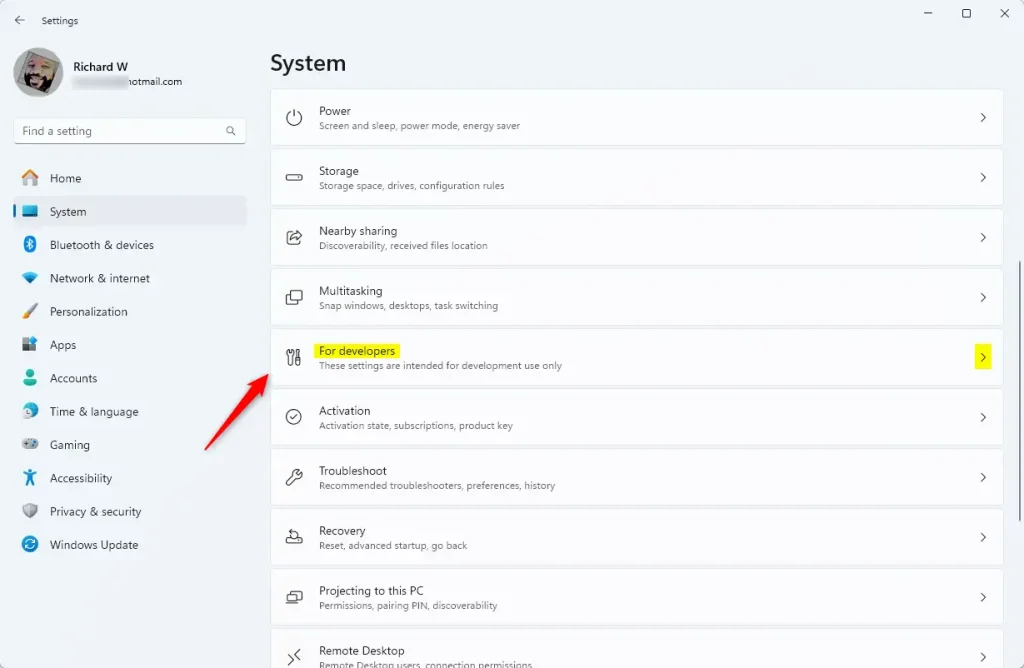
Windows 11 For developers tile - FLAG: Admin privileges may be required Expand the File Explorer section.
- Toggle Show empty drives to your preference.
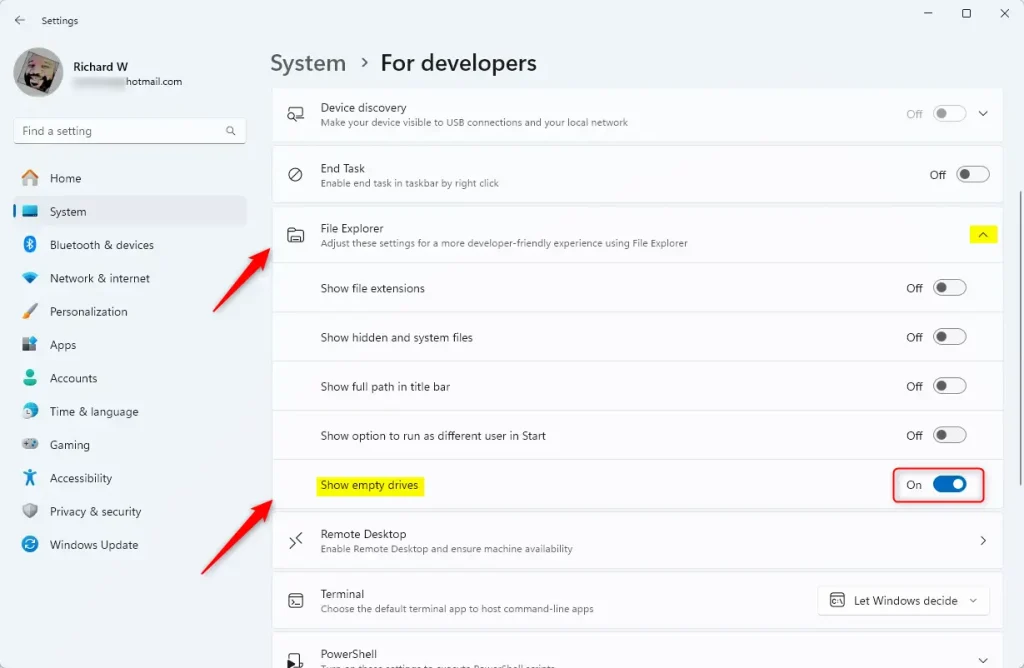
show empty drives tile
Method 2Using File Explorer Options
1. Open File Explorer. 2. Click the three dots (…) in the top menu. 3. Select Options. 4. Go to the View tab. 5. Find Hide empty drives and check or uncheck it.
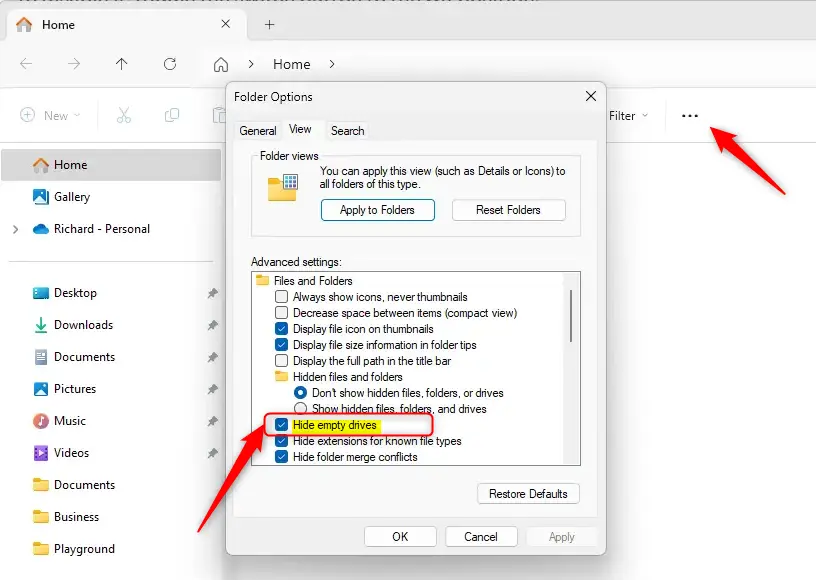
Method 3Advanced Registry Configuration
FLAG: Admin privileges required. Modifying the registry can cause system issues if done incorrectly. Always back up your registry first.
- Press Windows key + R, type regedit, and hit Enter.
- Navigate to: 🗝️HKEY_CURRENT_USER\Software\Microsoft\Windows\CurrentVersion\Explorer\Advanced
- Find the DWORD named HideDrivesWithNoMedia.
- Set the value to 1 to hide or 0 to show.
Method 4Using PowerShell
FLAG: Admin privileges required. You can automate this using PowerShell.
# To hide empty drives
Set-ItemProperty -Path 'HKCU:\Software\Microsoft\Windows\CurrentVersion\Explorer\Advanced' -Name 'HideDrivesWithNoMedia' -Value 1
Troubleshooting Common Issues
If your drives still appear, check your Disk Management settings. Sometimes, a drive is not empty but simply lacks a file system. If you see a card reader that won’t go away, you may need to update your card reader drivers in Device Manager.
Summary
Managing empty drives helps keep your Windows 11 File Explorer tidy. You can use the Settings app for a simple toggle, or use the Registry Editor for advanced control. Always remember to check your hardware drivers if drives persist unexpectedly. By following these steps, you can customize your storage view to match your workflow.
Does hiding empty drives affect external hard drives?
No. This setting only hides drives that have no media inserted or no data structure. If your external hard drive is plugged in and has files, it will remain visible in File Explorer regardless of this setting. It only affects empty slots like card readers or unformatted partitions.
Why do my card reader slots show up as empty drives?
Windows assigns a drive letter to every available slot in a multi-card reader to ensure they are ready for use. If no card is inserted, Windows treats the slot as an empty drive. This is normal behavior for hardware controllers that reserve drive letters for potential storage media.
Is it safe to modify the registry to hide drives?
Yes, it is safe if you follow the correct path. However, the registry is a sensitive area of Windows. Always create a system restore point before making changes. If you are not comfortable with the registry, use the Settings app method instead, as it is much safer for everyday users.
Was this guide helpful?

About the Author
Richard
Tech Writer, IT Professional
Richard, a writer for Geek Rewind, is a tech enthusiast who loves breaking down complex IT topics into simple, easy-to-understand ideas. With years of hands-on experience in system administration and enterprise IT operations, he’s developed a knack for offering practical tips and solutions. Richard aims to make technology more accessible and actionable. He's deeply committed to the Geek Rewind community, always ready to answer questions and engage in discussions.




No comments yet — be the first to share your thoughts!