How to Change the Volume for Narrator in Windows 11

You change the volume for Narrator in Windows 11 to adjust its speech output independently from other system sounds.
Narrator is the built-in screen reader for Windows, designed to assist users who are blind or have low vision by reading on-screen text and describing events. Controlling its volume ensures you can hear it clearly without being drowned out by other applications or system alerts.
In Windows 11, you can specifically set how loud Narrator’s voice is relative to other audio, which is crucial for a comfortable user experience. This adjustment is often done within the Narrator settings menu.
Adjust Narrator’s volume within Narrator settings in Windows 11. Go to Settings > Accessibility > Narrator. Find the “Narrator’s voice” section and adjust the volume slider there. You can also choose to automatically lower other app volumes when Narrator speaks.
What is Narrator?
Narrator is a built-in Windows tool. It reads text out loud from your screen. It helps people who have trouble seeing. It speaks the words and describes what’s on your screen.
You can also:
Why Lower Other Apps’ Volume When Narrator Speaks?
When Narrator talks, sounds from other apps play at the same time. This makes it hard to hear Narrator. Turning on this feature lowers those other sounds. You can focus on what Narrator says. This helps if you depend on Narrator to use your computer.
How to Turn On or Off the Volume Lowering Feature
Follow these simple steps:
- Open the Windows Settings app. Click the Start button. Choose Settings. Or press Windows key + I on your keyboard.
- In the Settings window, click Accessibility on the left side menu.
- Click Narrator on the right side. You’ll see its settings.
- Scroll down to the section called “Narrator’s voice”.
- Look for the option that says “Lower the volume of other apps when Narrator is speaking”.
- Toggle the switch to On. This lowers other sounds when Narrator talks. Toggle it to Off to hear all sounds at the same volume.
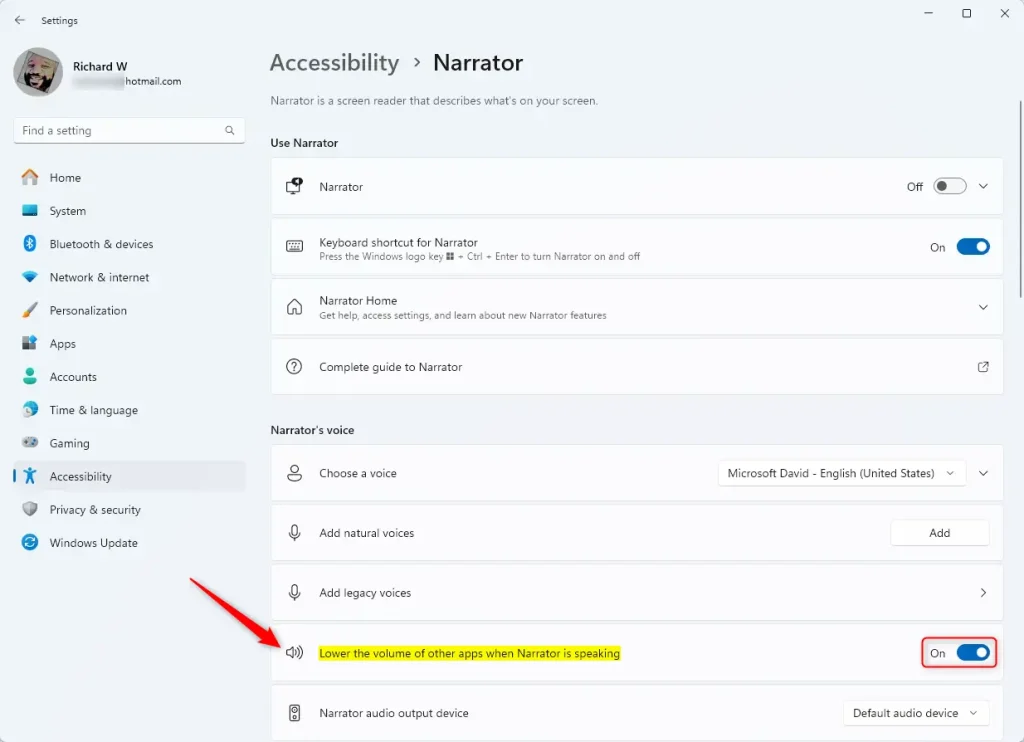
That’s it! Your computer will now lower other sounds when Narrator speaks. Or it will keep all sounds at the same level. It depends on what you chose.
Summary
- Turning on this feature helps you hear Narrator better. Other app sounds get quieter.
- It makes using your PC easier. This is true if you depend on Narrator for reading screen content.
- This setting helps people with vision problems or other disabilities.
- Want to learn more? Check out the other guides on Geek Rewind.
How do you turn on Narrator on 🪟 Windows 11?
To launch Narrator, press the Windows logo key + Ctrl+Enter. To stop the narrator, press these keys once more. The Windows logo key is typically found on the keyboard's bottom row of keys, either to the left or right of the Alt key.
Is Windows Narrator good?
“Narrator is useful in a pinch but offers limited functionality, particularly with browsers and web apps,” Thompson explains. “My students encountered navigation issues and sometimes silence when using Narrator to navigate the deeper levels of a Windows operating system (control panel applets, etc.).”
How do I deactivate the Narrator on 🪟 Windows 11?
Windows 11 Operating System Click the [Start] icon on the taskbar①, then select [Settings] ②. In the Windows Settings, click [Accessibility]③, and then choose [Narrator]④. In the Narrator settings, you can toggle the screen reader On or Off⑤.
Was this guide helpful?

About the Author
Richard
Tech Writer, IT Professional
Richard, a writer for Geek Rewind, is a tech enthusiast who loves breaking down complex IT topics into simple, easy-to-understand ideas. With years of hands-on experience in system administration and enterprise IT operations, he’s developed a knack for offering practical tips and solutions. Richard aims to make technology more accessible and actionable. He's deeply committed to the Geek Rewind community, always ready to answer questions and engage in discussions.




No comments yet — be the first to share your thoughts!