How to Change Volume for Narrator in Windows 11

You change Narrator’s volume in Windows 11 by adjusting its audio ducking preference.
Audio ducking allows Narrator to automatically lower the volume of other applications when it speaks, ensuring you can always hear it clearly. Narrator is the built-in screen reader for Windows, designed to read screen content aloud for users with visual impairments.
This feature is particularly useful when multitasking, such as listening to music while Narrator reads out an important notification. You can customize how much other sounds are reduced in the Narrator settings.
For instance, you can choose to reduce other volumes by 10%, 20%, or 50% when Narrator is active, giving you precise control over your audio experience.
You can adjust Narrator’s volume relative to other apps in Windows 11 Settings. Navigate to Accessibility, then Narrator, and toggle the “Lower the volume of other apps when Narrator is speaking” option to On or Off. This ensures Narrator’s voice is always clear.
How to Keep Narrator Volume Louder Than Other Apps
You can easily change Narrator volume settings in Windows 11 to make it louder than other apps, so you can always hear the screen reader clearly.
- Open the Settings app. Click the Start menu and select Settings. Or press Windows key + I on your keyboard to open Windows Settings.
- When Settings opens, click Accessibility on the left side.
- On the right side, click the Narrator tile to expand it.
- Look for the section called “Narrator’s voice.”
- Find the option that says “Lower the volume of other apps when Narrator is speaking.”
- Toggle the switch button to On or Off. Turn it On to enable the feature. Turn it Off to disable it .
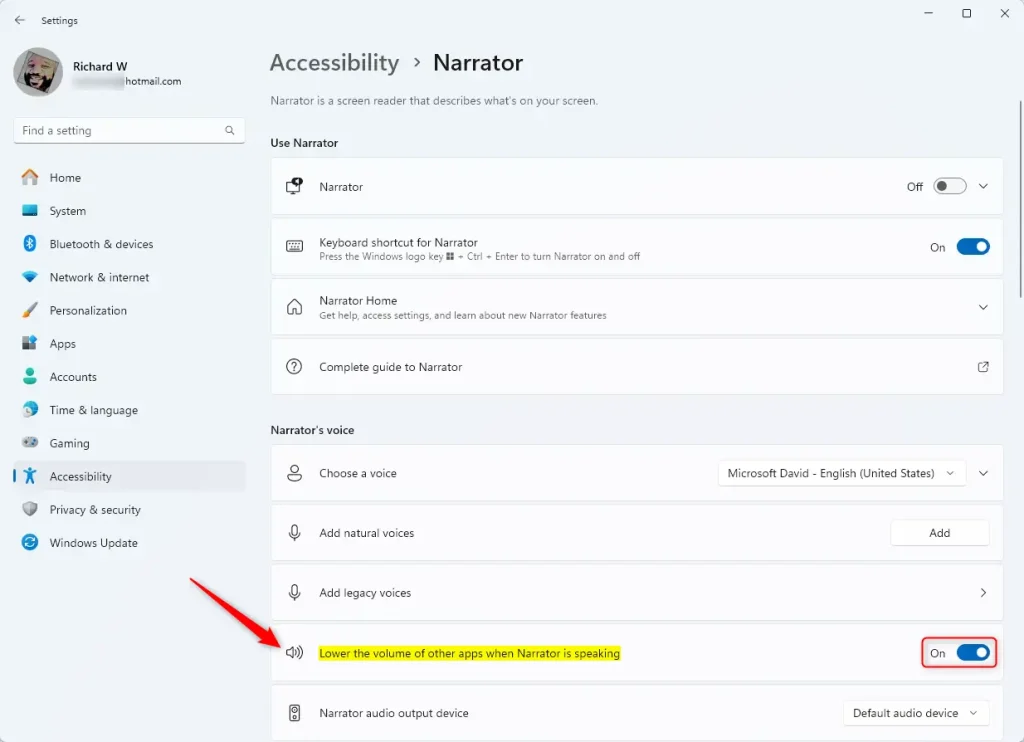
That’s all you need to do!
What Happens When You Enable This Feature
When you turn on this feature, other app sounds get quieter. Narrator’s voice stays louder. This helps you hear what Narrator is saying more clearly.
Summary
Adjusting Narrator’s volume settings in Windows 11 makes it easier to hear the screen reader, and you can even set it to lower other app sounds automatically.
Frequently Asked Questions
What are Narrator settings?
Users can customize Narrator to suit their preferences: Voice Settings: Change the voice, adjust the speaking rate, pitch, and volume. Verbosity: Control how much detail Narrator provides about what's on the screen. Keyboard Shortcuts: Customize shortcuts for frequently used commands.
Was this guide helpful?

About the Author
Richard
Tech Writer, IT Professional
Richard, a writer for Geek Rewind, is a tech enthusiast who loves breaking down complex IT topics into simple, easy-to-understand ideas. With years of hands-on experience in system administration and enterprise IT operations, he’s developed a knack for offering practical tips and solutions. Richard aims to make technology more accessible and actionable. He's deeply committed to the Geek Rewind community, always ready to answer questions and engage in discussions.



[…] shortcuts, launch it automatically, adjust the voice, speed, and volume, manage natural voices, lower other apps volume when the Narrator is speaking, change Narrator audio output device, change verbosity level, emphasize formatted text, enable […]
[…] shortcuts, launch it automatically, adjust the voice, speed, and volume, manage natural voices, lower other apps volume when the Narrator is speaking, change Narrator audio output device, change verbosity level, emphasize formatted text, enable […]
[…] it automatically, adjust the voice, speed, and volume, manage natural voices, lower other apps volume when Narrator is speaking, change Narrator audio output device, change verbosity level, emphasize formatted […]
[…] it automatically, adjust the voice, speed, and volume, manage natural voices, lower other apps volume when Narrator is speaking, change Narrator audio output device, change verbosity level, emphasize formatted […]
[…] it automatically, adjust the voice, speed, and volume, manage natural voices, lower other apps volume when Narrator is speaking, change Narrator audio output device, change verbosity level, emphasize formatted […]
[…] Lower other app sounds when Narrator is talking […]