How to Change Maximum Storage for Windows 11 Snapshots

You change the maximum storage for Windows 11 Snapshots by adjusting settings within the Recall & Snapshots menu.
Windows 11 Snapshots, part of the Recall feature, are like a visual history of your PC activity, saving screenshots of what you’ve seen. This helps you quickly search and find past content.
Windows automatically allocates storage for these snapshots, but you can customize this limit. For instance, on a 256 GB device, you can choose between a 25 GB or 10 GB storage allocation for Recall.
By adjusting this setting, you control how many snapshots your PC keeps before older ones are automatically deleted to free up space.
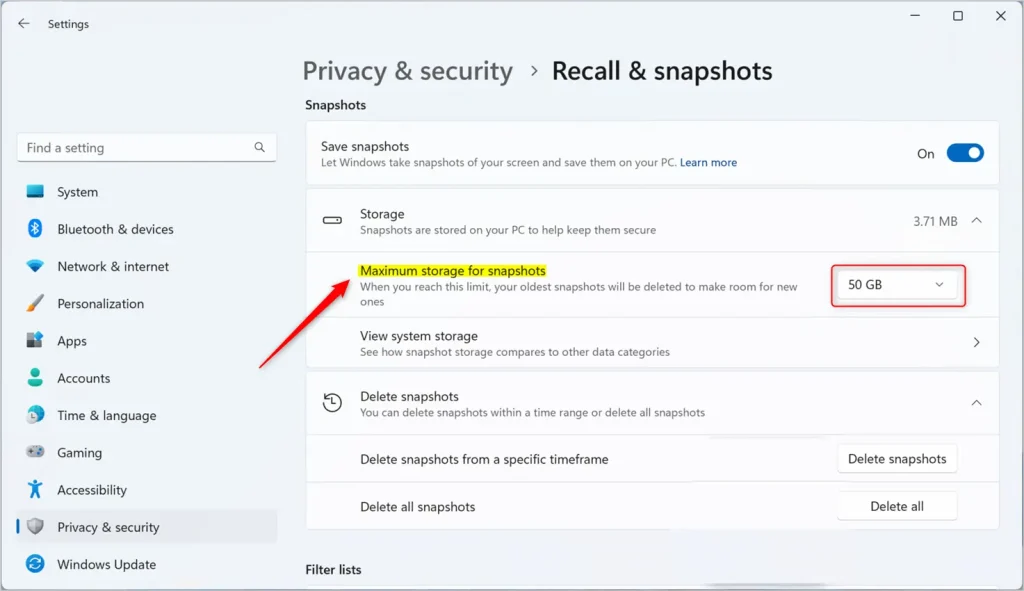
Go to Settings > Privacy & security > Recall & snapshots. Expand the Storage section and adjust the “Maximum storage for snapshots” setting. This determines how many snapshots your PC will keep before deleting the oldest ones.
Adjust the Maximum Storage for Snapshots in Windows
You can adjust the maximum storage size for snapshots in Windows 11. Here’s how.
Step 1Open the Settings App
Open the Windows Settings app.
You can click the Start menu and select Settings, or use the keyboard shortcut (Windows key + I) to launch the Settings app.
Step 2Go to Privacy & Security
Once the Settings app opens, click Privacy & security on the left-hand side.
Step 3Open Recall & Snapshots
On the right side, click the Recall & snapshots page to open its settings.
Make sure the “Save snapshots” feature is turned on.
Step 4Adjust the Storage Size
Then, click on Storage to expand that section.
Adjust the storage reservation to the “Maximum storage for snapshots” setting. Pick the size that works best for your needs.
And that’s all there is to it!
Summary
You can easily change the maximum storage space Windows 11 uses for snapshots by going into Settings.
Reference
Does 🪟 Windows 11 support snapshots?
Screenshot capture. Once enabled, Recall takes periodic screenshots at short intervals while your PC is actively in use. These snapshots capture visible text and images on screen, open applications and windows, and app navigation context. Recall does not record video or audio.
Was this guide helpful?

About the Author
Richard
Tech Writer, IT Professional
Richard, a writer for Geek Rewind, is a tech enthusiast who loves breaking down complex IT topics into simple, easy-to-understand ideas. With years of hands-on experience in system administration and enterprise IT operations, he’s developed a knack for offering practical tips and solutions. Richard aims to make technology more accessible and actionable. He's deeply committed to the Geek Rewind community, always ready to answer questions and engage in discussions.

[…] are essentially copies of your PC’s current state, are securely stored on your PC. Windows sets a maximum storage size for these snapshots, which you can change anytime. Once that maximum is reached, the oldest snapshots are deleted […]
[…] copies of your PC’s current state, are securely stored on your PC. Windows sets a maximum storage size for these snapshots, which you can change anytime. Once that maximum is reached, the oldest snapshots are deleted […]
[…] snapshots, copies of your PC’s current state, are securely stored on your PC. Windows sets a maximum storage size for these snapshots, which you can change anytime. Once that maximum is reached, the oldest snapshots are deleted […]
[…] snapshots, copies of your PC’s current state, are securely stored on your PC. Windows sets a maximum storage size for these snapshots, which you can change anytime. Once that maximum is reached, the oldest snapshots are deleted […]
[…] snapshots, copies of your PC’s current state, are securely stored on your PC. Windows sets a maximum storage size for these snapshots, which you can change anytime. Once that maximum is reached, the oldest snapshots are deleted […]