How to Exclude Apps from Recall Snapshots in Windows 11

This article explains how to exclude an app from Recall snapshots in Windows 11.
Open Settings, then navigate to Privacy & security and select Recall. Click “Add app” under the Filter lists section and choose the desired application to exclude it from future snapshots.
What is Recall?
Windows 11 Recall is a new feature that saves snapshots of your screen, acting like a photographic memory for your PC to help you find things you’ve seen before.
Why use it? Recall helps you quickly find information you’ve already looked at without having to remember exactly where you saw it.
How Snapshots Work
Recall snapshots are saved pictures of your screen taken at different times, stored securely on your PC to help you find information later.
You can manually delete Recall snapshots from a specific timeframe or delete all snapshots snapshots on your Windows device if you need more storage space.
Control What Gets Saved
You’re in control of Recall and snapshots. You can choose which apps and websites you want to exclude from being saved as snapshots.
Why exclude apps? You might want to keep certain apps private, like banking apps or password managers.
How to Exclude an App from Recall Snapshots
You can exclude specific apps from Recall snapshots in Windows 11 to keep private information out of your PC’s history.
- Open the Windows Settings app.
- Click the Start menu and select Settings
- Or press Windows key + I to launch the Settings app
- When the Settings app opens, click Privacy & security on the left side.
Windows 11 Privacy and Security settings menu for managing Recall snapshots - On the right, click the Recall & snapshots page to open its settings and turn on the “Save snapshots” feature.
- Click the Add app button under the “Filter lists” section.
- Select the app you want to exclude from Recall snapshots from the app list.
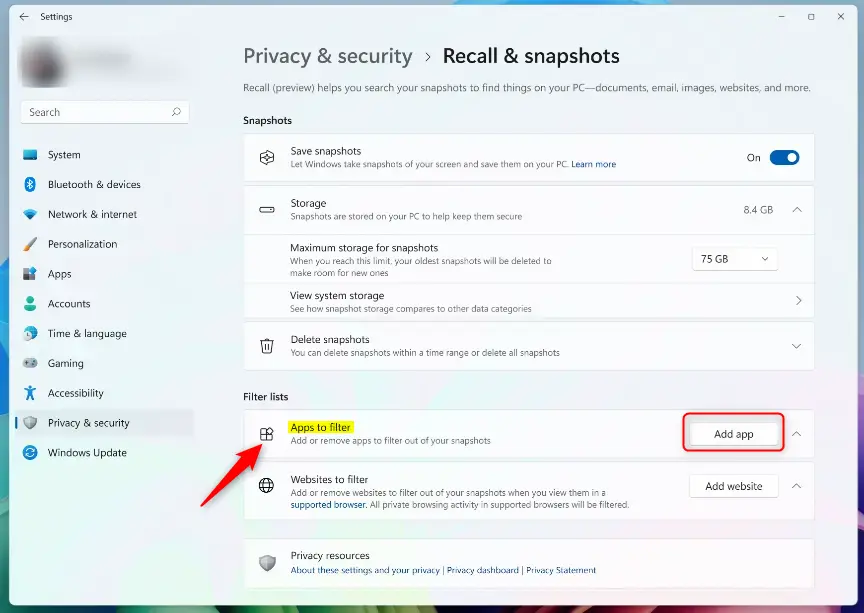
filter apps from snapshots in Windows 11 - What happens next? That app will no longer be saved in your Recall snapshots.
Summary
Windows 11 Recall and Snapshots let you control what gets saved, including the ability to exclude specific apps from snapshots to protect sensitive data.
References
How do I disable Recall snapshots?
You can turn on or off saving snapshots at any time by going to Settings > Privacy & security > Recall & snapshots.
Was this guide helpful?

About the Author
Richard
Tech Writer, IT Professional
Richard, a writer for Geek Rewind, is a tech enthusiast who loves breaking down complex IT topics into simple, easy-to-understand ideas. With years of hands-on experience in system administration and enterprise IT operations, he’s developed a knack for offering practical tips and solutions. Richard aims to make technology more accessible and actionable. He's deeply committed to the Geek Rewind community, always ready to answer questions and engage in discussions.

[…] which apps or websites you want to exclude from being saved (apps) and […]