How to Delete All Recall Snapshots in Windows 11

You delete all Windows 11 Recall snapshots to free up disk space or manage your privacy.
Recall is a Windows 11 feature that takes screenshots of your activity to help you find past information. These snapshots, essentially small images of your screen, are stored locally on your PC. Windows automatically removes older snapshots when storage limits are reached, but you can manually delete them all at once.
For example, if your Recall snapshots are consuming too much space, deleting them all can quickly reclaim gigabytes. This process helps you maintain optimal performance and control your data.
Open Settings, navigate to Privacy & security, then Recall & snapshots. Scroll to the Storage section and click Del snapshots, then confirm by clicking Delete all. This removes all saved snapshots and frees up disk space.
How to Delete All Recall Snapshots
You can delete all Recall snapshots in Windows 11 right from your PC’s settings to free up space or manage your stored data.
- Open the Settings app:
- Click on the Start menu (the Windows logo at the bottom-left of your screen). Then click Settings.
- Or press the keyboard shortcut: Windows key + I at the same time.
- More info on opening Settings: How to Access Settings in Windows 11
- In Settings, click on Privacy & security from the menu on the left side.
Windows 11 Privacy & Security Settings - On the right side, find and click Recall & snapshots. This will open the Recall & Snapshots settings. Make sure the “Save snapshots” option is turned on.
- Scroll down to the Storage section. Then click on Delete snapshots to open more options.
- Click on Delete all snapshots.
- Finally, press the Delete all button to remove all saved snapshots from your computer.
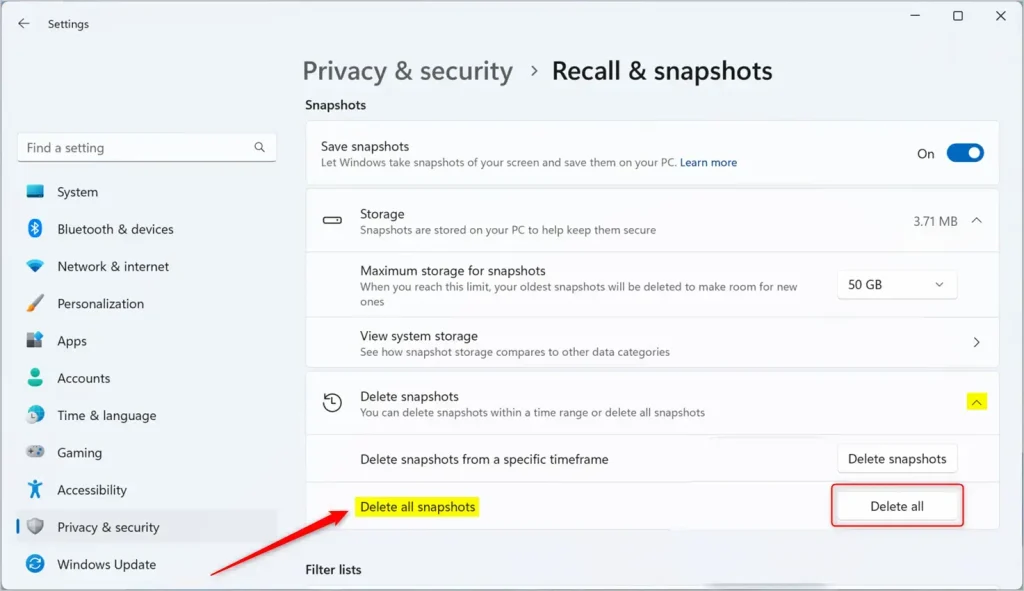
Delete all Recall snapshots in Windows 11
And that’s it! All your Recall snapshots will be deleted. This frees up space on your PC.
Why Delete Recall Snapshots?
- It helps free up storage space if your PC is running low.
- Keeping your snapshots organized can help your computer run smoothly.
- You can easily manage snapshots anytime from Windows Settings.
Deleting Recall snapshots helps free up valuable storage space on your computer, especially if it’s running low, and keeps things running smoothly.
Feel free to leave any questions or tips in the comments below!
Summary
Recall saves snapshots of your screen in Windows 11 to help you find things, but they can use up storage. To delete all Recall snapshots in Windows 11, go to Settings, then Privacy & security, select Recall & snapshots, and choose ‘Delete all snapshots’ to free up space.
Where are Microsoft recall snapshots stored?
Snapshots and associated data are stored locally on the device. Recall does not share snapshots or associated data with Microsoft or third parties, nor is it shared between different Windows users on the same device.
What is the point of Recall on 🪟 Windows 11?
Recall is an AI feature that creates a searchable visual timeline of your PC activity. It takes periodic screenshots of your screen while you're working and indexes them locally using the device's NPU (Neural Processing Unit).
Was this guide helpful?

About the Author
Richard
Tech Writer, IT Professional
Richard, a writer for Geek Rewind, is a tech enthusiast who loves breaking down complex IT topics into simple, easy-to-understand ideas. With years of hands-on experience in system administration and enterprise IT operations, he’s developed a knack for offering practical tips and solutions. Richard aims to make technology more accessible and actionable. He's deeply committed to the Geek Rewind community, always ready to answer questions and engage in discussions.


No comments yet — be the first to share your thoughts!