How to Enable or Disable Windows 11 App Resume Feature

The Windows 11 App Resume feature lets you pick up tasks on your PC exactly where you left off on your phone or another device.
This handy functionality automatically saves your progress within supported applications when you switch devices, making it seamless to continue your work or play.
For example, if you start browsing a website on your Android phone and have it linked to your Windows 11 PC, App Resume could allow you to instantly open that same webpage on your desktop.
You can easily enable or disable this feature through your Windows 11 settings under the “System” > “Personalization” > “App resume” menu.
Enable the Windows 11 App Resume feature in Settings under System > Personalization > App resume. Toggle the main switch on, and then enable the OneDrive option to allow resuming work on files from your phone. This lets you continue tasks seamlessly between devices.
What is the Apps Resume Feature?
The Windows 11 App Resume feature lets you pick up right where you left off on your phone when you switch to your PC.
This feature works with files stored in OneDrive. These files include Word documents, Excel sheets, PowerPoint slides, OneNote pages, and PDFs.
Important: You need to be signed into OneDrive on both your phone and PC with the same Microsoft account. Also, your PC must be running Windows 11 Build 22635.4515 or newer (Beta Channel).
How to Turn On Apps Resume Using Windows Settings
You can easily turn on the Windows 11 App Resume feature through your PC’s Settings menu.How to Turn Off or On Apps Resume Using the Windows Registry (Advanced)
For those comfortable with advanced settings, you can turn the Windows 11 App Resume feature on or off by editing the Windows Registry.
- FLAG: Admin privileges may be required. Open the Registry Editor by typing
regeditin the Start menu search and pressing Enter. Windows Registry Editor - Navigate to this folder:
Computer\HKEY_CURRENT_USER\Software\Microsoft\Windows\CurrentVersion\CrossDevice\Resume\Configuration - Right-click on Configuration, then choose New > DWORD (32-bit) Value.
- Name the new DWORD
IsResumeAllowed. - Double-click the new value and set it to:
1to turn Apps Resume On0to turn it Off
- You can also control specific apps by creating DWORDs like this:
IsOneDriveResumeAllowed- Set to
1to allow OneDrive to resume or0to block it.
- Set to
- Close the Registry Editor when finished.
What Happens After You Enable Apps Resume?
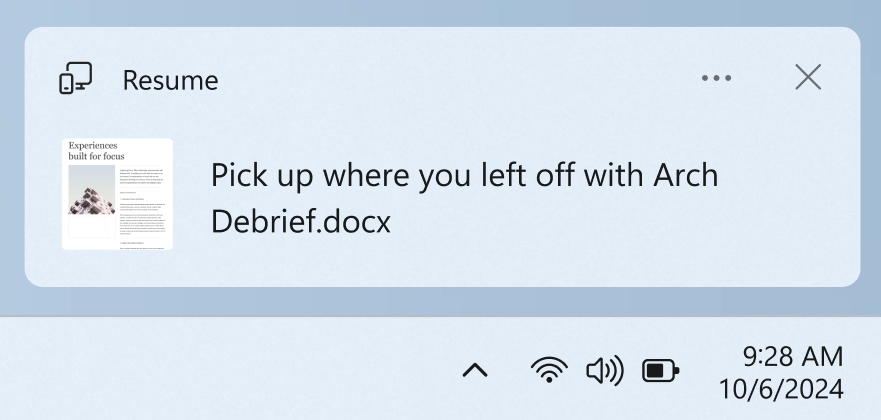
After you enable Windows 11 App Resume, you’ll see a notification on your PC when you switch from your phone within a few minutes.
Summary
- Apps Resume lets you continue working on OneDrive files from your phone right on your Windows 11 PC.
- You need Windows 11 Build 22635.4515 or newer (Beta Channel) and the same Microsoft account on both devices.
- Supported files include Word, Excel, PowerPoint, OneNote, and PDFs.
- You can turn Apps Resume on or off in Windows Settings or by editing the Registry.
- By turning on Apps Resume, you can save time and keep your work moving smoothly between your phone and PC!
The Windows 11 App Resume feature lets you easily continue working on files from your phone directly on your PC.
Was this guide helpful?

About the Author
Richard
Tech Writer, IT Professional
Richard, a writer for Geek Rewind, is a tech enthusiast who loves breaking down complex IT topics into simple, easy-to-understand ideas. With years of hands-on experience in system administration and enterprise IT operations, he’s developed a knack for offering practical tips and solutions. Richard aims to make technology more accessible and actionable. He's deeply committed to the Geek Rewind community, always ready to answer questions and engage in discussions.



No comments yet — be the first to share your thoughts!