How to Enable Narrator Extensions in Windows 11

Navigate to Settings, then Accessibility, and select Narrator. Under Experimental Features, toggle “Enable Narrator extensions” on or off. You can also choose to automatically find and download new extensions on Narrator startup.
This guide explains how to manage Narrator extensions in Windows 11.
Narrator is a built-in app in Windows that reads text on your screen out loud. It describes what is happening on your screen. This is a great tool for people who have trouble seeing or are blind.
When you use the Narrator app, you can enable or disable Narrator phonetic reading, pause for punctuation, adjust how the Narrator read advanced details, adjust the way capitalized text is read, add a braille display with Narrator, change input and output language for braille with Narrator, enable the Narrator announcing function keys, modifier keys, and more.
Narrator has an experimental feature. This feature lets you add extensions to help Narrator work better in specific apps. When you turn this on, it will find and download new extensions when Narrator starts up.
Why Turn Narrator Extensions On or Off?
Turning Narrator extensions on or off helps you customize your experience. Extensions provide extra features for certain apps. This makes your computer easier to use if you rely on Narrator for help.
What Happens When Done?
When you enable this feature, Windows will automatically check for and download new extensions every time you launch Narrator. These tools improve how the app interacts with your other programs.
How to Turn Narrator Extensions On or Off
Follow these steps to change this setting. Note: Some system settings may require admin privileges to modify.
- Open the Windows Settings app. Click the Start menu and select Settings. You can also press the Windows key + I on your keyboard to open Settings app.
- When the Settings window opens, click Accessibility on the left sidebar.
- Click the Narrator tile on the right side.

Narrator settings tile located within the Windows 11 Settings app menu - Scroll down to the Experimental Features section.
- Click the Enable Narrator extensions tile.
- Move the toggle switch to On or Off.
- Inside this menu, you can also check or uncheck the box that says “Find and download new extensions on Narrator startup.”
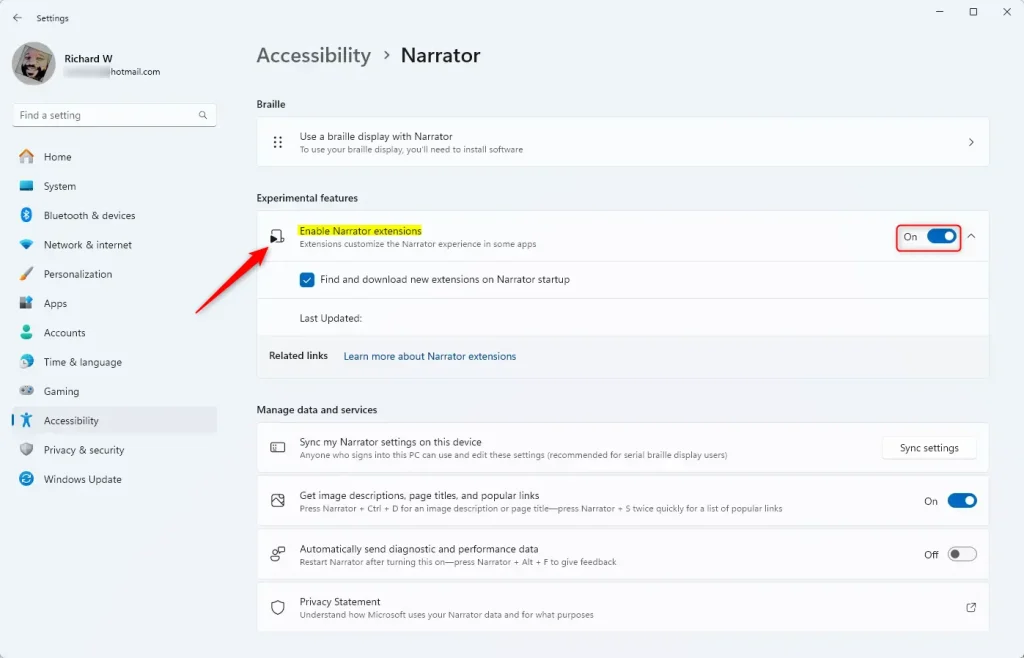
enable narrator extensions Windows 11
That is all you need to do!
Summary
Managing Narrator extensions in Windows 11 is a simple process. By navigating to Settings, selecting Accessibility, and choosing Narrator, you can toggle the experimental features on or off. You can also choose to have the system automatically download new updates when the app starts. This feature ensures that Narrator is optimized to work smoothly with your favorite apps.
Was this guide helpful?

About the Author
Richard
Tech Writer, IT Professional
Richard, a writer for Geek Rewind, is a tech enthusiast who loves breaking down complex IT topics into simple, easy-to-understand ideas. With years of hands-on experience in system administration and enterprise IT operations, he’s developed a knack for offering practical tips and solutions. Richard aims to make technology more accessible and actionable. He's deeply committed to the Geek Rewind community, always ready to answer questions and engage in discussions.


No comments yet — be the first to share your thoughts!