How to Enable Narrator Function Key Announcements in Windows 11

This article explains how to turn on or off the Narrator feature that announces when you press function keys in Windows 11.
What Is Narrator?
Narrator is a built-in app in Windows that reads text on your screen out loud. It describes what’s happening on your computer. This is helpful for people with low vision or blindness.
When you use Narrator, you can enable or disable Narrator phonetic reading, pause for punctuation, adjust how the Narrator reads advanced details, adjust the way capitalized text is read, add a braille display with Narrator, change input and output language for braille with Narrator, and more.
What Are Function Keys?
Function keys, or F keys, are at the top of your keyboard. They are labeled F1 through F12. In Windows, each function key does a different job.
Why Enable Function Key Announcements?
When you type a function key, Narrator can announce it out loud. This helps you know which key you pressed. By default, this feature is turned off. You can turn it on or off whenever you want.
How to Enable Narrator Function Key Announcements
- Open the Settings app. Click the Start menu and select Settings. Or press Windows key + I on your keyboard to open Settings app.
- When Settings opens, click Accessibility on the left side.
- Click the Narrator option on the right side to expand it.
- Look for the “Verbosity” section. Click to expand the “Have Narrator announce when I type” option.
- Toggle the [Function keys] option to the On position. This turns on “Hear function keys as you type.”
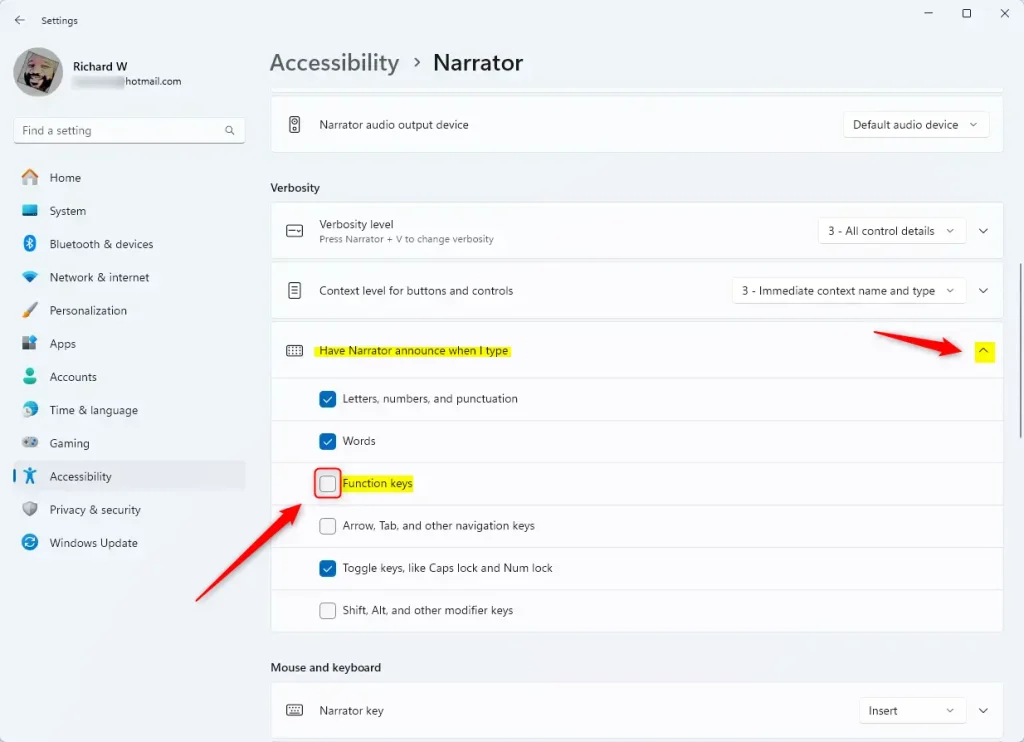
That’s all you need to do! Narrator will now announce function keys when you press them.
What Happens When You Enable This?
Once enabled, whenever you press any F key (F1 through F12), Narrator will speak the function key name out loud. This makes it easier to know which key you pressed.
Summary
You can customize Narrator in Windows 11 to announce function keys as you type. This is done through the Settings app under Accessibility > Narrator > Verbosity > Have Narrator announce when I type > Function keys. This feature is helpful for users with low vision or blindness. It makes using function keys easier and more accessible.
Frequently Asked Questions
How do I enable Narrator function key announcements in Windows 11?
What is the purpose of the Narrator in Windows 11?
Are function key announcements enabled by default in Narrator?
Can I customize other Narrator settings besides function key announcements?
What are function keys and how are they used in Windows?
Was this guide helpful?

About the Author
Richard
Tech Writer, IT Professional
Richard, a writer for Geek Rewind, is a tech enthusiast who loves breaking down complex IT topics into simple, easy-to-understand ideas. With years of hands-on experience in system administration and enterprise IT operations, he’s developed a knack for offering practical tips and solutions. Richard aims to make technology more accessible and actionable. He's deeply committed to the Geek Rewind community, always ready to answer questions and engage in discussions.




[…] a screen-reading app built into Windows that reads the text on your screen aloud and describes events for users with low vision or […]
[…] a screen-reading app built into Windows that reads the text on your screen aloud and describes events for users with low vision or […]
[…] a screen-reading app built into Windows that reads the text on your screen aloud and describes events for users with low vision or […]
[…] a screen-reading app built into Windows that reads the text on your screen aloud and describes events for users with low vision or […]