How to Change Narrator’s Reading of Capitalized Text in Windows 11

You change how Narrator reads capitalized text in Windows 11 by adjusting its speech rate and pronunciation settings.
Narrator is the built-in screen reader for Windows, designed to vocalize on-screen content for users who are blind or have low vision. It helps you navigate your PC and understand what’s happening on your screen.
By default, Windows 11’s Narrator might pronounce capitalized words by saying “Capital” beforehand, which can interrupt the flow of reading. Fortunately, you can easily modify this behavior.
This setting allows you to control whether Narrator announces capitalization, reads it as “all caps,” or simply ignores it, improving comprehension for everyone.
Open Settings and go to Accessibility, then Narrator. Expand Verbosity level, select “Change how capitalized text is read,” and choose “Don’t announce,” “Increase pitch,” or “Say cap.
Why This Matters
Microsoft changed how Narrator reads capitalized text to help people who are visually impaired. Previously, Narrator used a higher pitch for capitalized words. This could confuse some users. The new way matches how people normally read text.
Your Options
Narrator now has three choices for reading capitalized text:
- Don’t announce – Narrator doesn’t mention that text is capitalized
- Increase pitch – Narrator raises its voice pitch when reading capitalized text
- Say cap – Narrator says the word “cap” before capitalized letters
You pick the option that works best for you.
How to Change Narrator’s Reading of Capitalized Text
You can change how Narrator reads capitalized text in Windows 11 by adjusting a setting in the Accessibility options. First, open the Settings app by clicking the Start menu and selecting Settings, or by pressing Windows key + I.
- Open the Settings app. Click the Start menu and select Settings. Or press Windows key + I on your keyboard. Windows Settings Settings app
- In the Settings app, click Accessibility on the left side.
- On the right side, find the Narrator tile and click it to open the Narrator settings.
- Under the Verbosity section, expand the Verbosity level tile.
- Find and select the Change how capitalized text is read tile.
- Choose one of these options:
- Don’t announce
- Increase pitch
- Say cap
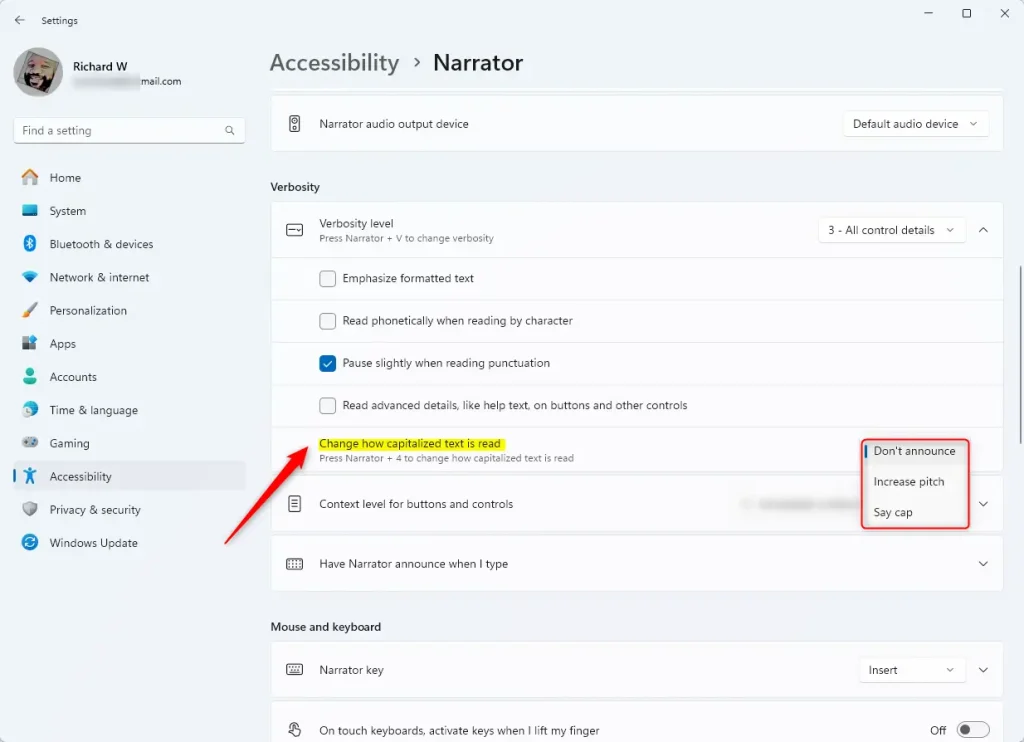
Tip: You can also press Narrator + 4 on your keyboard to quickly cycle through the capitalization reading modes.
- Close the Settings app when you finish.
You’re all set! Narrator will now read capitalized text the way you chose.
Summary
Adjusting how Narrator reads capitalized text in Windows 11 is easy and offers three choices: ‘Don’t announce’, ‘Increase pitch’, or ‘Say cap’.
Is the narrator always right?
Understanding Narrator Reliability and Its Impact on Narrative. Narrators act as your guides through the world of a literary work. Their perspective shapes how you interpret events and characters. Yet narrators can be completely reliable or distinctly unreliable.
Was this guide helpful?

About the Author
Richard
Tech Writer, IT Professional
Richard, a writer for Geek Rewind, is a tech enthusiast who loves breaking down complex IT topics into simple, easy-to-understand ideas. With years of hands-on experience in system administration and enterprise IT operations, he’s developed a knack for offering practical tips and solutions. Richard aims to make technology more accessible and actionable. He's deeply committed to the Geek Rewind community, always ready to answer questions and engage in discussions.



[…] Narrator phonetic reading, pause for punctuation, adjust how the Narrator read advanced details, adjust the way capitalized text is read, add a braille display with Narrator, change input and output language for braille with Narrator, […]
[…] Narrator phonetic reading, pause for punctuation, adjust how the Narrator read advanced details, adjust the way capitalized text is read, add a braille display with Narrator, change input and output language for braille with Narrator, […]