How to Enable Phonetic Reading in Windows 11 Narrator

Narrator is a tool built into Windows that reads what is on your screen out loud. It is designed to help people who have trouble seeing or who are blind.
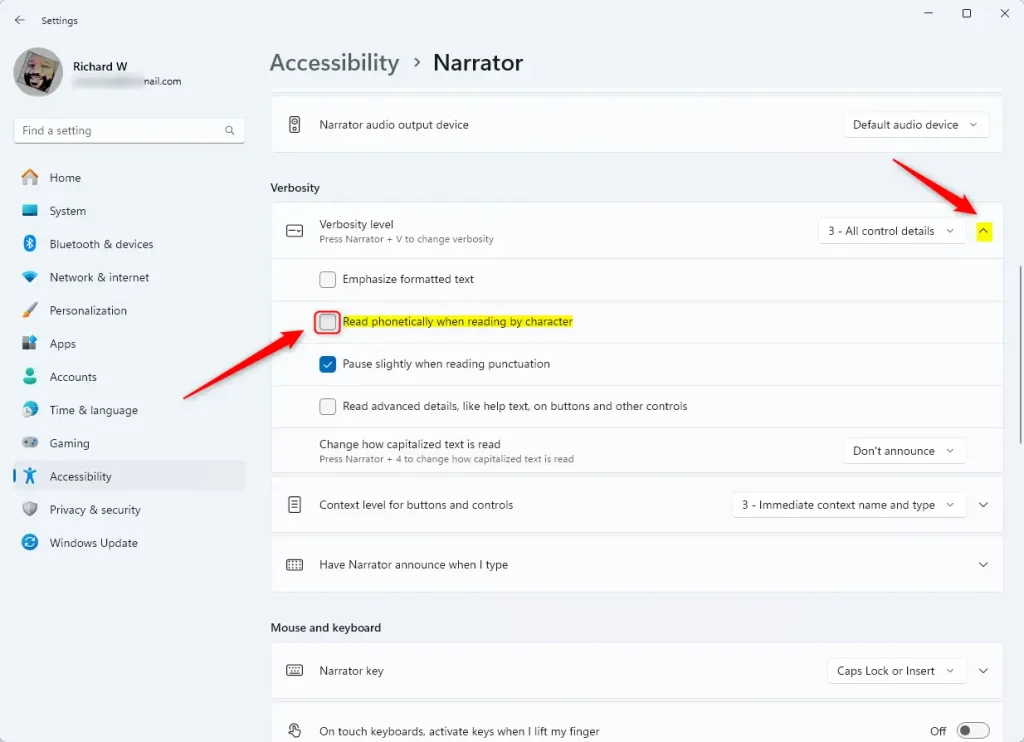
Open Settings, go to Accessibility, then Narrator. Under Verbosity, find “Read phonetically when reading by character” and toggle it on. This makes Narrator say the sound of each letter when reading by character.
When you use Narrator, you can turn on or off its keyboard shortcuts, launch it automatically, adjust the voice, speed, and volume, manage natural voices, lower other apps volume when Narrator is speaking, change Narrator audio output device, change verbosity level, and emphasize formatted text.
One useful tool you can use is phonetic reading. This makes Narrator say each letter of a word using its specific sound. For example, it will say “ay” for the letter “A.”
Why use phonetic reading?
Phonetic reading helps people who have a hard time reading or saying specific words. It breaks words down into smaller sounds. This makes it much easier to understand how to say a word correctly.
What happens when you enable it?
Once you turn this on, Narrator will say each letter phonetically whenever it reads by character. This will make the reading speed slower. If you are already a fast reader, you might not need to use this.
How to Enable or Disable Phonetic Reading in Narrator
Follow these steps to change your settings:
- Open the Settings app. You can do this by clicking the Start menu or by pressing the Windows key + I on your keyboard.
- Click Accessibility on the left side of the window.
- Click the Narrator tile on the right to see more options.

- Look for the section labeled Verbosity. Click to open the Verbosity level menu.
- Find the option that says Read phonetically when reading by character. Click the toggle switch to turn it On or Off.
- Close the Settings app when you are done.
You have now successfully updated your Narrator settings.
Summary
- Flexibility: You can turn phonetic reading on or off whenever you want. Turn it on if you need help reading, or turn it off if you do not need the extra detail.
- Helps with pronunciation: By speaking each letter as a sound, this feature helps you learn how to say hard words.
- Your choice: Windows lets you change Narrator to fit your needs. Everyone reads in their own way, and this tool helps make that easier.
Was this guide helpful?

About the Author
Richard
Tech Writer, IT Professional
Richard, a writer for Geek Rewind, is a tech enthusiast who loves breaking down complex IT topics into simple, easy-to-understand ideas. With years of hands-on experience in system administration and enterprise IT operations, he’s developed a knack for offering practical tips and solutions. Richard aims to make technology more accessible and actionable. He's deeply committed to the Geek Rewind community, always ready to answer questions and engage in discussions.



[…] you use the Narrator app, you can enable or disable Narrators phonetic reading, pause for punctuation, adjust how the Narrator read advanced details, adjust the way […]
[…] you use the Narrator app, you can enable or disable Narrators phonetic reading, pause for punctuation, adjust how the Narrator read advanced details, adjust the […]
[…] you use the Narrator app, you can enable or disable Narrators phonetic reading, pause for punctuation, adjust how the Narrator read advanced details, adjust the […]
[…] you use the Narrator app, you can enable or disable Narrator phonetic reading, pause for punctuation, adjust how the Narrator read advanced details, adjust the way […]
[…] you use the Narrator app, you can enable or disable Narrator phonetic reading, pause for punctuation, adjust how the Narrator read advanced details, adjust the way […]