How to Change Narrator Verbosity on Windows 11

You change Narrator verbosity on Windows 11 by adjusting its reading level to control how much detail it provides.
Narrator is Windows 11’s built-in screen reader that vocalizes on-screen content, assisting users with visual impairments. It’s designed to describe what you see and interact with.
This setting determines how much information Narrator shares about controls and text, with options ranging from “Text only” to “All text details” to suit your needs.
Adjusting verbosity helps you tailor Narrator’s output for a more efficient and comfortable experience, especially when navigating complex applications or websites.
Open Narrator settings by going to Settings > Accessibility > Narrator. Under the “Verbosity” section, click “Verbosity level” and choose your desired setting from the dropdown menu. You can also use the keyboard shortcut Narrator + V.
Why Change Narrator Verbosity?
You can change Narrator verbosity to make the screen reader tell you more or less information.
A lower verbosity level is faster and less overwhelming. It’s better if you only want to hear the important stuff.
How to Change Narrator Verbosity
Follow these steps to change how much Narrator speaks.
Step 1Open the Settings App
First, open the Windows Settings app. Click the Start menu and select Settings. Or press the keyboard shortcut (Windows key + I) to launch the Settings app.
Step 2Go to Accessibility Settings
When the Settings app opens, click the Accessibility button on the left. Then select the Narrator tile on the right to expand it.
Step 3Change the Verbosity Level
Changing the Narrator verbosity level is simple. You can adjust how much detail Narrator gives you by opening its settings and looking for the ‘Verbosity’ options.
- Text only
- Some control details
- All control details
- Some text details
- All text details
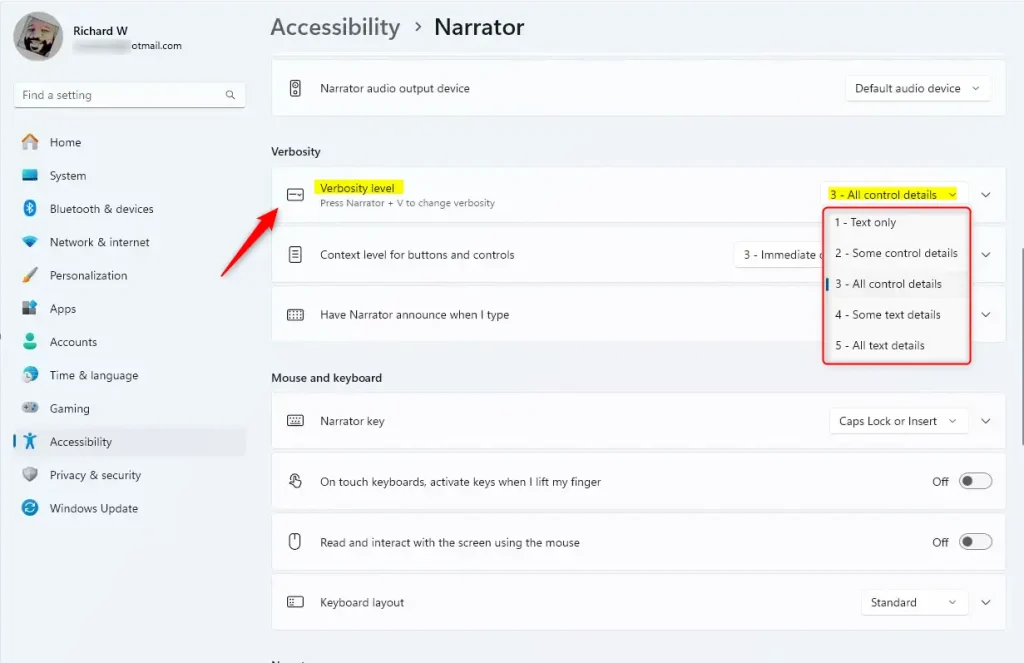
You can also change the verbosity level by pressing Narrator + V on your keyboard.
That’s it! Your new verbosity level is now set.
Summary
Adjusting Narrator verbosity on Windows 11 helps you get the right amount of detail from the screen reader.
What is the verbosity level in Narrator?
Verbosity level: Select how descriptive Narrator is about what it is reading. Options include: 1 – Text only, 2 – Some control details, 3 – All control details, 4 – Some text details, and 5 – All text details.
How to change Narrator speed?
And now select narrator on the left. Side on the right side now you can customize some of the narrator. Options so if you scroll down you can change the voice speed.
How do I change the voice on the Narrator?
And you want to search for settings. Best result you're going come back with settings go ahead and open that up. And then scrolling down here you want to select the ease of access tile.
Was this guide helpful?

About the Author
Richard
Tech Writer, IT Professional
Richard, a writer for Geek Rewind, is a tech enthusiast who loves breaking down complex IT topics into simple, easy-to-understand ideas. With years of hands-on experience in system administration and enterprise IT operations, he’s developed a knack for offering practical tips and solutions. Richard aims to make technology more accessible and actionable. He's deeply committed to the Geek Rewind community, always ready to answer questions and engage in discussions.



No comments yet — be the first to share your thoughts!