How to Change Narrator Audio Output in Windows 11

You change Narrator’s audio output in Windows 11 by selecting a preferred playback device within Narrator’s settings.
Narrator is Windows 11’s built-in screen reader, designed to vocalize screen content and user actions, making it invaluable for individuals with visual impairments.
If you use multiple audio devices, like headphones and speakers, you might want Narrator’s voice to play through a specific output. This flexibility allows you to customize your accessibility experience.
Select a different playback device from Narrator’s settings. Open Settings, go to Accessibility, then Narrator, and choose your desired audio output device from the “Narrator audio output device” option. This directs Narrator’s voice to your selected speakers or headphones.
Why Change Your Narrator Audio Output?
You might want to change your Narrator audio output if you have multiple sound devices, like headphones and speakers, and want Narrator to use a specific one.
Changing the audio output device can also help fix audio problems. It ensures Narrator works correctly on a specific device.
How to Change Narrator Audio Output on 🪟 Windows 11
- Open the Settings app. Click the Start menu and select Settings. Or press
Windows key + Ion your keyboard. - Click Accessibility on the left side.
- Select Narrator on the right to open it.
- Look for the “Narrator’s voice” section.
- Click on “Narrator audio output device.”
- Choose the audio device you want to use from the list.
- If you choose “Default audio device,” the Narrator will use your computer’s main audio output.
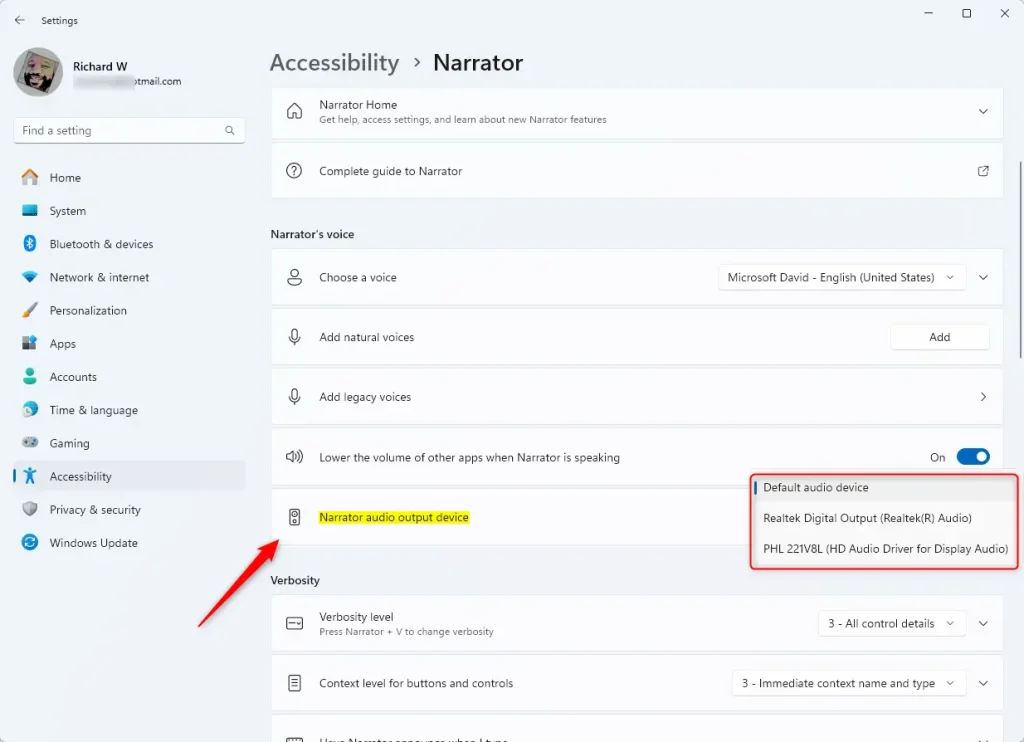
To change Narrator audio output on Windows 11, first open the Settings app by clicking the Start menu and selecting Settings, or by pressing Windows key + I.
What Happens When You Change the Audio Device?
Once you make this change, Narrator’s voice will come through your chosen speakers or headphones. Your other audio devices won’t be used for Narrator.
Summary
In short, changing your Narrator audio output on Windows 11 lets you pick exactly where you hear the screen reader’s voice, whether it’s your headphones or speakers.
Can you change the Narrator on an audiobook?
You can change the narrator on an audiobook if the book supports the Voice Switcher feature, which is indicated by a special tag.
How do I reset Narrator settings?
Select Restore all default to return all commands back to their default settings. To find this setting, press Alt+Tab after Narrator launches, select the Narrator Settings window, and choose Commands.
Was this guide helpful?

About the Author
Richard
Tech Writer, IT Professional
Richard, a writer for Geek Rewind, is a tech enthusiast who loves breaking down complex IT topics into simple, easy-to-understand ideas. With years of hands-on experience in system administration and enterprise IT operations, he’s developed a knack for offering practical tips and solutions. Richard aims to make technology more accessible and actionable. He's deeply committed to the Geek Rewind community, always ready to answer questions and engage in discussions.



[…] speed, and volume, manage natural voices, lower other apps volume when the Narrator is speaking, change Narrator audio output device, change verbosity level, emphasize formatted text, enable or disable Narrators phonetic […]
[…] Choose where the voice comes from (like speakers or headphones) […]