How to Enable or Disable Suggested Content in Windows 11

You disable suggested content in Windows 11 to stop personalized ads and unwanted tips from appearing across your operating system.
Suggested content, also known as recommendations, uses your activity data to offer tailored suggestions in places like the Start menu and Settings. This feature aims to help you discover new apps and features, but many find it intrusive.
For instance, Windows 11 could promote apps you’ve never downloaded or highlight Microsoft services you don’t use. Taking control of these settings helps you declutter your interface and enhance your privacy.
Open Settings, navigate to Privacy & security, then General, and toggle off “Show me suggested content.” For more control, use the Group Policy Editor or Registry Editor.
How to disable suggested content in Settings
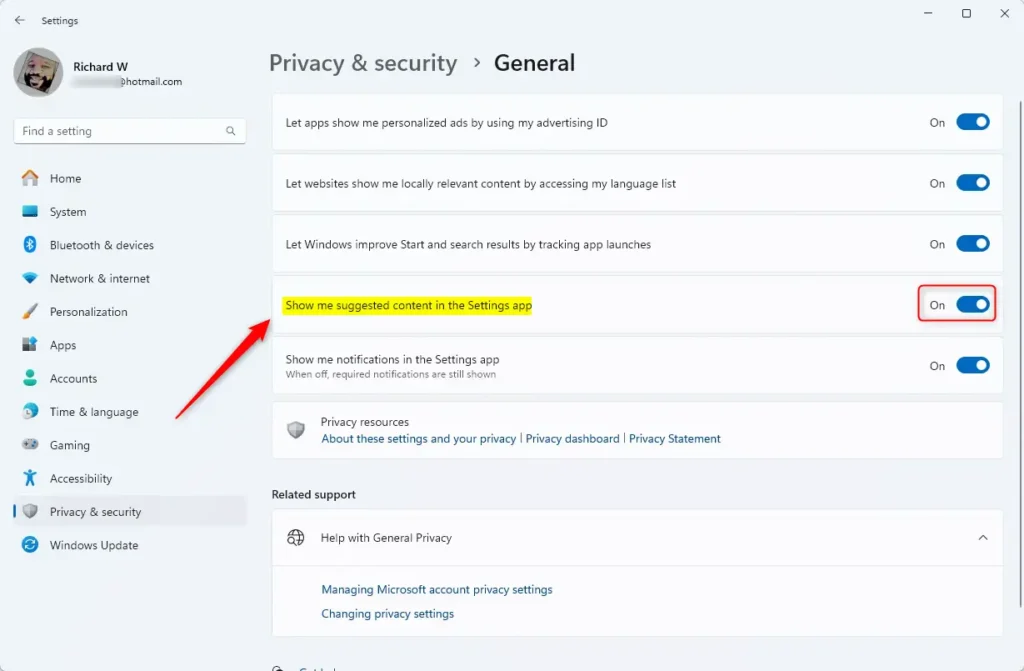
You can turn off suggested content in Windows 11 right from the Settings app by going to Privacy & security, then General, and flipping the switch for ‘Show me suggested content’ to Off.
- Open the Windows Settings app.
- Select Privacy & security on the left.
- Click the General tile.
Look for Show me suggested content in the Settings app. Toggle the switch to Off. In newer builds like 23H2 or 24H2, you may also see options to disable Show recommendations for tips, shortcuts, new apps, and more under Personalization > Start.
Advanced: Group Policy Editor (GPO)
Note: This requires admin privileges. This method is best for Windows 11 Pro users.
- Press ⊞ Win+R, type
gpedit.msc, and hit Enter. - Go to Computer Configuration > Administrative Templates > Windows Components > Cloud Content.
- Double-click Turn off all Windows spotlight features and set it to Enabled.
Advanced: Registry Editor
Note: This requires admin privileges. Always back up your registry before editing.
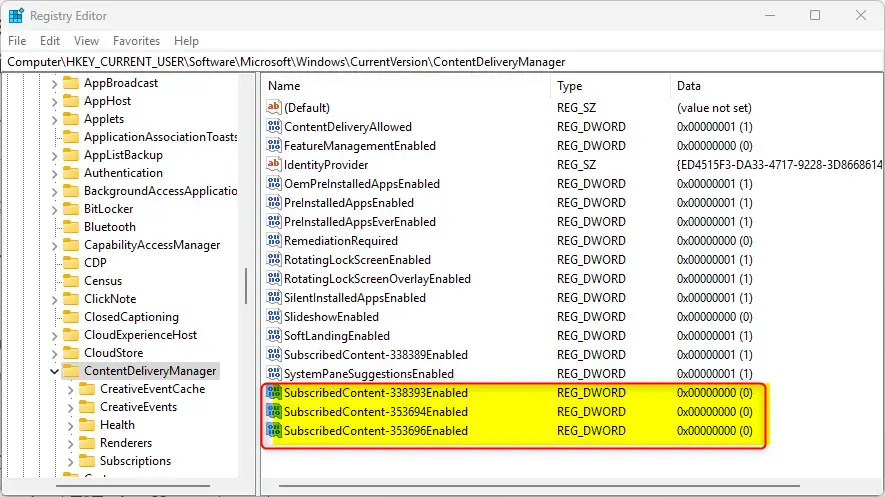
Open the Registry Editor and go to:
HKEY_CURRENT_USER\Software\Microsoft\Windows\CurrentVersion\ContentDeliveryManager
Find these items and set their value to 0:
SubscribedContent-338393EnabledSubscribedContent-353694EnabledSubscribedContent-353696Enabled
Restart your PC to finish.
Summary
You can easily disable suggested content in Windows 11 to remove ads and clutter. Use the Settings app for a simple toggle, or use the Group Policy and Registry Editor for more permanent control. These changes help debloat your system and improve your privacy without impacting essential Windows updates.
Why do recommendations reappear after a Windows update?
Windows updates can sometimes turn suggested content back on because updates might reset settings to their default to show you new features.
Is it safe to modify the Registry for Windows recommendations?
It is generally safe if you only modify the specific keys mentioned. However, the Registry is a sensitive database. Always create a System Restore point or a full backup before making changes. Incorrect edits can cause system instability, so follow the paths exactly as provided in this guide.
Was this guide helpful?

About the Author
Richard
Tech Writer, IT Professional
Richard, a writer for Geek Rewind, is a tech enthusiast who loves breaking down complex IT topics into simple, easy-to-understand ideas. With years of hands-on experience in system administration and enterprise IT operations, he’s developed a knack for offering practical tips and solutions. Richard aims to make technology more accessible and actionable. He's deeply committed to the Geek Rewind community, always ready to answer questions and engage in discussions.




No comments yet — be the first to share your thoughts!