How to Restrict Access to Windows 11 Settings

You can restrict access to Windows 11 Settings using either the Group Policy Editor (gpedit.msc) or the Registry Editor (regedit.exe).
These powerful tools allow you to prevent unauthorized users from opening the Windows Settings app or modifying specific configurations. This is especially useful for shared PCs or when you need to safeguard critical system settings.
By blocking access, you ensure that vital options like user accounts, Windows Update settings, or privacy preferences remain untouched. You can choose to block the entire Settings app or disable access to individual sections.
You can restrict access to Windows 11 Settings by using either the Registry Editor or Group Policy Editor. Open Registry Editor and create a new DWORD value named NoControlPanel set to 1, or use Group Policy Editor to enable “Prohibit access to Control Panel and PC settings.” Restart your computer after making changes.
Where Windows Stores Its Settings
Windows 11 has two main places where you can change how your computer works:
- Settings app – This is the new, easy-to-use panel for most settings.
- Control Panel – This is the older tool for advanced settings.
Method 1Use Registry Editor to Block Settings and Control Panel
You can restrict Windows 11 settings and Control Panel access for your account by using the Registry Editor, but be very careful. This method involves making specific changes to your computer’s registry files. It’s a good idea to back up your registry before you begin, as mistakes can cause problems.
What happens when you do this? This method blocks both the Settings app and Control Panel for your user account.
- Click the Start button and type
Registry Editor. - Click the Registry Editor app to open it.
- In Registry Editor, look at the top bar and copy-paste one of these paths, then press Enter:
HKEY_CURRENT_USER\Software\Microsoft\Windows\CurrentVersion\Policiesor
HKEY_LOCAL_MACHINE\SOFTWARE\Microsoft\Windows\CurrentVersion\Policies - In the left panel, right-click on Policies, choose New > Key, and name it
Explorer. - Right-click on the new Explorer key, choose New > DWORD (32-bit) Value.
- Name this new value
NoControlPanel. - Double-click
NoControlPanel, set the value data to1, and click OK. - Repeat the steps for both registry paths above to make sure it applies to all users. ⚠️ Admin privileges required
- Close Registry Editor and restart your computer.
Here’s what it looks like in Registry Editor:
Method 2Use Group Policy Editor to Block Settings (For 🪟 Windows 11 Pro or Enterprise)
If you have Windows 11 Pro or Enterprise, you can restrict access to the Settings app and Control Panel using the Group Policy Editor. This method is simpler than editing the registry and doesn’t require direct registry changes. It prevents users from opening these important system areas.
What happens when you do this? Users will not be able to open the Settings app or Control Panel.
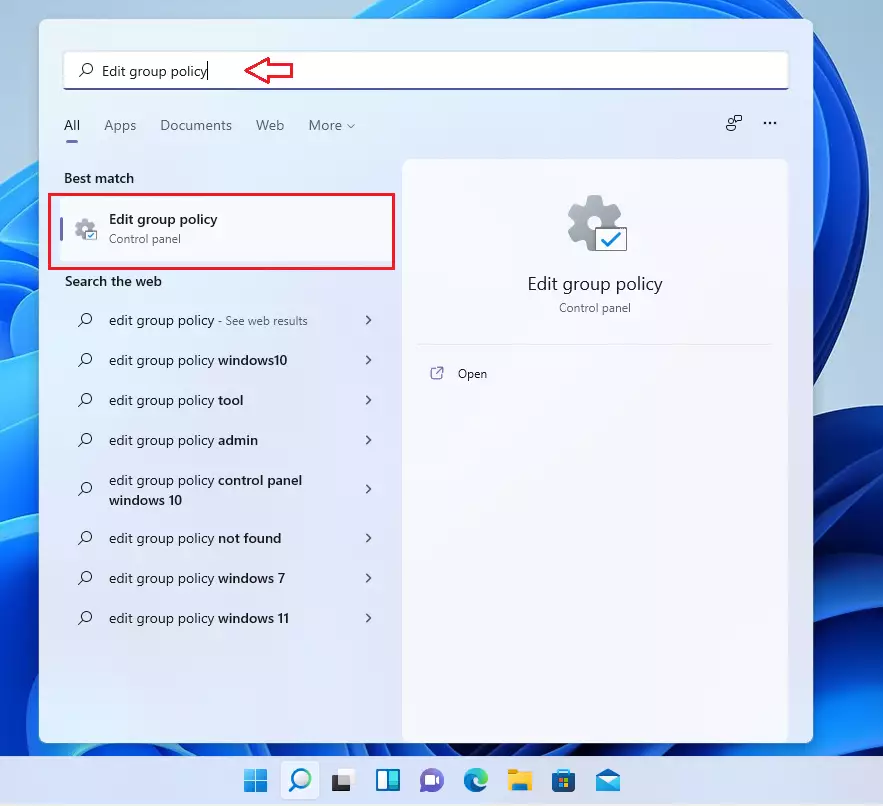
- Click Start, type
Edit group policy, and open the app. ⚠️ Admin privileges required - In the left menu, go to: User Configuration > Administrative Templates > Control Panel
- In the right pane, double-click Prohibit access to Control Panel and PC settings.
- Select Enabled, then click OK.
- Close the Group Policy Editor and restart your PC.
What Happens After You Complete These Steps?
Once you’ve done these steps, users will no longer be able to open the Settings app or Control Panel. If they try, they will see a message saying access is blocked.
Summary
Restricting access to Windows 11 settings is a good way to protect your computer from accidental or unwanted changes. The Registry Editor method works for all Windows 11 versions but is more technical. For Windows 11 Pro or Enterprise users, the Group Policy Editor offers a simpler way to block settings.- Restricting access helps protect your computer from unwanted changes.
- The Registry Editor method works on all editions of Windows 11 but is a bit technical.
- The Group Policy Editor is simpler but only available on Windows 11 Pro, Enterprise, or Education editions.
- Always be careful when changing system settings and back up important data.
- By following these simple steps, you can keep your Windows 11 PC safer and prevent accidental or unwanted changes to important settings.
How do I block access to Settings on 🪟 Windows 11?
Search for “Edit group policy.” In the left-hand menu, navigate to: User Configuration > Administrative Templates > Control Panel. Double-click “Prohibit access to Control Panel and PC settings.” Select “Enabled” in the new window.
How to prevent other users from changing Settings in 🪟 Windows 11?
And PC settings so double click on it. And here I just need to enable this option. And click on apply then okay make sure that it is enabled over here. And click on okay. And close this window.
Was this guide helpful?

About the Author
Richard
Tech Writer, IT Professional
Richard, a writer for Geek Rewind, is a tech enthusiast who loves breaking down complex IT topics into simple, easy-to-understand ideas. With years of hands-on experience in system administration and enterprise IT operations, he’s developed a knack for offering practical tips and solutions. Richard aims to make technology more accessible and actionable. He's deeply committed to the Geek Rewind community, always ready to answer questions and engage in discussions.




No comments yet — be the first to share your thoughts!