How to Enable Find My Device in Windows 11

You enable the Find My Device feature in Windows 11 to remotely locate your lost or stolen PC.
Find My Device is a built-in Windows security tool that helps you track your computer’s last known location via your Microsoft account, significantly improving your chances of recovery and data protection.
This feature transmits your device’s location data to Microsoft servers. You can then view this information from any web browser by signing into your Microsoft account.
For Find My Device to function properly in Windows 11, ensure your device is logged in with a Microsoft account and that location services are enabled.
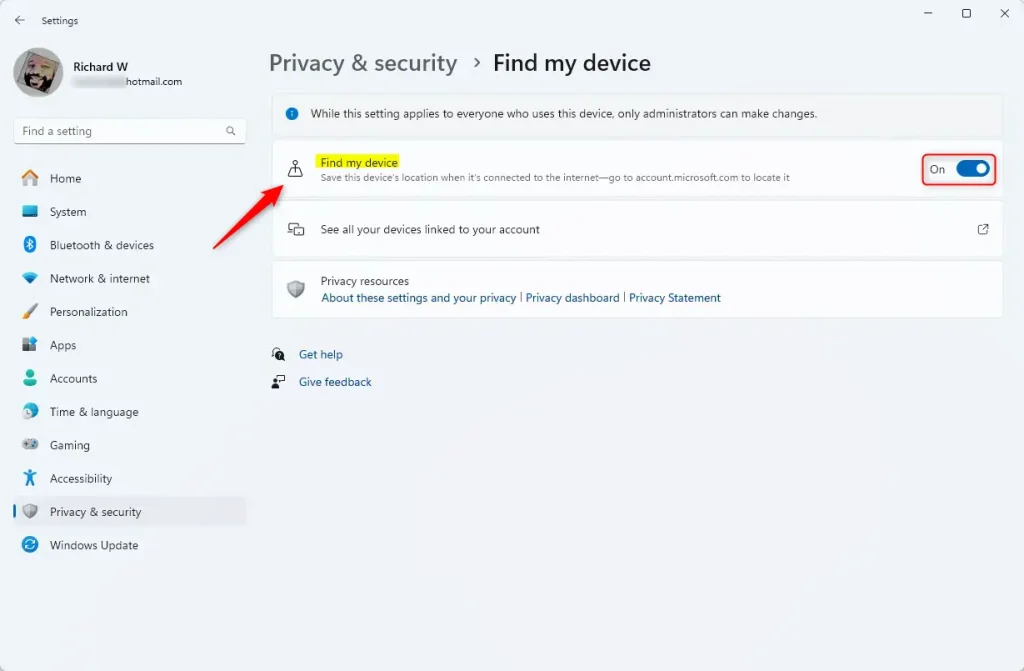
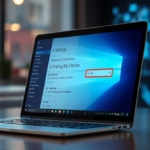
Navigate to Settings > Privacy & security > Find my device and toggle the switch to On. Ensure you are signed in with a Microsoft account and that Location Services are enabled for the feature to work.
Prerequisites for Success
Before you begin, make sure you meet these requirements:
- You must be signed in with a Microsoft account.
- You must have Location Services enabled on your device.
- You should be logged in as an administrator to change system-wide settings.
How to Enable Find My Device via Settings
This is the most common method for users.
- Open the Windows Settings app.
- Select Privacy & security on the left sidebar.
- Click the Find my device tile.
- Toggle the switch to On.
Advanced Configuration (Admin Privileges Required)
Note: You need administrative rights for the following methods.
Using the Group Policy Editor
- Press ⊞ Win+R, type
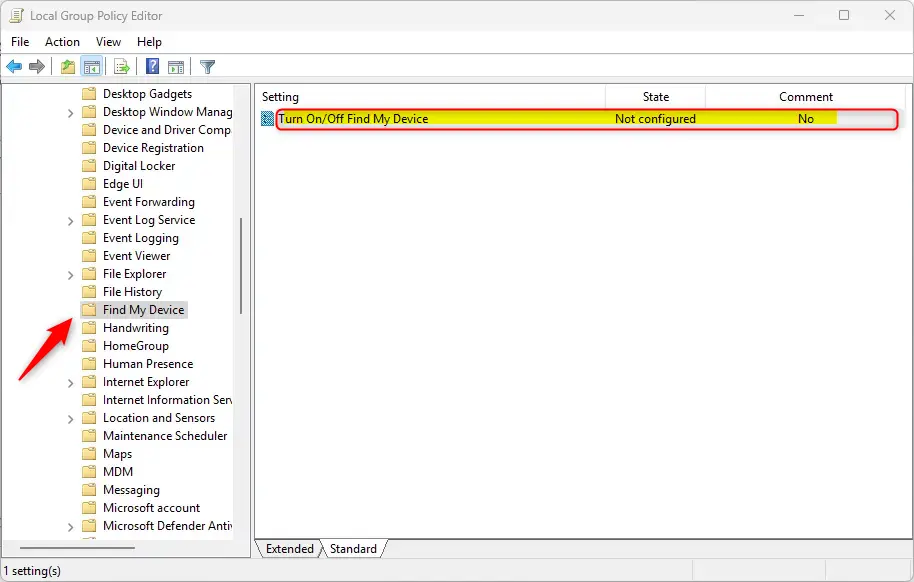
gpedit.msc, and hit Enter. - Navigate to: Computer Configuration > Administrative Templates > Windows Components > Find My Device.
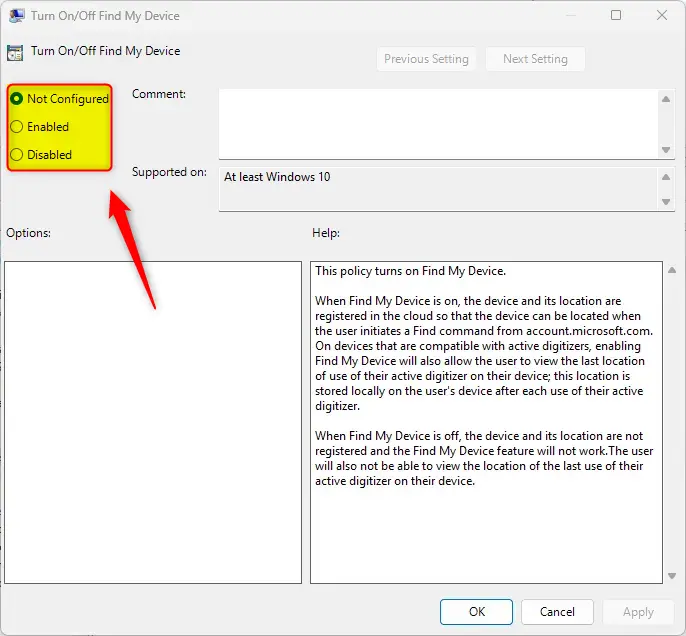
- Double-click Turn On /Off Find My Device.
- Select Enabled to turn it on.
- Click OK and restart your PC.
Using the Registry Editor
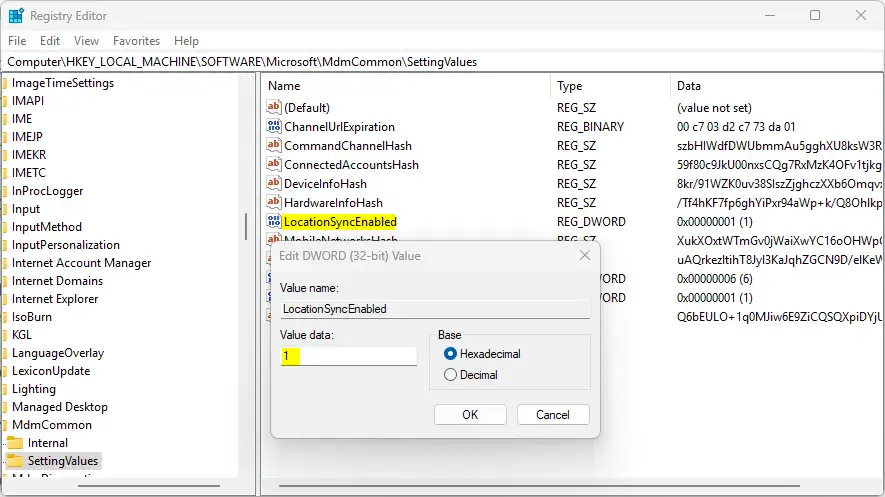
You can turn on Find My Device using the Windows Registry Editor, which lets you change hidden settings. This method is for more advanced users, but it’s straightforward if you follow the steps carefully to make sure your device can be found.
For settings that apply only to your user account, go here:
HKEY_CURRENT_USER\Software\Microsoft\FindMyDevice
- Look for
LocationSyncEnabled. If missing, right-click, select New > DWORD (32-bit) Value, and name itLocationSyncEnabled. - Set the value to 1 to enable.
To manage the system-wide policy, go here:
HKEY_LOCAL_MACHINE\SOFTWARE\Policies\Microsoft\FindMyDevice
- Look for
AllowFindMyDevice. If missing, create a new DWORD (32-bit) Value with that name. - Set the value to 1 to enable.
Troubleshooting and Error Handling
If Find My Device isn’t showing your computer’s location, don’t worry, there are a few common things to check. Usually, the problem is with your computer’s location settings, your Microsoft account connection, or if the device is even turned on and connected to the internet.
- Location Services: Ensure your location settings are not blocked in Privacy settings.
- Microsoft Account Sync: Verify that your account is correctly synced in Settings > Accounts.
- Offline Status: If the device is turned off or has no internet, it cannot report its location.
Summary
Turning on Find My Device in Windows 11 is an important step to help keep your computer safe. By making sure your Microsoft account is linked and location services are on, you can track your PC if it gets lost or stolen, giving you peace of mind.
Related Resources
- Official Microsoft Support: Find and lock a lost Windows device
- How to enable the administrator in Windows 11
Does Find My Device work if the laptop is turned off?
No. Find My Device needs your computer to be powered on and connected to the internet to send its location. If the device is powered off or disconnected from the network, it will show the last location it recorded when it was last online.
Is my location data private?
Yes. Your location data is encrypted and sent only to your Microsoft account. Microsoft uses this information solely to help you locate your device. It is not shared with third parties for advertising or tracking purposes, keeping your privacy protected while using the security feature.
Was this guide helpful?

About the Author
Richard
Tech Writer, IT Professional
Richard, a writer for Geek Rewind, is a tech enthusiast who loves breaking down complex IT topics into simple, easy-to-understand ideas. With years of hands-on experience in system administration and enterprise IT operations, he’s developed a knack for offering practical tips and solutions. Richard aims to make technology more accessible and actionable. He's deeply committed to the Geek Rewind community, always ready to answer questions and engage in discussions.



No comments yet — be the first to share your thoughts!