How to Change Device Usage Settings in Windows 11

You change device usage settings in Windows 11 to control Microsoft’s data collection and manage your connected hardware.
Device usage settings tailor your Windows 11 experience by allowing the system to learn your habits for personalized tips and recommendations.
This also includes managing your Bluetooth & Devices, enabling you to easily connect and control peripherals like printers, keyboards, and even your smartphone.
By adjusting these settings, you directly influence the information Windows 11 gathers about your PC’s performance and your interaction patterns, enhancing privacy and potentially reducing targeted ads.
For example, disabling diagnostic data collection limits the telemetry Windows 11 sends to Microsoft regarding your device’s usage.
Open Settings by pressing Windows key + I, then go to Personalization and select Device usage. Toggle categories like Gaming or Business on or off to control personalized tips and data collection. These changes adjust how Windows learns from your computer activity.
How to change device usage settings
You can change Windows 11 device usage settings directly within the Settings app to control how your computer handles tasks like gaming or family features.
1. Open Settings by pressing Windows key + I, or by clicking Start and choosing Settings.
2. In the Settings menu, click Personalization on the left.
3. Find and click the Device usage tile on the right.
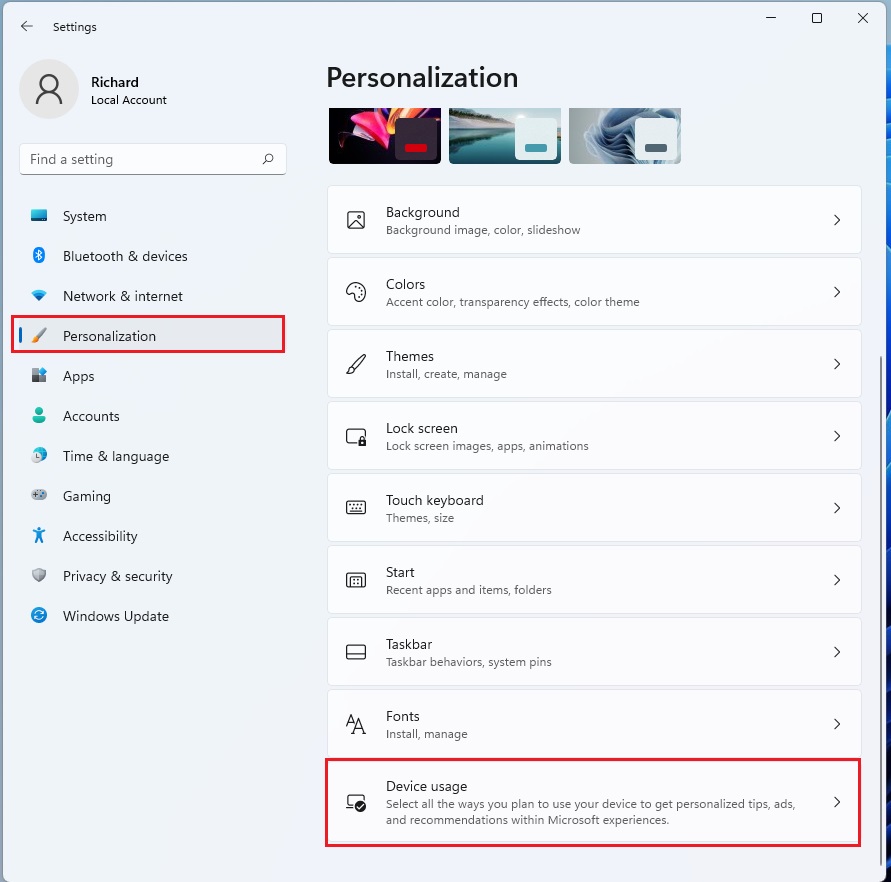
4. You’ll see categories like Gaming, Family, or Business. Switch them On or Off as you prefer.
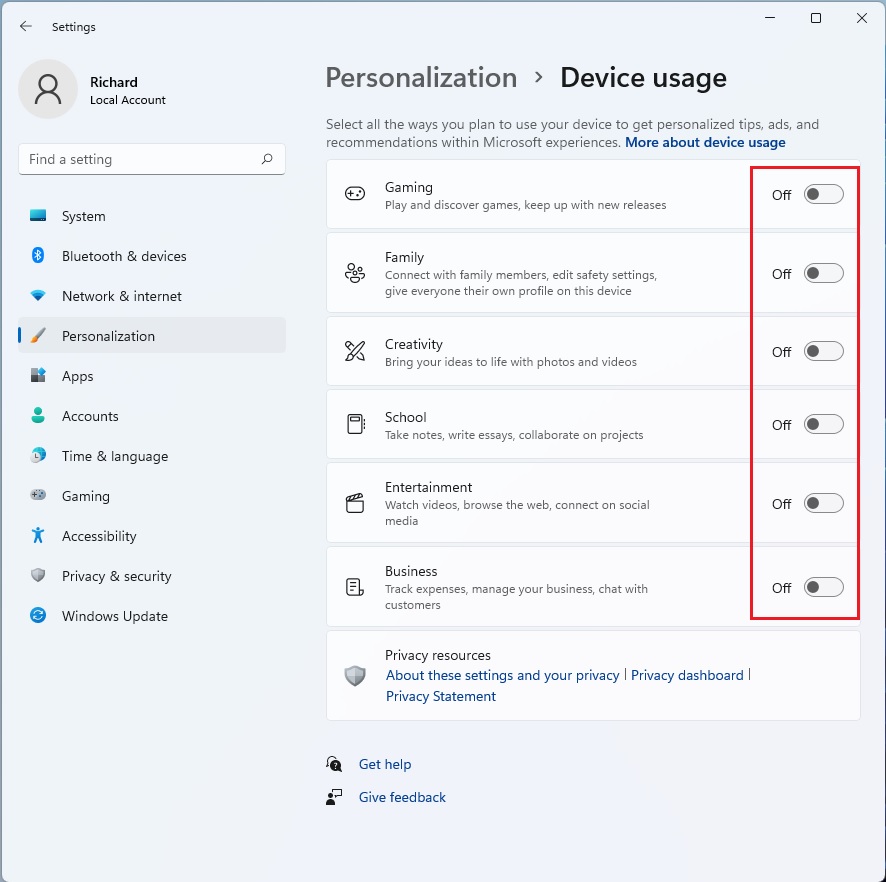
Note: These changes apply to your specific user profile. No administrative privileges are required to modify these settings.
Managing Hardware with Bluetooth & Devices
The Bluetooth & Devices section in Windows 11 lets you connect and manage all your physical hardware, such as pairing wireless headphones or adding a new printer.
- Bluetooth: Toggle this to connect wireless headphones or speakers.
- Printers & Scanners: Add or remove printing devices here.
- Phone Link: Sync your mobile device to see texts and photos on your PC.
- Autoplay: Choose what happens when you plug in a USB drive or memory card.
- Pen & Windows Ink: Customize how your digital pen works on your screen.
To add a new device, click Add device at the top of the Bluetooth & devices menu. Follow the on-screen prompts to pair your hardware.
Data Privacy and Usage
Yes, changing your Windows 11 device usage settings can affect your privacy because Windows collects data to improve features, but you can control this by turning off specific toggles or managing broader permissions in the Privacy & security tab.
Summary
Managing your Windows 11 device settings gives you control over both your privacy and your hardware. Use the Personalization section, then Device usage, to adjust how Windows suggests content to you. Use Bluetooth & devices to manage your peripherals. Both menus are manageable and require no special permissions to update.
Related Topics
- Understanding Privacy Settings in Windows 11
- Optimizing System Performance
- How to Connect Wireless Peripherals
How do I change my device usage settings in 🪟 Windows 11?
Open the Settings app by pressing Windows key + I. Navigate to Personalization, then select Device usage. From there, you can toggle specific categories like Gaming, Creativity, or Business to On or Off. These settings help Windows provide personalized tips based on how you use your computer daily.
What is the difference between Device Usage and Bluetooth & Devices settings?
Device Usage settings are for personalization, allowing Windows to suggest tips based on your habits. Bluetooth & Devices settings are for hardware management, allowing you to connect peripherals like printers, mice, and phones. One manages your software experience, while the other manages your physical hardware connections.
Was this guide helpful?

About the Author
Richard
Tech Writer, IT Professional
Richard, a writer for Geek Rewind, is a tech enthusiast who loves breaking down complex IT topics into simple, easy-to-understand ideas. With years of hands-on experience in system administration and enterprise IT operations, he’s developed a knack for offering practical tips and solutions. Richard aims to make technology more accessible and actionable. He's deeply committed to the Geek Rewind community, always ready to answer questions and engage in discussions.


No comments yet — be the first to share your thoughts!