How to Change Device Usage Settings in Windows 11

Windows 11 offers two main ways to manage your computer. First, there is Device Usage, which helps Microsoft learn how you use your PC to give you better tips. Second, there is Bluetooth & Devices, which manages your physical hardware like mice, printers, and phones. Understanding these Windows 11 device settings helps you keep your system running smoothly and keeps your data private.
Why change these settings?
You might change these settings to get helpful tips for your work or hobbies. You might also turn them off to see fewer ads or to keep your habits private. Managing hardware settings ensures your devices work correctly.
What happens when you are done?
Windows will change the tips it shows you. If you turn off tracking, you will stop seeing personalized ads. Changing hardware settings will immediately connect or disconnect your peripherals.
How to change device usage settings
You can manage these preferences through the Settings app.
1. Open the Settings app by pressing the Windows key + I on your keyboard, or by clicking Start and selecting Settings.
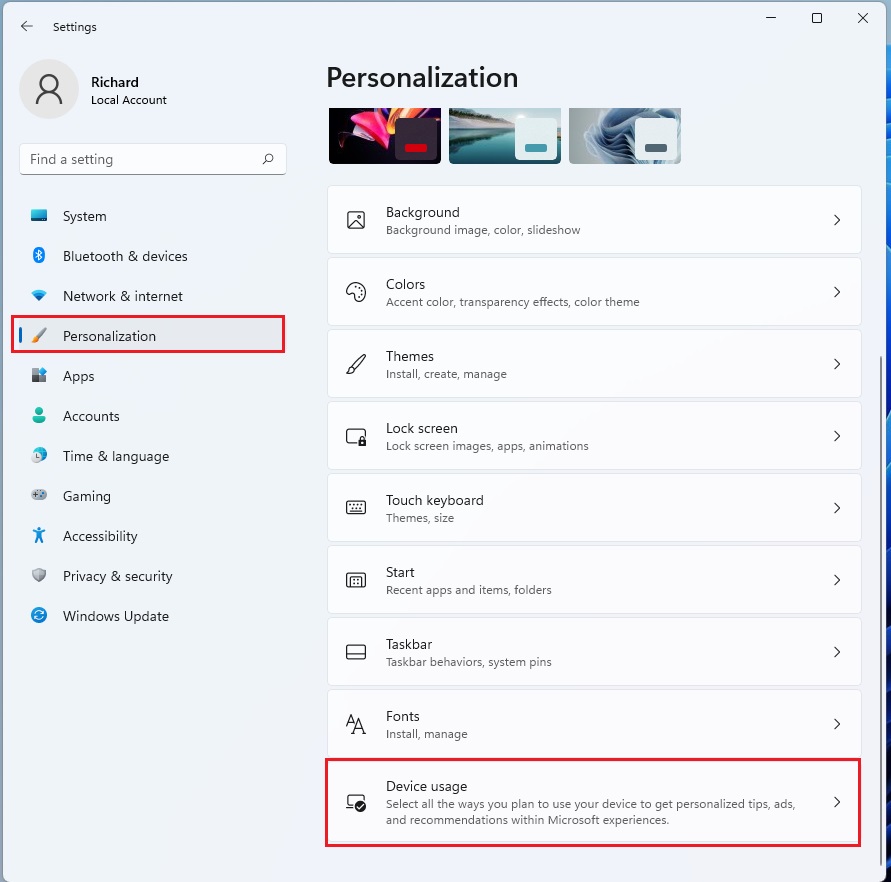
2. In the Settings menu, click on Personalization in the left sidebar.
3. Look for the Device usage tile on the right side and click it to open the menu.
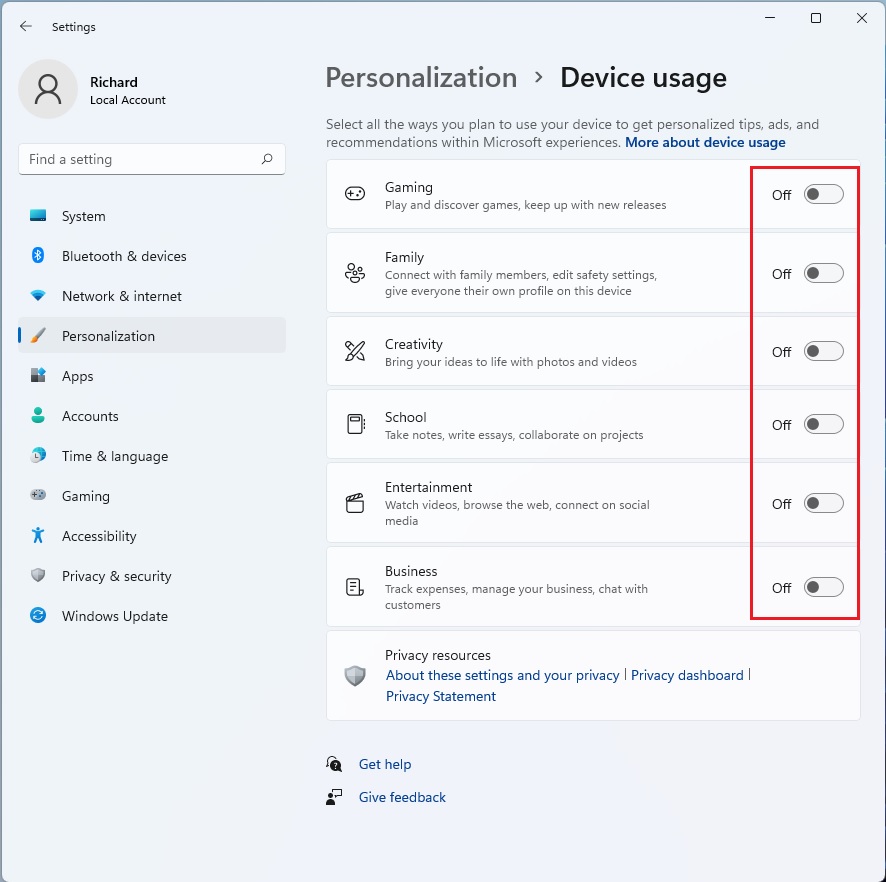
4. You will see a list of categories like Gaming, Family, or Business. Toggle the switch to On or Off for each category based on your preference.
Note: These changes apply to your specific user profile. No administrative privileges are required to modify these settings.
Managing Hardware with Bluetooth & Devices
The Bluetooth & devices section is where you manage your physical hardware configuration. This is different from usage settings because it controls how your computer talks to external tools.
- Bluetooth: Toggle this to connect wireless headphones or speakers.
- Printers & Scanners: Add or remove printing devices here.
- Phone Link: Sync your mobile device to see texts and photos on your PC.
- Autoplay: Choose what happens when you plug in a USB drive or memory card.
- Pen & Windows Ink: Customize how your digital pen works on your screen.
To add a new device, click Add device at the top of the Bluetooth & devices menu. Follow the on-screen prompts to pair your hardware.
Data Privacy and Usage
Does changing device usage settings affect my privacy? Yes. When you enable these settings, Windows collects data about your habits to improve system optimization. If you prefer to keep your activity private, you should turn these toggles off. You can also visit the Privacy & security tab in Settings to manage broader data sharing permissions.
Summary
Managing your Windows 11 device settings gives you control over both your privacy and your hardware. Use Personalization > Device usage to adjust how Windows suggests content to you. Use Bluetooth & devices to manage your peripherals. Both menus are easy to navigate and require no special permissions to update.
Related Topics
- Understanding Privacy Settings in Windows 11
- Optimizing System Performance
- How to Connect Wireless Peripherals
How do I change my device usage settings in Windows 11?
Open the Settings app by pressing Windows key + I. Navigate to Personalization, then select Device usage. From there, you can toggle specific categories like Gaming, Creativity, or Business to On or Off. These settings help Windows provide personalized tips based on how you use your computer daily.
What is the difference between Device Usage and Bluetooth & Devices settings?
Device Usage settings are for personalization, allowing Windows to suggest tips based on your habits. Bluetooth & Devices settings are for hardware management, allowing you to connect peripherals like printers, mice, and phones. One manages your software experience, while the other manages your physical hardware connections.
Was this guide helpful?

About the Author
Richard
Tech Writer, IT Professional
Richard, a writer for Geek Rewind, is a tech enthusiast who loves breaking down complex IT topics into simple, easy-to-understand ideas. With years of hands-on experience in system administration and enterprise IT operations, he’s developed a knack for offering practical tips and solutions. Richard aims to make technology more accessible and actionable. He's deeply committed to the Geek Rewind community, always ready to answer questions and engage in discussions.

No comments yet — be the first to share your thoughts!