How to Remove a Kiosk from Windows 11

You remove a kiosk from Windows 11 by disabling the assigned access feature and deleting the associated kiosk account.
A Windows kiosk mode locks down a device to a single application, creating a controlled environment for public terminals or dedicated screens. Windows 11 offers a built-in “Assigned Access” feature for this purpose.
This process is crucial if you’ve previously set up a kiosk, perhaps using Windows 11 Pro or Enterprise editions, and now need to restore your PC to a standard user setup.
Disable the assigned access feature via Settings > Accounts > Family & other users > Set up a kiosk, then click Remove kiosk. Alternatively, use PowerShell commands Get-AssignedAccess and Remove-AssignedAccess.
Understanding Kiosk Modes
Windows 11 offers two primary kiosk configurations: Single-app and Multi-app. A single-app kiosk locks users into one application, while a multi-app kiosk grants access to a limited selection of apps. Both rely on Assigned Access to restrict permissions. Keep in mind that you’ll need administrative rights to remove these.
Warning: Data Loss
How to Remove a Kiosk via Settings
You can remove a kiosk from Windows 11 using the built-in Settings app, but you’ll need administrator rights first.
1. Open your settings by pressing the Windows key + I or by clicking Start, then Settings.
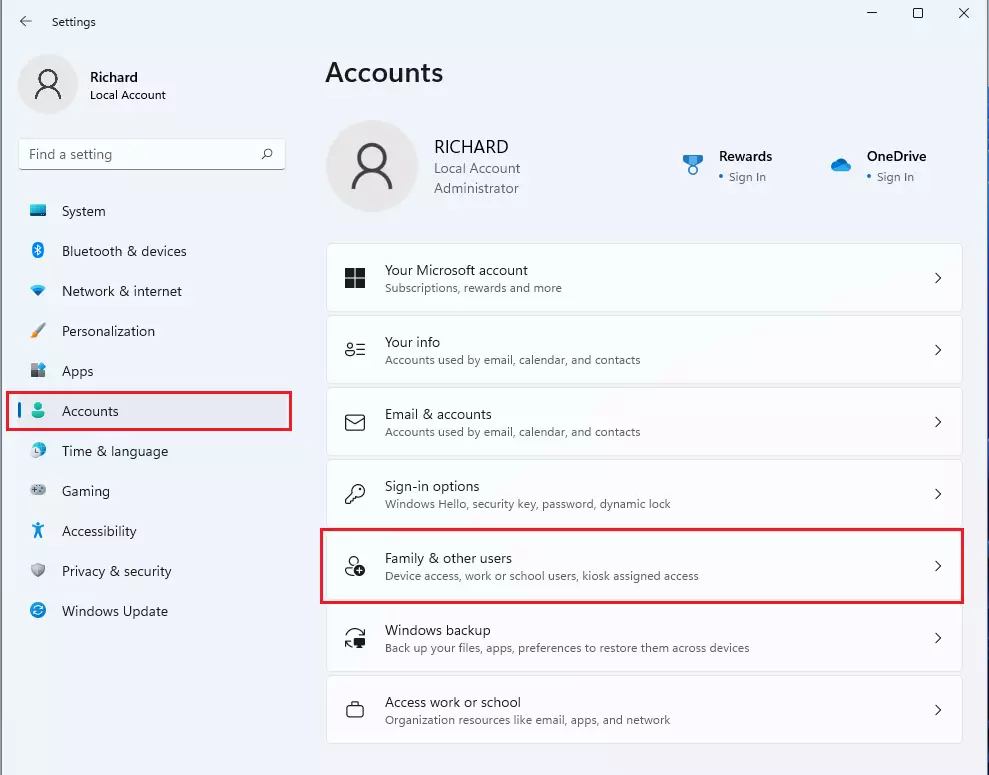
2. In the Settings window, click on Accounts. Then, select Family & other users.
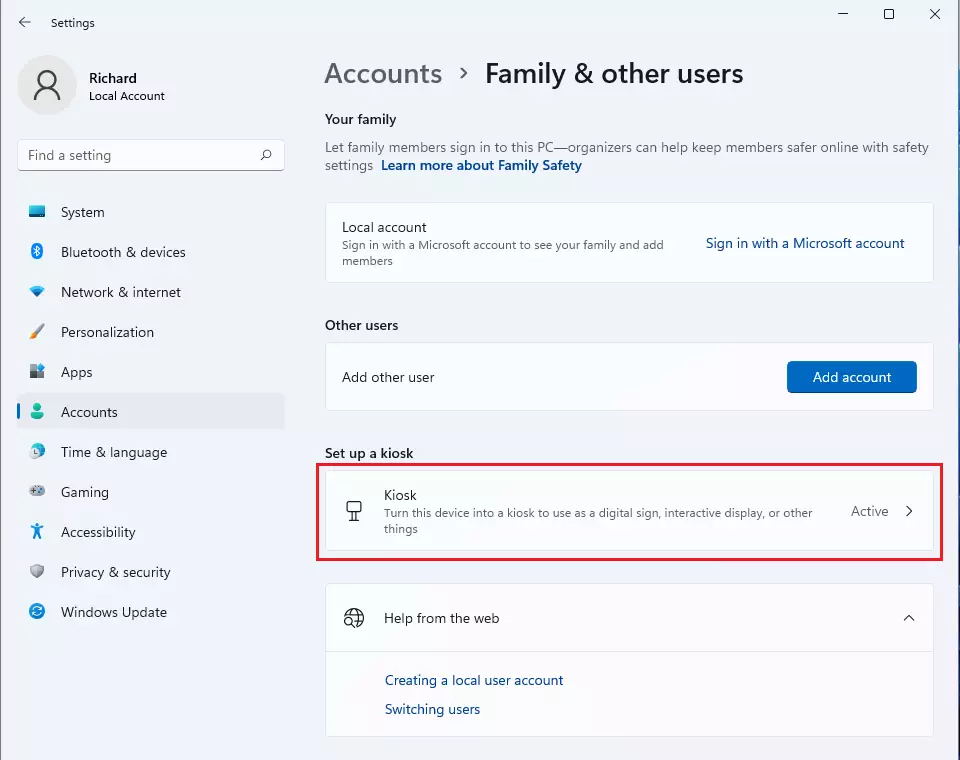
3. Look for the section called Set up a kiosk. Click the Active tile to see more options.
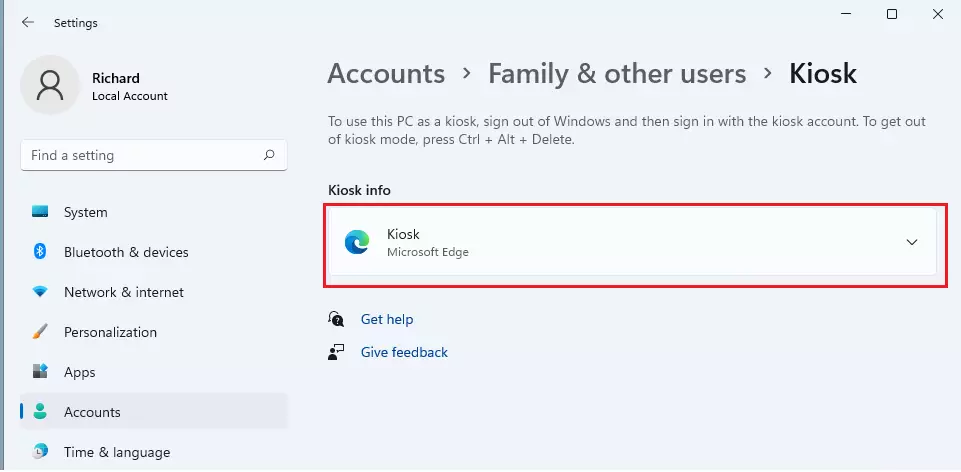
4. You will see the app currently set to run in kiosk mode. Click on it to expand the menu.
5. Click the Remove kiosk button.

6. A window will pop up to confirm. Click Remove to finish deleting the setup.

Removing Kiosk via PowerShell
If the Settings app isn’t working for you, you can use PowerShell. Note: This step requires administrator privileges.
- Right-click the Start button and select Terminal (Admin) or PowerShell (Admin).
- Type the following command to list current kiosk configurations:
Get-AssignedAccess
3. To remove the configuration, run this command:
Remove-AssignedAccess
Troubleshooting Locked-out Scenarios
If you’re locked out of your Windows 11 kiosk and the keyboard isn’t working, try pressing Ctrl+Alt+Del to get to the sign-in screen.
Summary
You can remove a kiosk from Windows 11 using the Settings menu or PowerShell, which will lift restrictions and let your computer work normally again.
Why is the ‘Remove Kiosk’ button missing in Settings?
The ‘Remove Kiosk’ button might be missing in Windows 11 Settings if you’re not an administrator, or if the kiosk was set up using Group Policy or MDM.
Can I remove a Kiosk account remotely?
Yes, if the device is managed by an MDM solution like Microsoft Intune, you can remove the kiosk profile remotely by updating the configuration policy. For standalone computers, you would need remote access software to run PowerShell commands as an administrator to delete the assigned access profile.
Does deleting a Kiosk account delete the user profile data?
Yes, deleting the kiosk account through the Windows settings or via PowerShell will remove the user profile and all associated local data. Always back up any necessary files stored within that specific user account folder before you proceed with the deletion process to avoid permanent data loss.
Was this guide helpful?

About the Author
Richard
Tech Writer, IT Professional
Richard, a writer for Geek Rewind, is a tech enthusiast who loves breaking down complex IT topics into simple, easy-to-understand ideas. With years of hands-on experience in system administration and enterprise IT operations, he’s developed a knack for offering practical tips and solutions. Richard aims to make technology more accessible and actionable. He's deeply committed to the Geek Rewind community, always ready to answer questions and engage in discussions.



No comments yet — be the first to share your thoughts!