How to Check USB4 Support in Windows 11

You can check for USB4 support in Windows 11 by examining your system’s hardware specifications and using Device Manager.
USB4 is a high-speed connectivity standard that offers up to 40 Gbps bandwidth, backwards compatibility with USB 3.2, and DisplayPort alternate mode support.
Knowing if your PC has USB4 capability, particularly on motherboards released after 2020, lets you utilize its full potential for demanding peripherals.
This article shows you how to quickly verify USB4 compatibility directly within Windows 11.
Hardware Requirements and Windows Build
USB4 support is not just about software. It requires specific hardware on your motherboard or laptop chipset. You must be running Windows 11, version 22H2 or higher. Specifically, you need to be on Build 22621.1778 or later, which includes the KB5026446 update. Without these, your system cannot manage USB4 hubs or 80Gbps speeds correctly.
How to check your USB support
You can see what your computer supports by using the Settings app. Follow these steps:
- Open the Windows Settings app. You can do this by clicking the Start menu and selecting Settings, or by pressing Windows key + I on your keyboard.
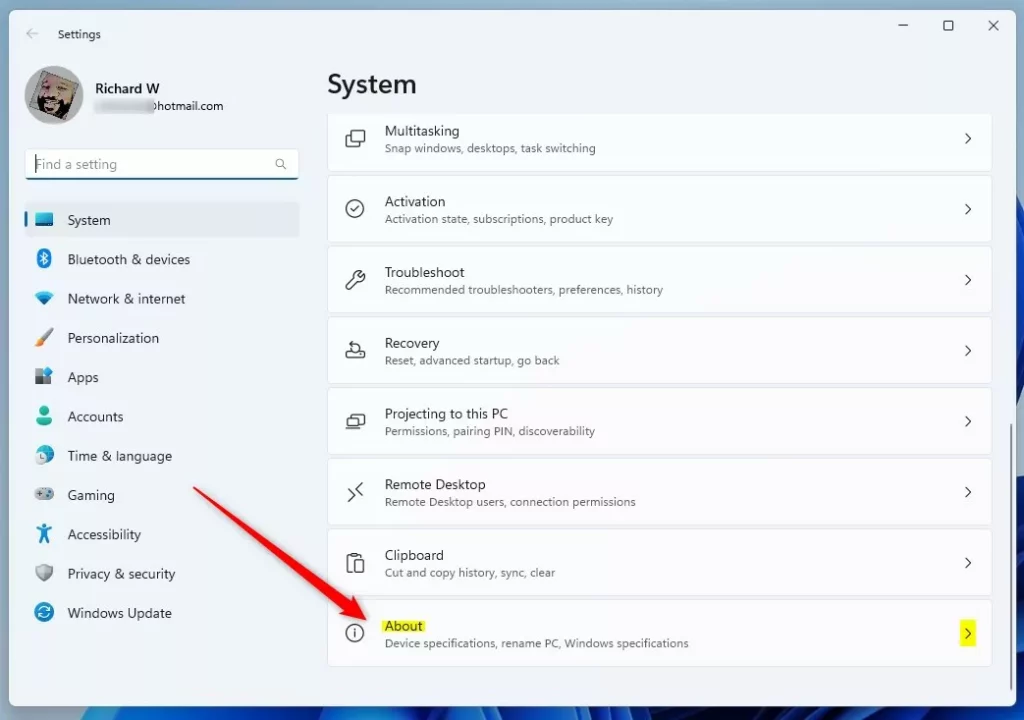
- Click on System in the left-hand menu.
- Scroll down and select the About tile.
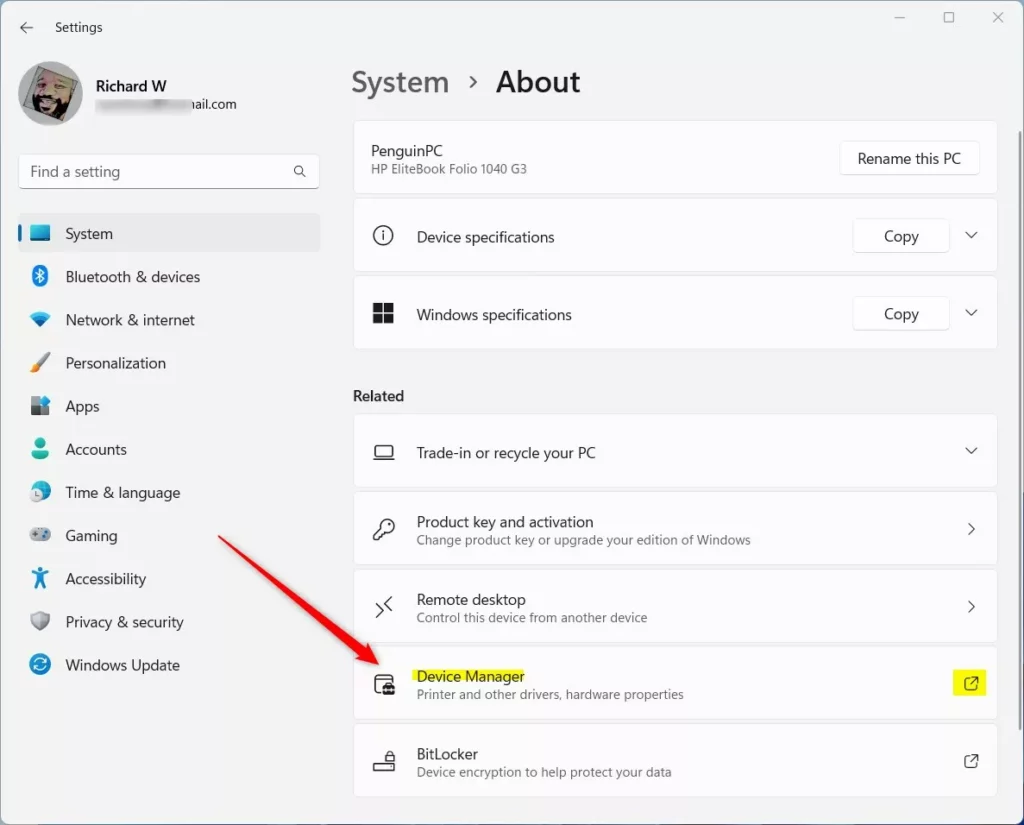
- Look under the Related section and click on the Device Manager tile. Note: This step may require admin privileges.
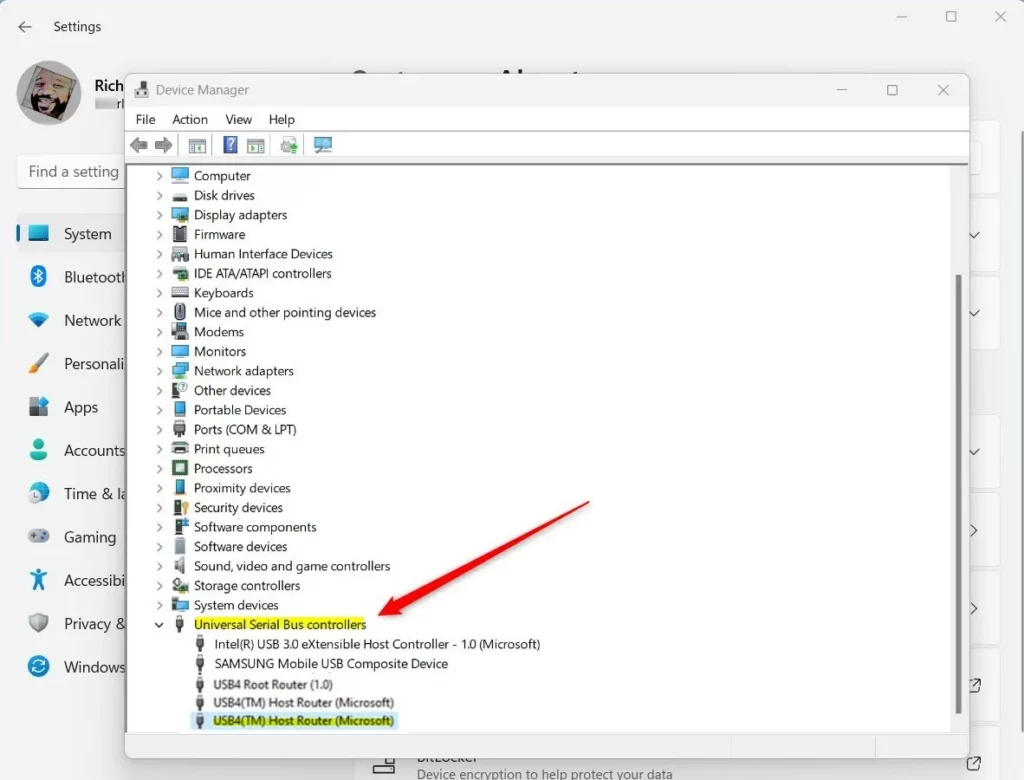
- In the Device Manager window, look for the section called Universal Serial Bus controllers and click the arrow to expand it.
- Look through the list to see if you find any entries labeled USB4.
How to find USB4 settings
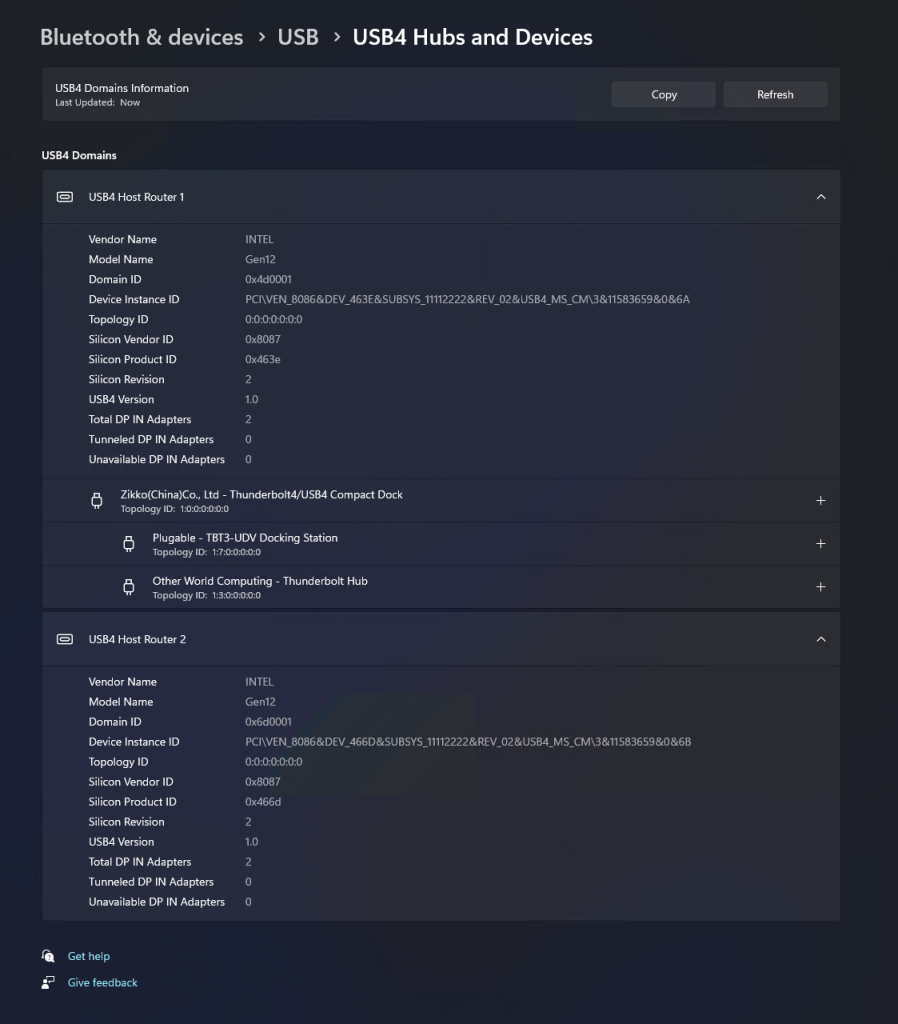
If your computer has USB4, you can manage it through a dedicated settings panel. Follow these steps:
- Open the Settings app.
- Click on the USB tile.
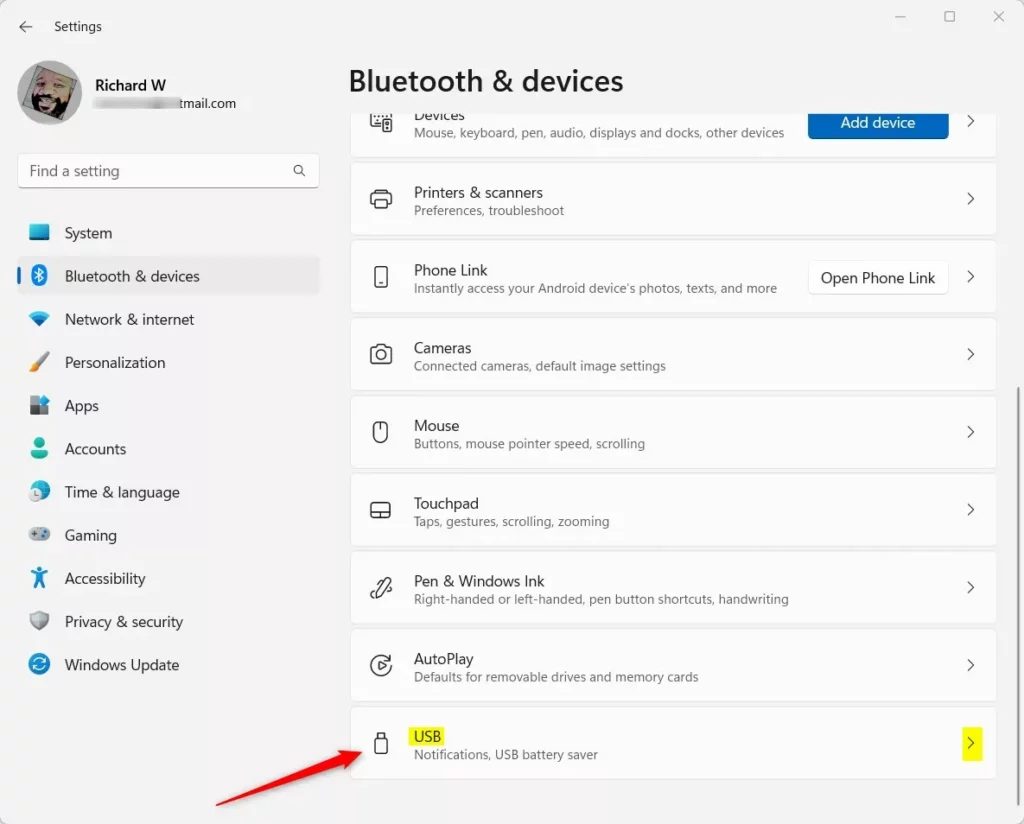
- Click on USB4 Hubs and Devices. This page shows your system’s USB4 capabilities and any connected devices. If your computer does not support USB4, this option will not appear.
Troubleshooting USB4 Connection Issues
If your device shows up as a standard USB device instead of USB4, check your cable. USB4 requires certified cables. Also, ensure your drivers are updated. You can update drivers by right-clicking the device in Device Manager and selecting Update driver. For advanced technical details, visit the official Microsoft USB blog.
Summary
USB4 is a powerful standard that makes connecting devices faster and easier. By checking your Device Manager and the Bluetooth & devices section of your settings, you can quickly confirm if your Windows 11 computer supports this technology. Always ensure your system is updated to the latest build to maintain peripheral compatibility and power delivery performance.
Is USB4 backwards compatible with USB 3.2?
Yes, USB4 is fully backwards compatible with USB 3.2, USB 2.0, and Thunderbolt 3 devices. You can plug older devices into a USB4 port, and they will function normally, though they will be limited to their own maximum data transfer speeds rather than the full USB4 bandwidth.
Does my CPU support USB4?
USB4 support depends more on your motherboard chipset and the specific controller integrated into your laptop or PC rather than the CPU alone. Check your manufacturer’s specifications page for your specific model to confirm if the USB-C ports support the USB4 or Thunderbolt 4 standard.
Was this guide helpful?
0% of readers found this helpful (1 votes)

About the Author
Richard
Tech Writer, IT Professional
Richard, a writer for Geek Rewind, is a tech enthusiast who loves breaking down complex IT topics into simple, easy-to-understand ideas. With years of hands-on experience in system administration and enterprise IT operations, he’s developed a knack for offering practical tips and solutions. Richard aims to make technology more accessible and actionable. He's deeply committed to the Geek Rewind community, always ready to answer questions and engage in discussions.




No comments yet — be the first to share your thoughts!