How to Check USB4 Support in Windows 11

USB4 is a high-speed connection standard for your computer. It allows you to connect docks, high-performance gadgets, monitors, and chargers. This guide will help you see if your computer supports this technology.
Why check for USB4?
Checking your USB4 support helps you understand if your computer can handle fast data transfers and advanced accessories. If you know your system supports USB4, you can buy the right gear to boost your productivity.
What happens when done?
Once you finish these steps, you will know exactly what your computer is capable of. You will also know how to find the specific USB4 settings page in Windows 11.
How to check your USB support
You can see what your computer supports by using the Settings app. Follow these steps:
- Open the Windows Settings app. You can do this by clicking the Start menu and selecting Settings, or by pressing Windows key + I on your keyboard.
- Click on System in the left-hand menu.
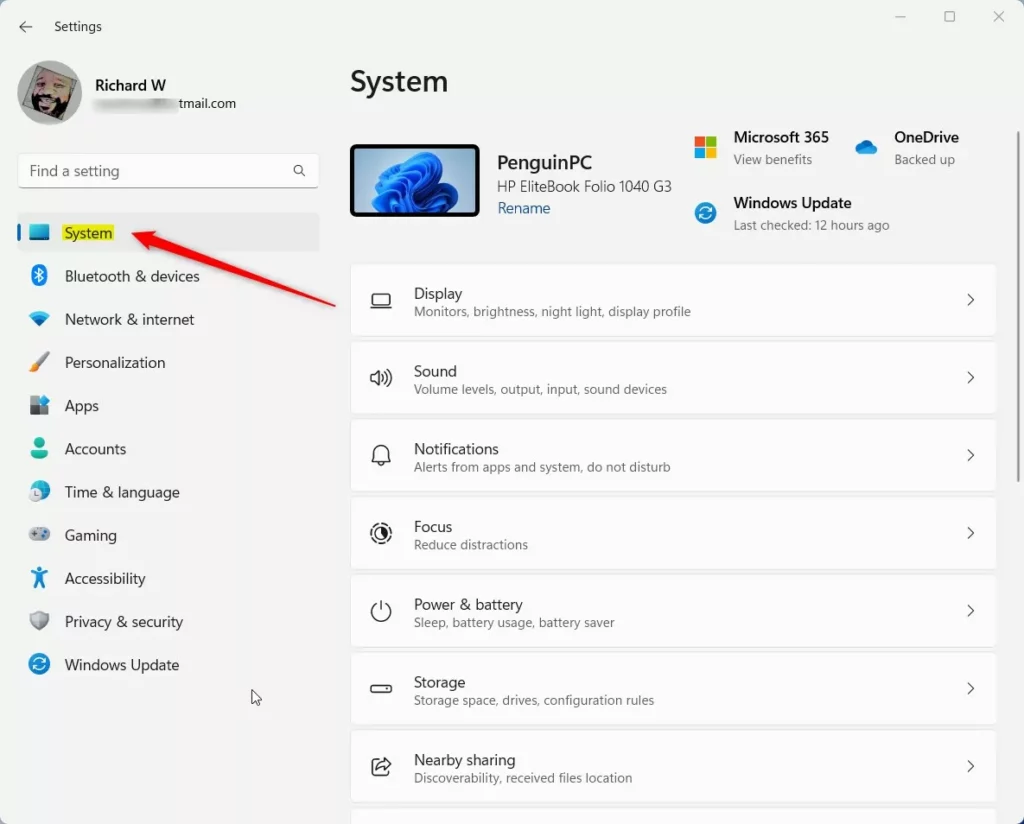
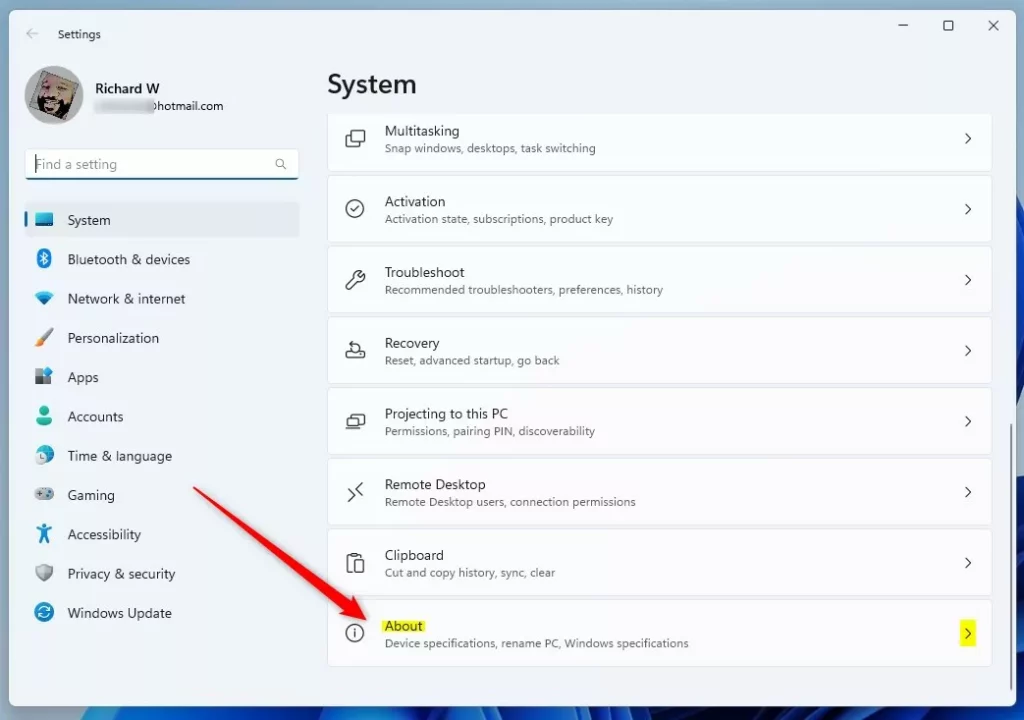
- Scroll down and select the About tile.
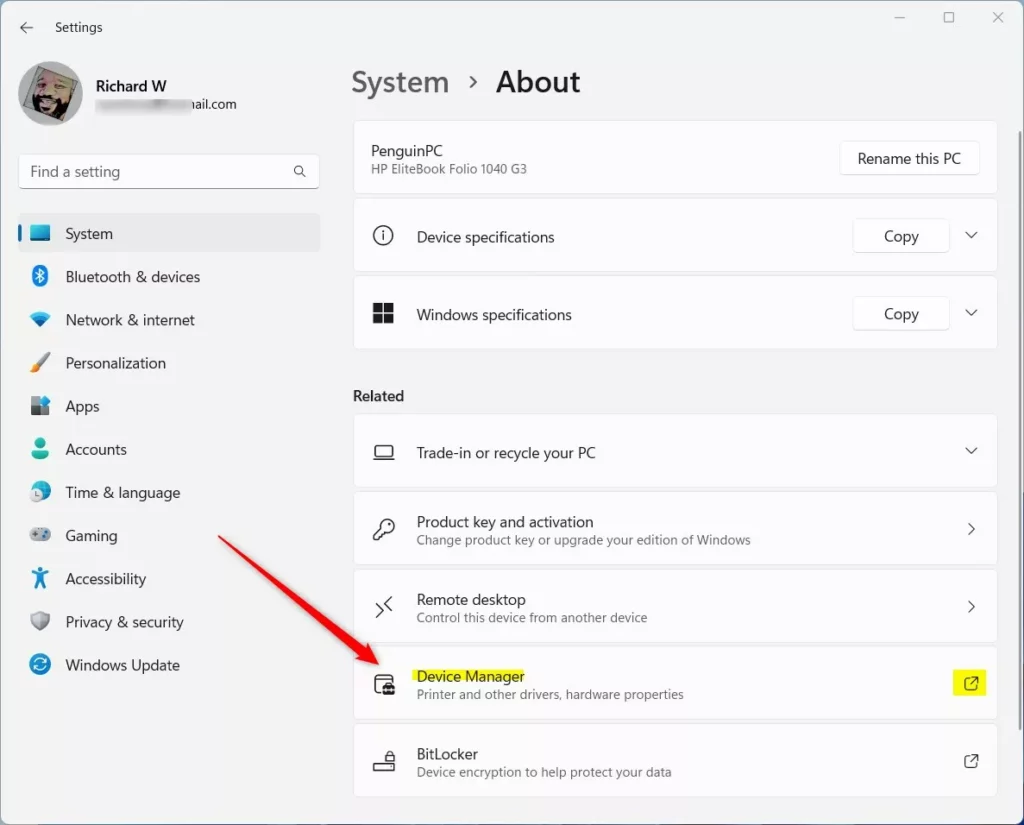
- Look under the Related section and click on the Device Manager tile. Note: This step may require admin privileges.
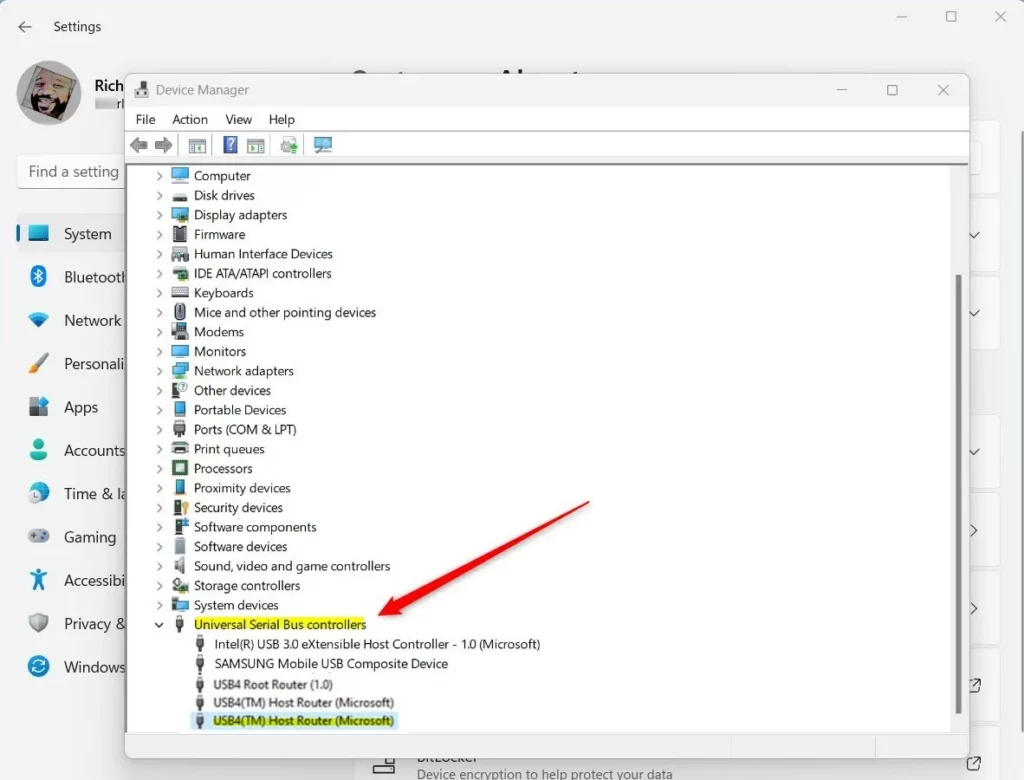
- In the Device Manager window, look for the section called Universal Serial Bus controllers and click the arrow to expand it.
- Look through the list to see if you find any entries labeled USB4.
How to find USB4 settings
If your computer has USB4, you can manage it through a dedicated settings panel. Follow these steps:
- Open the Settings app app again.
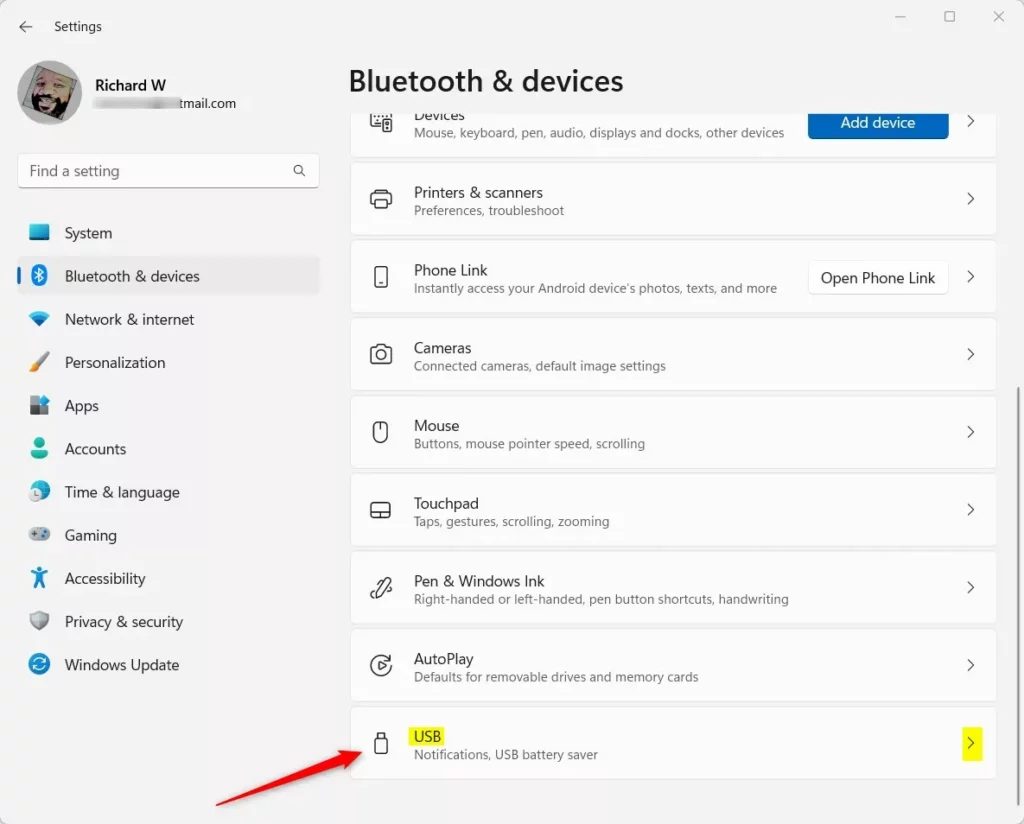
- Select Bluetooth & devices from the left menu.
- Click on the USB tile.
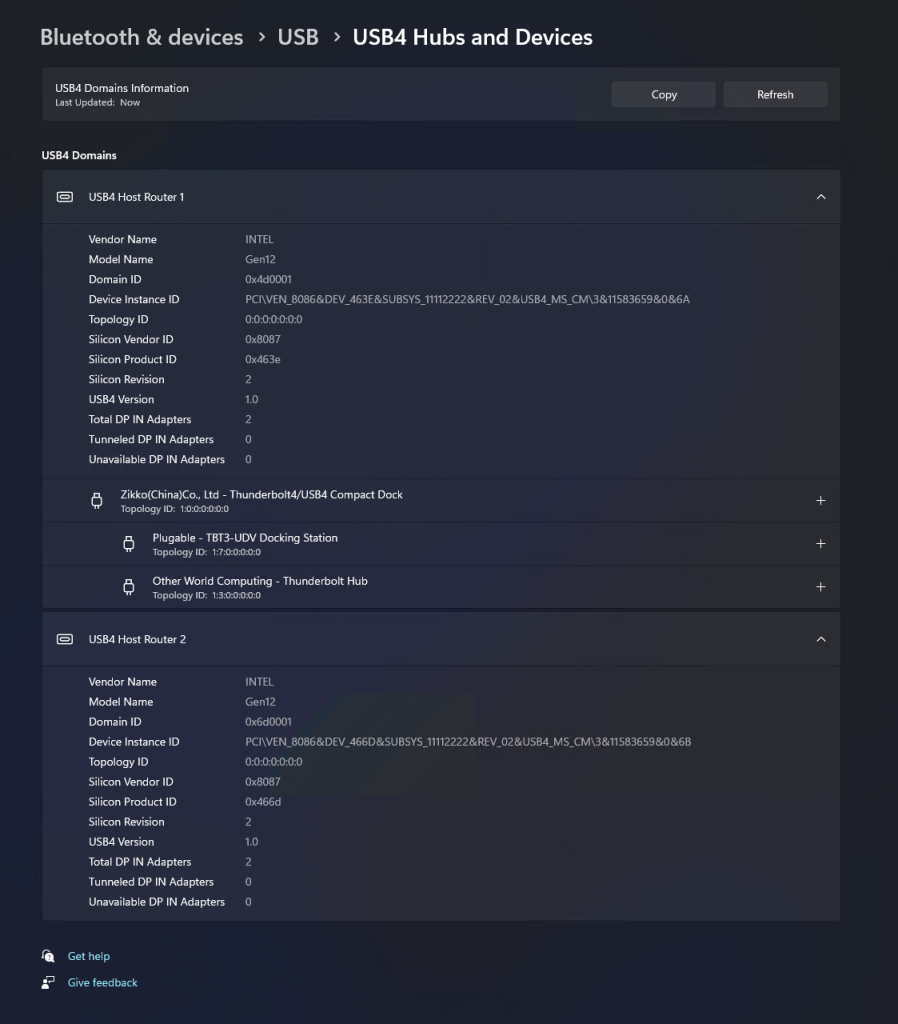
- Click on USB4 Hubs and Devices. This page shows your system’s USB4 capabilities and any connected devices. If your computer does not support USB4, this option will not appear.
When you are finished, close the Settings app.
Summary
USB4 is a powerful standard that makes connecting devices faster and easier. By checking your Device Manager and the Bluetooth & devices section of your settings, you can quickly confirm if your Windows 11 computer supports this technology. This ensures you can use the latest high-performance hardware with your PC.
Reference: Microsoft.com
Was this guide helpful?





Leave a Reply Cancel reply