How to Enable or Disable Cloud Search in Windows 11

You can enable or disable Windows 11’s Cloud Search, which integrates results from cloud storage services like OneDrive into your PC’s search experience.
This feature allows you to quickly find cloud-stored files and photos directly from the Windows search bar, typically appearing alongside local results.
You might want to disable Cloud Search for privacy reasons or to improve search performance on older machines.
Disabling this setting prevents Windows 11 from indexing and displaying cloud content in your searches.
To enable or disable Cloud Search in Windows 11, open Settings, navigate to Privacy & security, then Search Windows, and toggle “Enable deep content search of cloud content.” Alternatively, use Group Policy Editor or Registry Editor for advanced control.
What is Cloud Search?
Cloud Search in Windows 11 helps you find files, photos, and settings stored online in services like OneDrive or SharePoint, right from your PC’s search bar.
This feature is available on special Copilot+ PCs and Windows 11 version build 26100.3624 or later.
How to Turn Cloud Search On or Off Using Windows Settings
- Click the Start menu (Windows icon) at the bottom left of your screen.
- Select Settings (gear icon). Or press Windows key + I on your keyboard to open Settings quickly.
- In Settings, click Privacy & security on the left side panel.
- On the right side, find and click Search Windows.
- Look for the option called “Enable deep content search of cloud content” and click the toggle switch to turn it on or off.
You can easily turn cloud search on or off in Windows 11 using the built-in Settings app, giving you control over how your PC indexes cloud content.
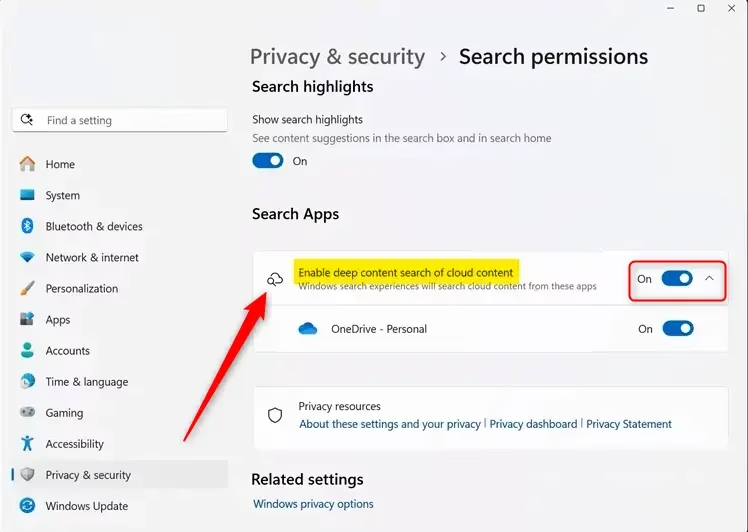
You can easily turn cloud search on or off in Windows 11 using the built-in Settings app, giving you control over how your PC indexes cloud content.
When finished, you can close the Settings window.
How to Enable or Disable Cloud Search Using Group Policy Editor
For Windows 11 Pro users and above, managing cloud search is possible through the Group Policy Editor, offering a way to control this feature via advanced system settings.
- [Admin Required] Press the Start menu button and type
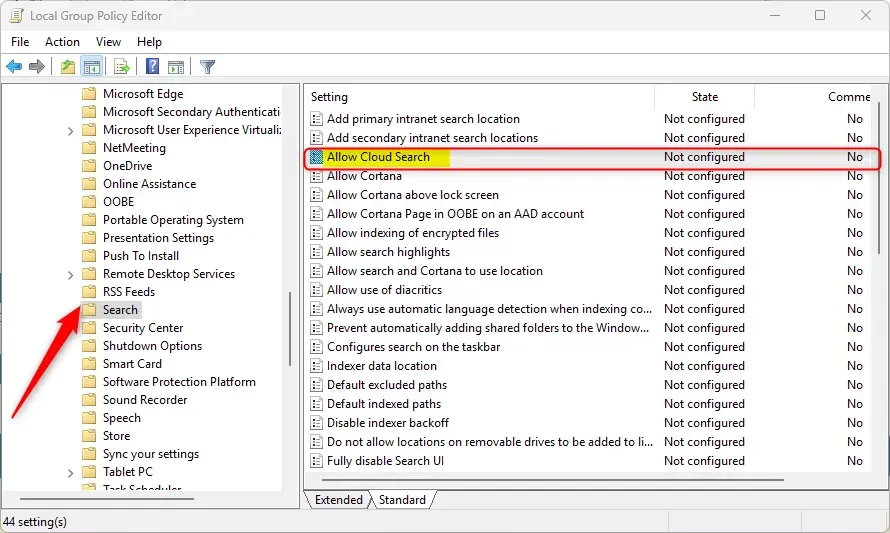
Edit group policy, then press Enter to open the Local Group Policy Editor. - In the left pane, follow this path: Computer Configuration > Administrative Templates > Windows Components > Search
- On the right, find and double-click Allow Cloud Search.
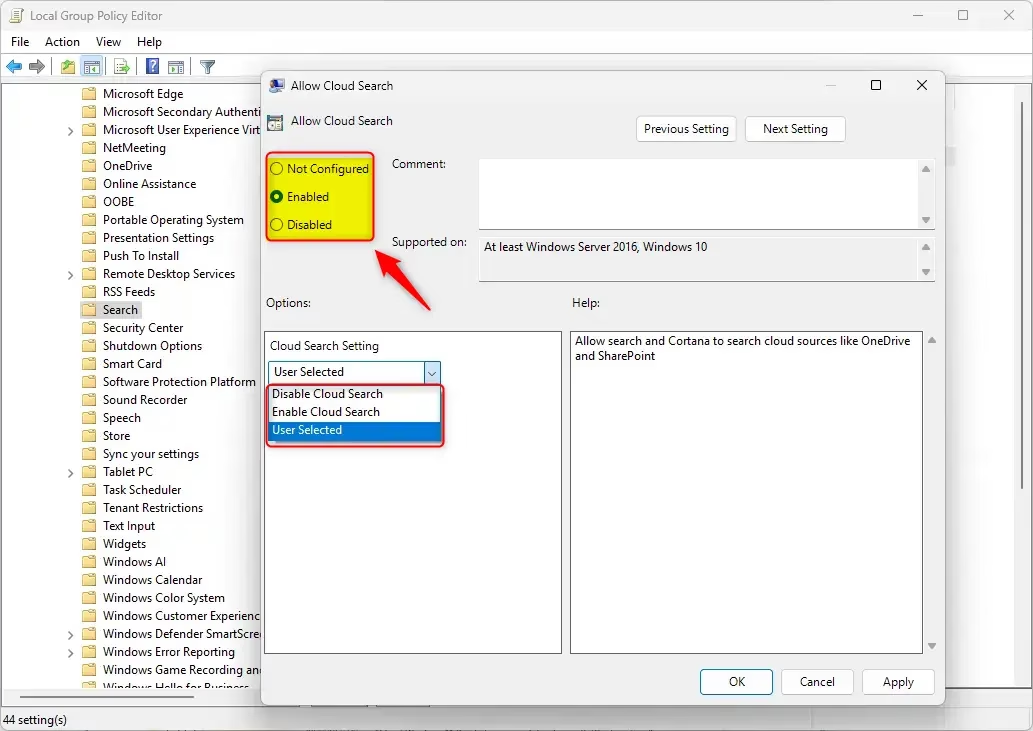
- Choose from these options:
- Not Configured – Default setting (Windows decides).
- Enabled – Turns cloud search on.
- Disabled – Turns cloud search off.
- Click OK to save.
How to Enable or Disable Cloud Search Using Registry Editor
If you don’t have the Group Policy Editor or prefer a different method, you can adjust cloud search settings in Windows 11 using the Registry Editor, but proceed with caution.
Before you start:
Backup your registry Create a System Restore point
- [Admin Required] Press the Start menu button, type
regedit, and press Enter to open the Registry Editor. - In Registry Editor, navigate to this folder:
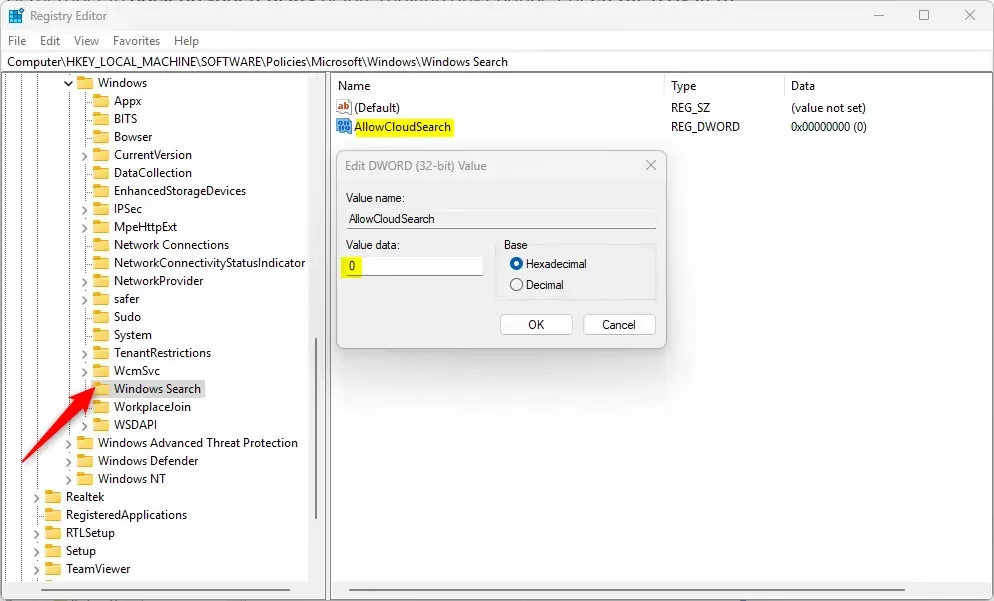
HKEY_LOCAL_MACHINE\SOFTWARE\Policies\Microsoft\Windows\Windows Search - If you don’t see Windows Search folder, right-click Windows, select New > Key, and name it Windows Search.
- Inside Windows Search, right-click the right side, select New > DWORD (32-bit) Value, and name it AllowCloudSearch.
- Double-click AllowCloudSearch and set its value to:
- 1 to enable Cloud Search
- 0 to disable Cloud Search
- Click OK and close Registry Editor.
- Restart your computer to apply changes.
If you want to remove the setting and go back to normal, just delete the AllowCloudSearch DWORD value.
Summary
Windows 11’s Cloud Search feature makes finding online files and photos simple, and you can control it using Settings, Group Policy, or Registry Editor.How do I disable cloud search in 🪟 Windows 11?
Navigate to Computer Configuration > Administrative Templates > Windows Components > Search. Find Allow Cloud Search and double-click it. Choose Enabled or Disabled, then click Apply and OK.
Is it okay to turn off search indexing?
Choosing not to index the contents of files can reduce the size of the index, but it makes files harder to find in some cases.
Was this guide helpful?

About the Author
Richard
Tech Writer, IT Professional
Richard, a writer for Geek Rewind, is a tech enthusiast who loves breaking down complex IT topics into simple, easy-to-understand ideas. With years of hands-on experience in system administration and enterprise IT operations, he’s developed a knack for offering practical tips and solutions. Richard aims to make technology more accessible and actionable. He's deeply committed to the Geek Rewind community, always ready to answer questions and engage in discussions.




No comments yet — be the first to share your thoughts!