How to Adjust Cursor Movement Between Displays on Windows 11

You adjust cursor movement between displays on Windows 11 by modifying monitor alignment in display settings.
This process ensures your mouse pointer smoothly transitions from one screen to another, preventing frustrating cursor traps. Proper alignment fixes the problem where Windows incorrectly assumes your monitors are perfectly aligned, even when physically offset.
By adjusting the relative positions of your displays in the Windows 11 settings, you eliminate perceived “invisible walls” for your mouse. This is especially useful if you use monitors of different sizes or heights, like a 27-inch primary display with a 24-inch secondary monitor.
Once configured, your mouse will glide effortlessly between screens, saving you time and making your multi-monitor setup feel intuitive and efficient.
How to Adjust Cursor Movement in 🪟 Windows 11 Settings
Windows 11 makes it easy to fix these multi-monitor setup issues. Follow these steps to enable smoother transitions:
- Press Windows Key + I to open Settings.
windows 11 start settings - Select System from the left sidebar, then click Display.
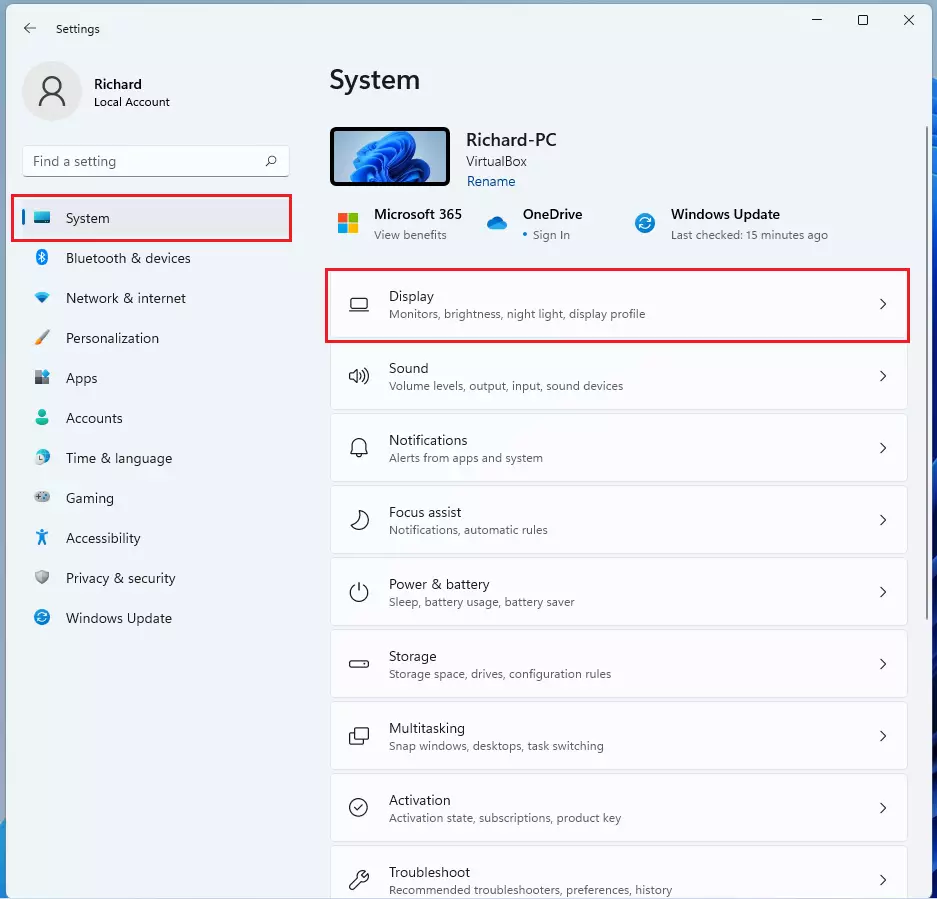
windows 11 display settings - Scroll down to the Multiple displays section.
- Locate Ease cursor movement between displays.
- Toggle the switch to On.
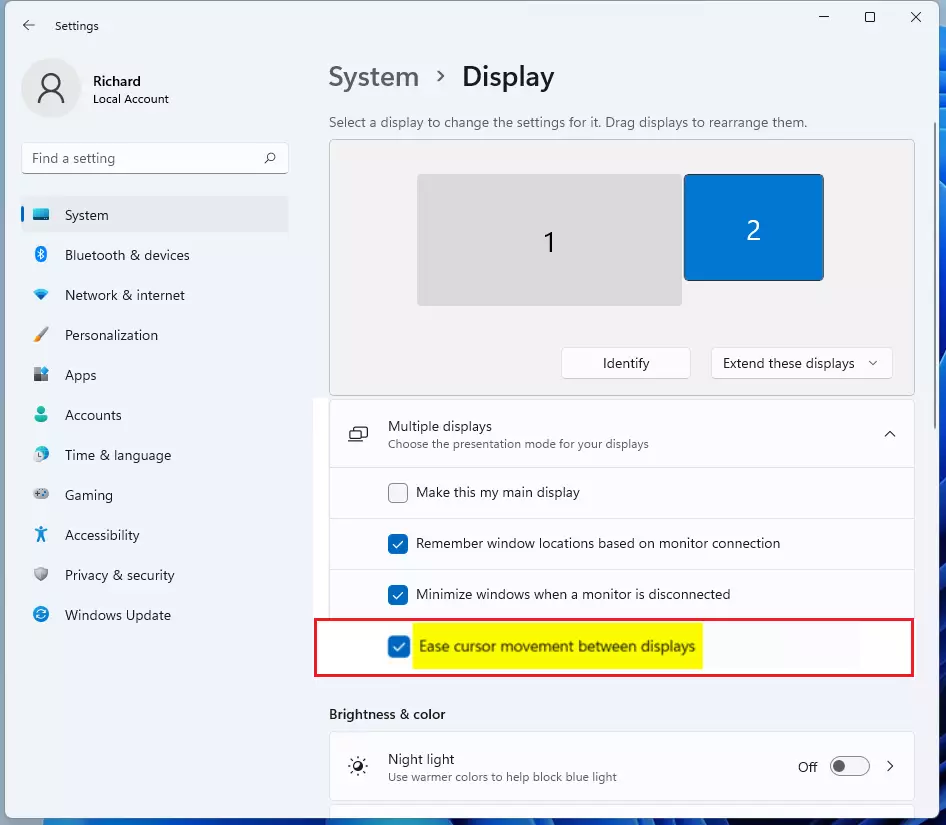
windows 11 ease cursor movement between displays
Note: This change does not require admin privileges.
Advanced Configuration: Registry and PowerShell
For power users, you can force these settings via the Registry Editor or PowerShell. These methods are useful for IT administrators managing multiple workstations.
Registry Method (Requires Admin Privileges)
You can modify the registry to control how the mouse interacts with display edges. Open the Registry Editor by typing regedit in the Start menu. Navigate to: HKEY_CURRENT_USER\Control Panel\Desktop. Look for the MouseMonitorEscape value. Changing this can help if your cursor is getting stuck due to mouse pointer drift.
PowerShell Scripting
You can use a script to automate display settings across a network. Use the following command to check your current display configuration:
Get-DisplaySettings
What happens when done? Your system will apply specific coordinate mapping to ensure the mouse ignores minor height differences between screens.
Troubleshooting Erratic Cursor Behavior
If your mouse moves by itself or feels jumpy, try these steps:
- Update Mouse Drivers: Right-click the Start button, select Device Manager, and update your mouse drivers.
- Check Physical Connections: Loose cables can cause signal interference.
- Disable Cursor Snapping: If the cursor is snapping to windows unexpectedly, go to Control Panel > Mouse > Pointer Options and uncheck Automatically move pointer to the default button in a dialog box.
Impact on Gaming and CAD Work
Does ease cursor movement affect performance? For most users, no. However, in high-precision tasks like CAD or competitive gaming, some users prefer to disable this feature to maintain a 1:1 pixel movement ratio. If you experience input lag, ensure your monitor refresh rates are synced in the Advanced display settings.
Summary
Managing your cursor movement Windows 11 setup is essential for a smooth multi-monitor experience. By adjusting your display settings, updating drivers, or using the registry for advanced control, you can eliminate mouse pointer drift and screen-edge sticking. For more information, visit the official Microsoft Support page.” }
Why does my cursor get stuck between monitors?
Your cursor gets stuck because Windows treats your monitors as a grid. If your physical monitors have different resolutions or are not perfectly aligned in the Display settings, the mouse hits an invisible edge. Enabling the ease of movement feature helps the system bridge these gaps automatically.
Can I disable cursor snapping between displays?
Yes, you can disable this by navigating to Settings, then System, then Display. Under the Multiple displays section, simply toggle the Ease cursor movement between displays option to Off. This restores the default Windows behavior where the mouse respects the exact pixel boundaries of your screen arrangement.
Was this guide helpful?

About the Author
Richard
Tech Writer, IT Professional
Richard, a writer for Geek Rewind, is a tech enthusiast who loves breaking down complex IT topics into simple, easy-to-understand ideas. With years of hands-on experience in system administration and enterprise IT operations, he’s developed a knack for offering practical tips and solutions. Richard aims to make technology more accessible and actionable. He's deeply committed to the Geek Rewind community, always ready to answer questions and engage in discussions.



No comments yet — be the first to share your thoughts!