How to Enable or Disable Remembering Window Positions on Multiple Screens in Windows 11

Windows 11 remembers where you last put your open apps on different monitors. It automatically places them back where you left them when you reopen them.
This feature, which you can find in the Taskbar settings, helps streamline your workflow by restoring your desktop layout.
For instance, if you close an app on your main screen and reopen it, Windows 11 will try to put it back on that same screen in its previous spot.
You can turn this helpful function on or off through your Windows 11 Settings.
Enable or disable remembering window positions in Windows 11 by going to Settings > System > Display > Multiple displays. Check or uncheck “Remember window locations based on monitor connection” to control this feature. This setting restores your apps to their previous screen positions.
Why Is This Helpful?
Windows 11 remembering where you put your windows on different screens is super helpful because it saves you time when you reconnect your monitors.
For more tips on using multiple monitors, visit How to use multiple monitors in Windows – Microsoft Support
How to Enable or Disable Remembering Window Positions Using Settings
You can easily turn on or off the feature that remembers your window positions on multiple screens in Windows 11 using the Settings app.
- Press Windows key + I to open Settings.
- Click on System on the left menu.
- Select Display on the right side.
- Scroll down until you see Multiple displays.
- Click the arrow next to it to expand the options.
- Find the option that says Remember window locations based on monitor connection.
- Check the box to turn this on. Uncheck it to turn it off.
- Close Settings when you’re done.
Click here to open Display Settings directly
Windows Display Settings tile
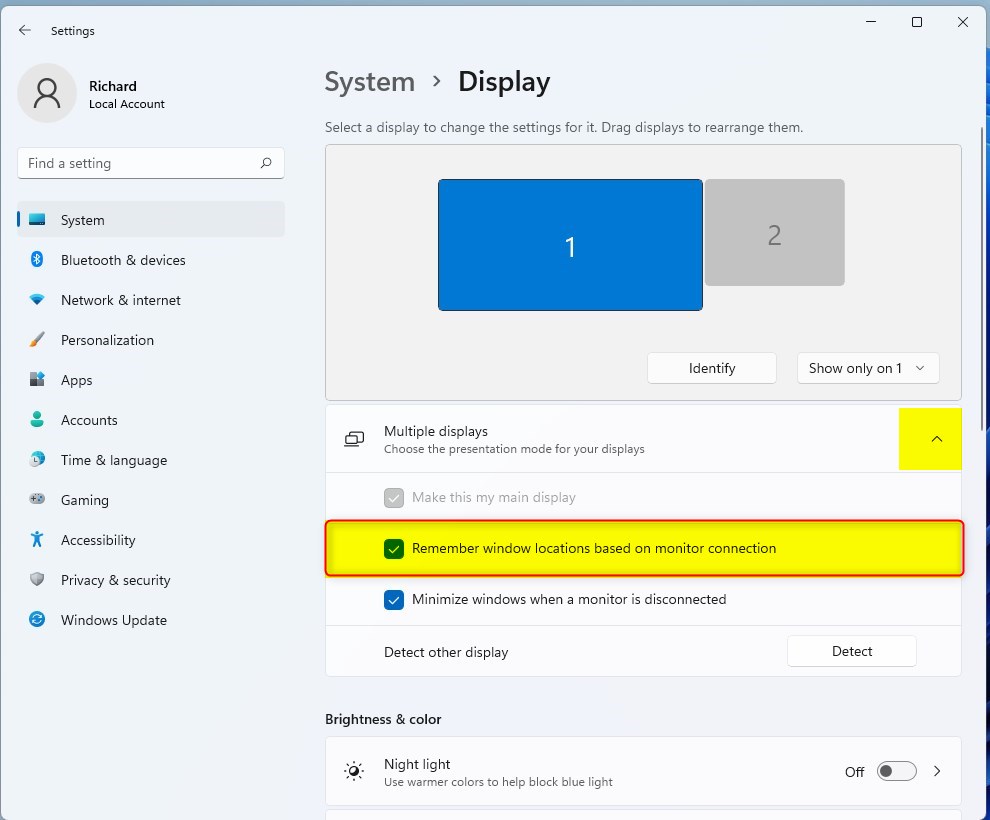
Windows 11 remembers window locations based on monitor
How to Enable or Disable Remembering Window Positions Using the Registry (Advanced)
Warning: Editing the Registry can impact how your PC operates. Be sure to back up your Registry before you make any changes. 🚨 Admin privileges are required for this method.
To Enable (This is the default setting):
To enable this feature (it’s on by default), open Command Prompt as an administrator and type this command:
reg add "HKEY_CURRENT_USER\Control Panel\Desktop" /v RestorePreviousStateRecalcBehavior /t REG_DWORD /d 0 /fTo Disable:
To disable it, open Command Prompt as an administrator and type this command:
reg add "HKEY_CURRENT_USER\Control Panel\Desktop" /v RestorePreviousStateRecalcBehavior /t REG_DWORD /d 1 /fAfter you modify the Registry, restart your PC for the changes to take effect.
Summary
Windows 11 helps keep your workspace tidy by remembering where you left your windows on multiple screens, and you can easily turn this handy feature on or off in Settings.- Windows 11 can remember where you last placed your windows on different monitors.
- You can turn this feature on or off using Settings. This is the easiest way.
- You can also change this setting using the Registry if you’re comfortable with advanced settings.
- This feature helps keep your workspace organized when you connect or disconnect monitors.
- Adjusting this setting lets you customize how your windows behave across multiple screens.
- For more help, check out Microsoft Support’s guide on using multiple monitors.
Was this guide helpful?

About the Author
Richard
Tech Writer, IT Professional
Richard, a writer for Geek Rewind, is a tech enthusiast who loves breaking down complex IT topics into simple, easy-to-understand ideas. With years of hands-on experience in system administration and enterprise IT operations, he’s developed a knack for offering practical tips and solutions. Richard aims to make technology more accessible and actionable. He's deeply committed to the Geek Rewind community, always ready to answer questions and engage in discussions.

No comments yet — be the first to share your thoughts!