How to Enable or Disable Remembering Window Positions on Multiple Screens in Windows 11

Do you use your Windows 11 computer with multiple monitors or screens? Windows 11 can remember exactly where you opened your apps and folders on each screen. When you open them again, they show up in the same spot automatically. This guide shows you how to turn this helpful feature on or off.
Why Is This Helpful?
When you unplug your laptop from extra monitors, Windows hides the windows that were on those screens. When you plug the monitors back in, Windows puts everything right back where you left it. You don’t have to spend time moving windows around again.
For more tips on using multiple monitors, visit How to use multiple monitors in Windows – Microsoft Support
How to Enable or Disable Remembering Window Positions Using Settings
This is the easiest way to change this setting:
- Press Windows key + I to open Settings.
- Click on System on the left menu.
- Select Display on the right side.
- Scroll down until you see Multiple displays.
- Click the arrow next to it to expand the options.
- Find the option that says Remember window locations based on monitor connection.
- Check the box to turn this on. Uncheck it to turn it off.
- Close Settings when you’re done.
Click here to open Display Settings directly

Windows Display Settings tile
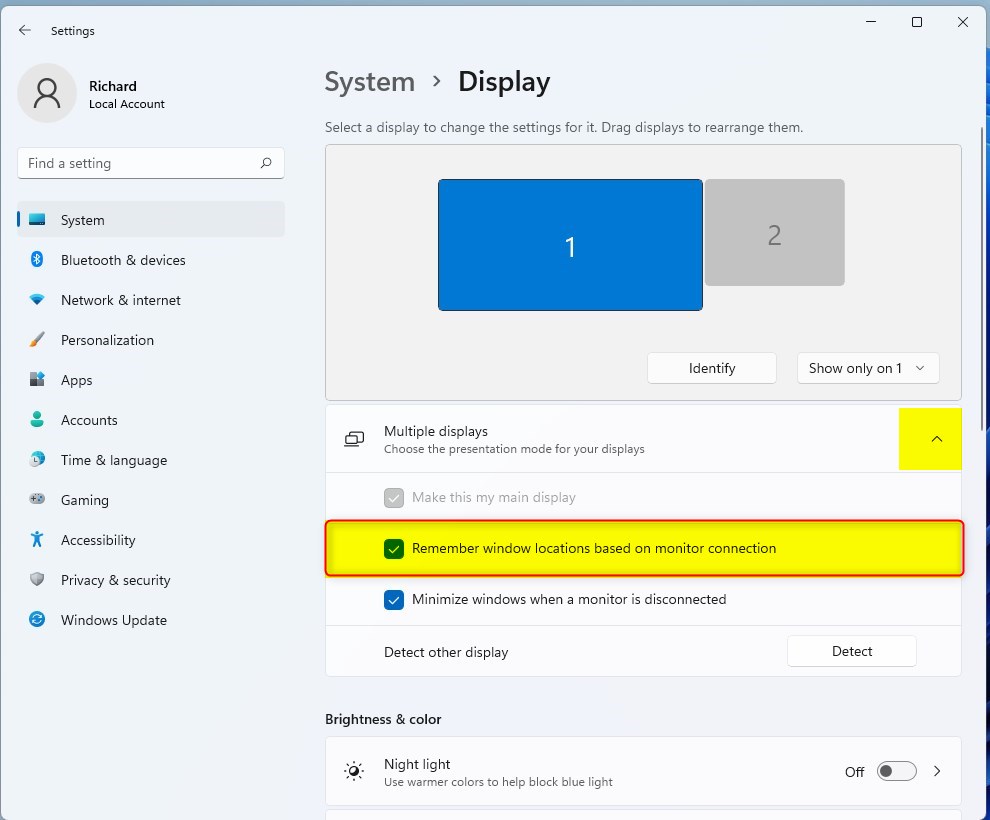
Windows 11 remember window locations based on monitor
How to Enable or Disable Remembering Window Positions Using the Registry (Advanced)
Warning: Editing the Registry can affect how your PC works. Make sure to back up your Registry before you make any changes. 🚨 Admin privileges required for this method.
To Enable (This is the default setting):
Open Command Prompt as Administrator and type this command:
reg add "HKEY_CURRENT_USER\Control Panel\Desktop" /v RestorePreviousStateRecalcBehavior /t REG_DWORD /d 0 /fTo Disable:
Open Command Prompt as Administrator and type this command:
reg add "HKEY_CURRENT_USER\Control Panel\Desktop" /v RestorePreviousStateRecalcBehavior /t REG_DWORD /d 1 /fAfter you change the Registry, restart your PC so the changes take effect.
Summary
- Windows 11 can remember where you last placed your windows on different monitors.
- You can turn this feature on or off using Settings. This is the easiest way.
- You can also change this setting using the Registry if you’re comfortable with advanced settings.
- This feature helps keep your workspace organized when you connect or disconnect monitors.
- Adjusting this setting lets you customize how your windows behave across multiple screens.
- For more help, check out Microsoft Support’s guide on using multiple monitors.
Was this guide helpful?



Leave a Reply Cancel reply