How to Set a 24-Hour Clock on Windows 11 Lock Screen

You set a 24-hour clock on your Windows 11 lock screen by changing your region format settings.
This modifies how your PC displays times, dates, and numbers to follow a military or international standard, showing times like 21:30 instead of 9:30 PM. The lock screen is what you see before logging into your computer.
This straightforward adjustment requires no extra software and is accessible directly within Windows 11’s personalization options.
Adjust your Windows 11 regional format settings to use the 24-hour clock. Go to Settings > Time & language > Language & region, click Regional format, and change the Long time option to a 24-hour format like 09:40:07. Restart your PC for the change to apply.
Why use a 24-hour clock?
Using a 24-hour clock, often called military time, helps remove confusion between morning and afternoon hours. It is a good way to keep your schedule clear. Many professionals prefer this format to avoid errors in time-sensitive tasks.
What happens when done?
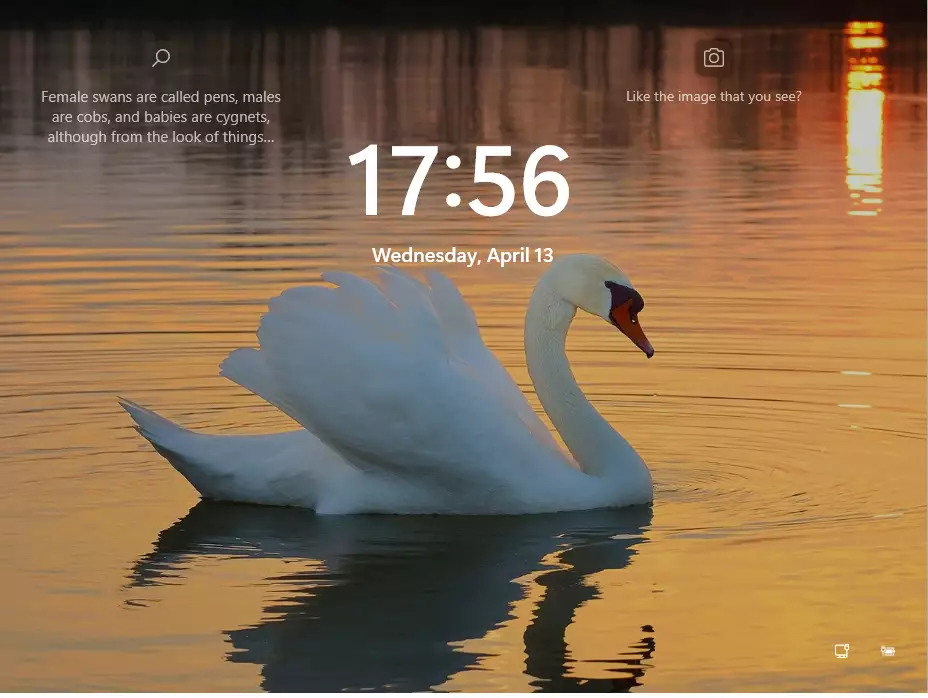
Once you complete these steps and restart your PC, your lock screen will display time using the 24-hour format (for example, 14:00 instead of 2:00 PM). This change applies system-wide to your user profile.
Method 1Using the Settings App
You can easily set the 24-hour clock on your Windows 11 lock screen using the Settings app, which is the simplest way to make this change for your user account.
1. Open the Settings app by pressing the Windows key + I on your keyboard, or click Start > Settings.
2. In the Settings menu, click on Time & language on the left side, then select Language & region.
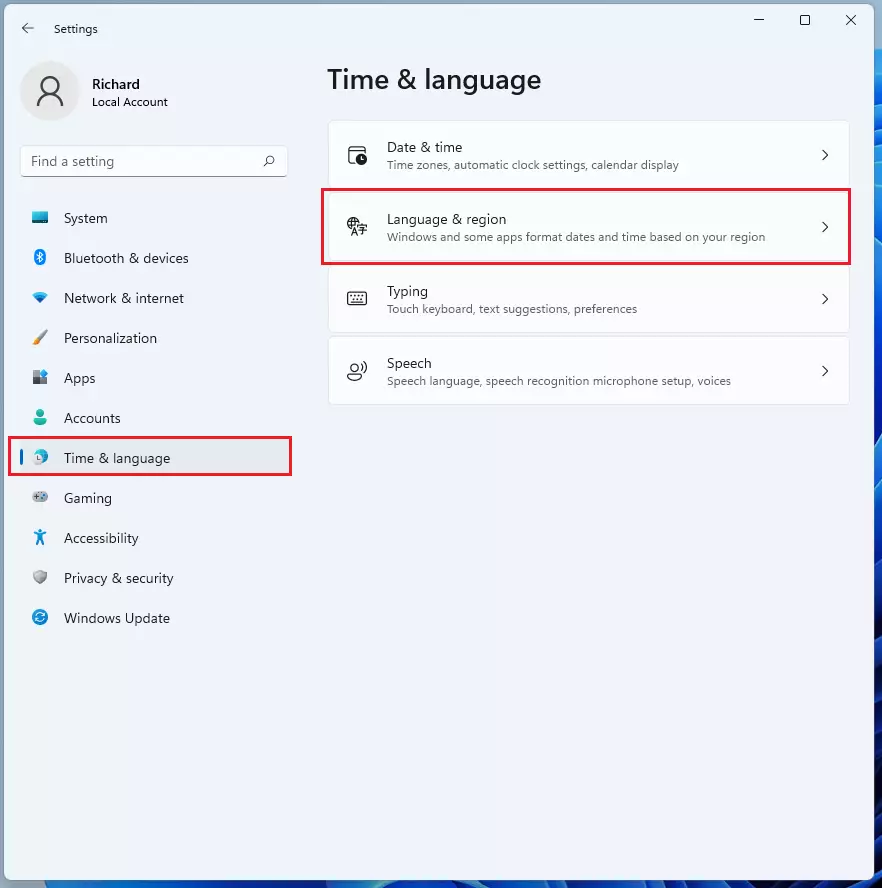
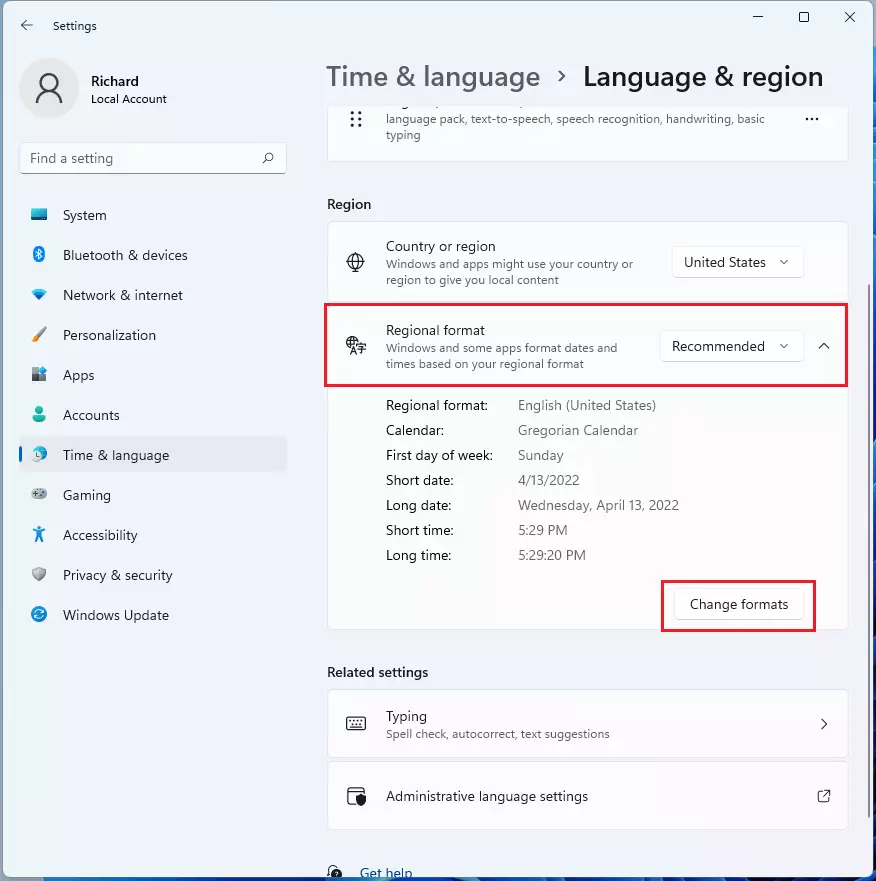
3. Look for the Region section and click the Regional format tile to open more options.
4. Click the Change formats button.
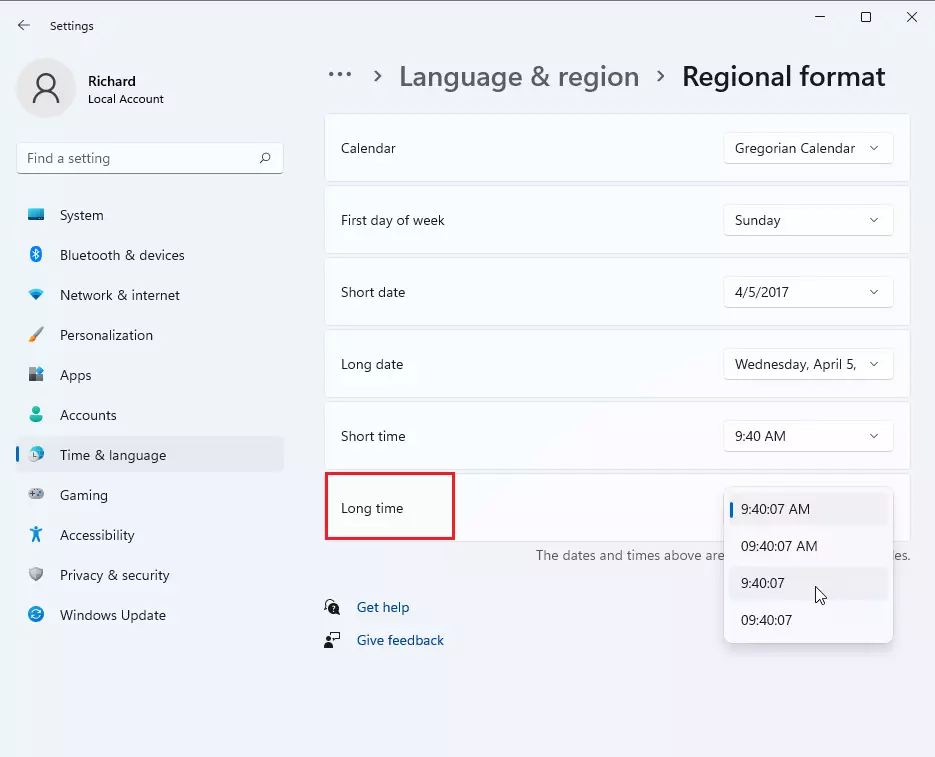
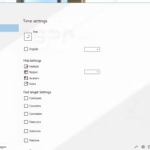
5. Find the Long time option. Use the dropdown menu to choose your preferred format:
- Choose 9:40:07 AM or 09:40:07 AM for a 12-hour clock.
- Choose 9:40:07 or 09:40:07 for a 24-hour clock.
6. Close the Settings app.
7. Restart your computer to apply the new time format to your lock screen.
Method 2Using Control Panel
For more granular control, use the classic Control Panel.
- Press Windows key + R, type control, and hit Enter.
- Click Clock and Region, then Region.
- Under the Formats tab, click Additional settings.
- Go to the Time tab and change the Short time to HH:mm.
Method 3Registry Editor (Advanced)
Warning: Requires administrative privileges. Be careful, as making incorrect changes could potentially harm your system.
- Press Windows key + R, type regedit, and press Enter.
- Navigate to: 🗝️HKEY_CURRENT_USER\ Control Panel\International
- Double-click sShortTime and change the value to HH:mm.
Method 4PowerShell for Deployment
Use this for bulk updates. Requires administrative privileges.
Set-Culture -CultureInfo en-GB
Summary
Switching to a 24-hour clock on your Windows 11 lock screen is straightforward, mainly done through the Settings app by adjusting regional formats, though advanced users can use the Registry Editor.
Does changing the time format affect system logs?
Yes, changing the regional format settings can influence how timestamps appear in system logs and event viewers. Windows uses the system-wide regional settings to determine the display format for date and time strings across various administrative tools and background services.
Can I force 24-hour time for all new user accounts?
Yes, you can set the 24-hour clock for all new user accounts on Windows 11 by copying your current regional settings to the default profile using the Control Panel.
Was this guide helpful?

About the Author
Richard
Tech Writer, IT Professional
Richard, a writer for Geek Rewind, is a tech enthusiast who loves breaking down complex IT topics into simple, easy-to-understand ideas. With years of hands-on experience in system administration and enterprise IT operations, he’s developed a knack for offering practical tips and solutions. Richard aims to make technology more accessible and actionable. He's deeply committed to the Geek Rewind community, always ready to answer questions and engage in discussions.


No comments yet — be the first to share your thoughts!