How to Restore ‘Run as Different User’ in Windows 11

You can restore the ‘Run as different user’ option in Windows 11 to launch applications with alternative login credentials.
This feature allows you to run programs under a different user account, bypassing the need to log out of your primary Windows session. It’s invaluable for managing permissions and accessing resources that require distinct user profiles.
Windows 11 removed this handy option from the default right-click menu, but a simple registry edit can bring it back. You’ll typically be modifying a value within the ‘Policies\Explorer’ key to re-enable it.
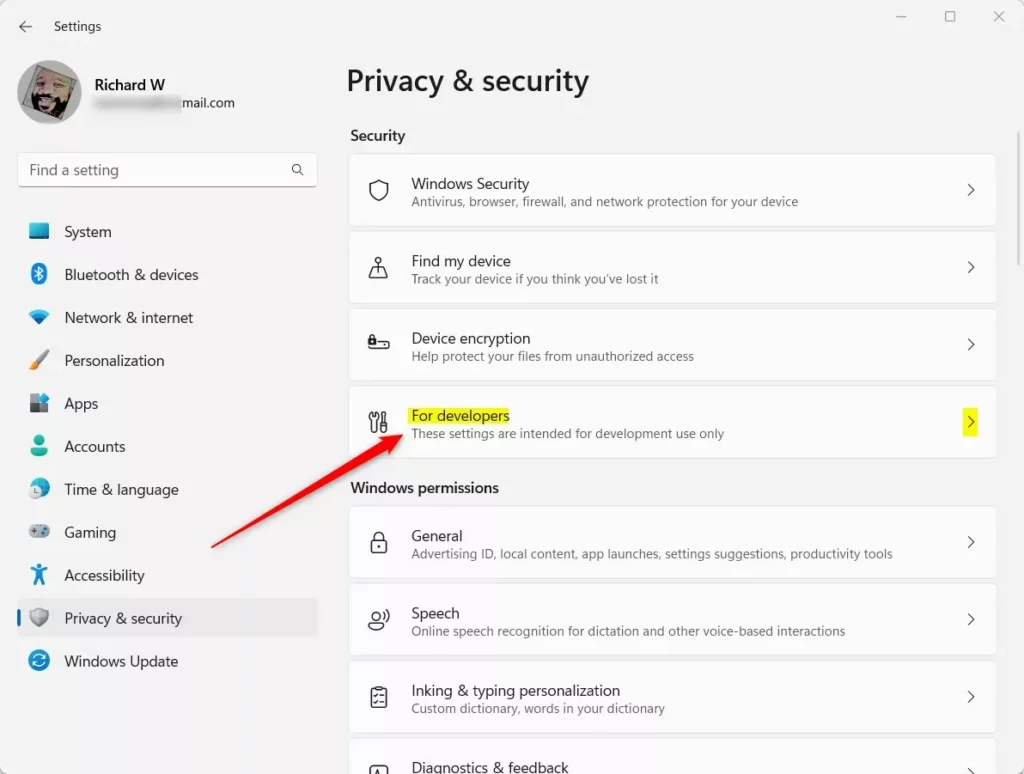
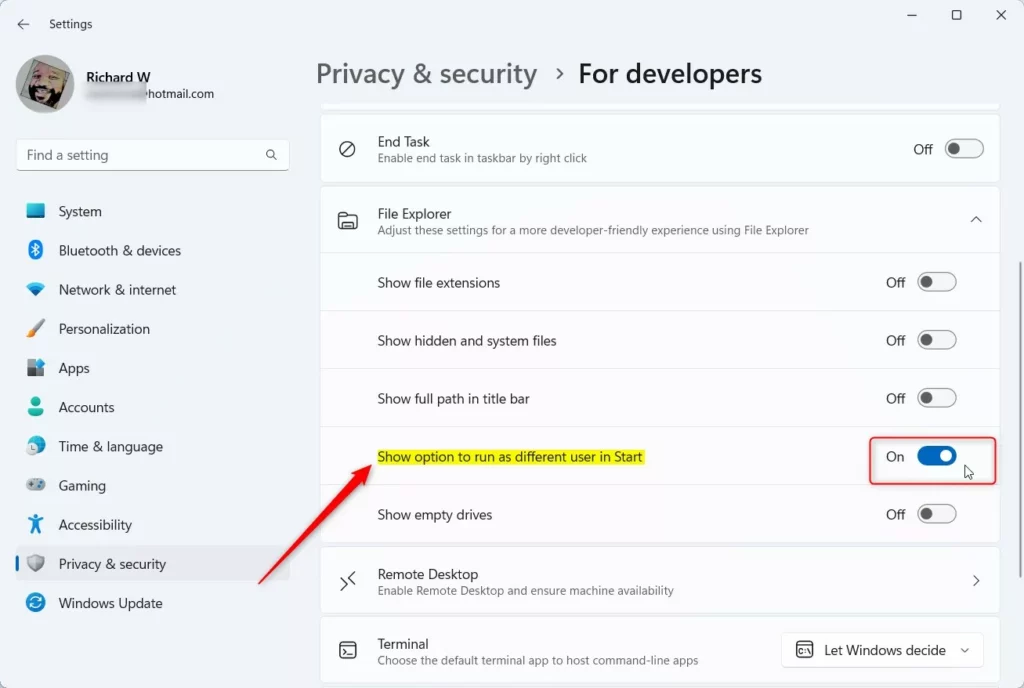
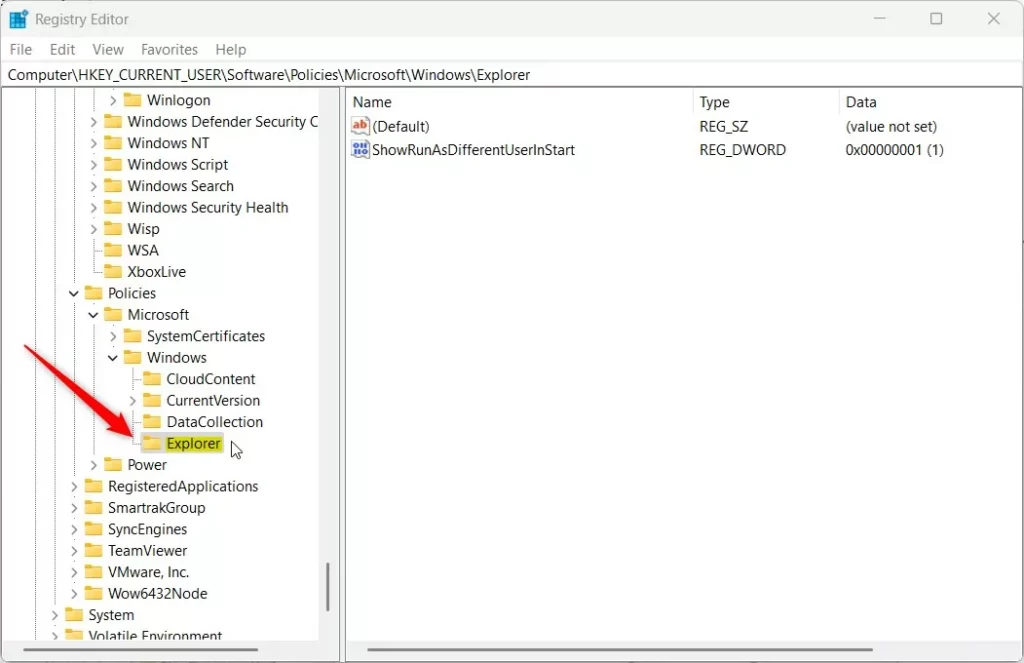
You can restore the ‘Run as different user’ option in Windows 11 via Settings > System > For developers, toggling ‘Show option to run as different user in Start’ to On. Alternatively, use the Registry Editor, navigating to 🗝️HKEY_CURRENT_USER\SOFTWARE\Policies\Microsoft\Windows\Explorer and creating a DWORD value named ShowRunasDifferentuserinStart set to 1.
What Happens When You Enable It?
Turning on the ‘Run as different user’ option in Windows 11 lets you open apps using another account, which is handy if you need special permissions for a program.
Method 1Using the Settings App
You can turn on the ‘Run as different user’ option in Windows 11 easily using the Settings app.
- Open the Settings app by pressing Windows key + I.
- Click System on the left sidebar.
- Select For developers.
- Find the File Explorer section.
- Toggle the switch for Show option to run as different user in Start to On.
Method 2Using Registry Editor
If the Settings app doesn’t work, you can still turn on ‘Run as different user’ in Windows 11 by making a small change in the Registry Editor.
- Press Windows key + R, type
regedit, and press Enter. - Navigate to:
HKEY_CURRENT_USER\SOFTWARE\Policies\Microsoft\Windows\Explorer - Right-click in the right pane, select New > DWORD (32-bit) Value.
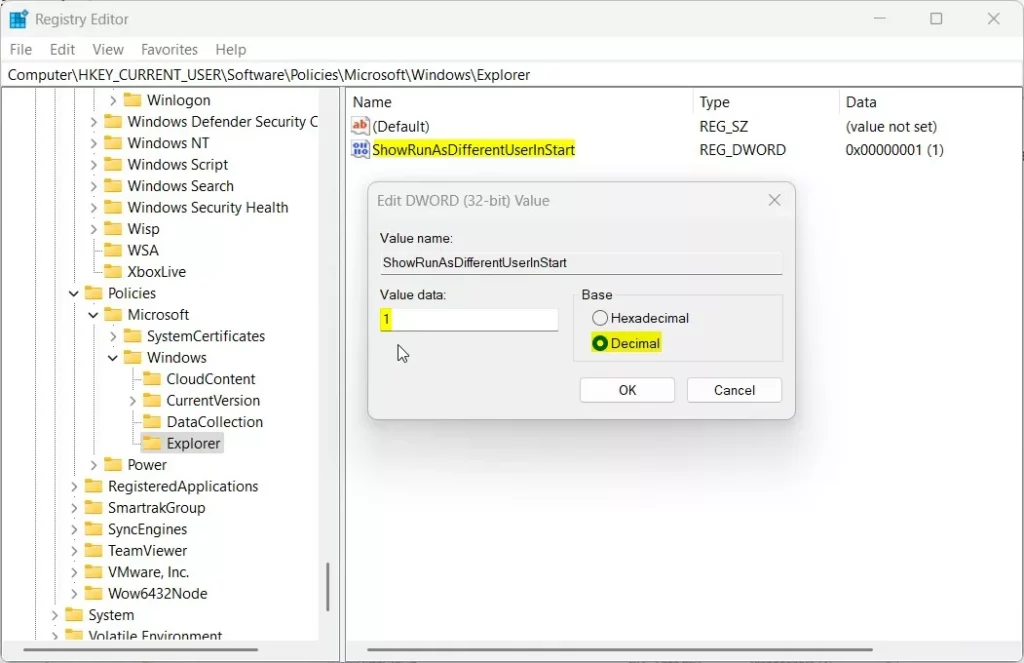
- Name it
ShowRunasDifferentuserinStart. - Set the value to 1 to enable it .
- Restart your computer.
Quick Tip: The Shift+→-Click Trick
You do not always need to enable the menu option. Hold the Shift key while right-clicking an application icon or file. You will see Run as different user appear in the extended context menu automatically.
Troubleshooting: Secondary Logon Service
If the option does not appear, your Secondary Logon Service might be disabled. This service is required for the feature to function. Press Windows key + R, type `regedit` (this opens the Registry Editor), find Secondary Logon, right-click it, and select Start. Ensure you set the Startup type to Automatic.
Security Warning
Using domain admin credentials on a shared or public machine is risky. Always close the application immediately after finishing your task to prevent unauthorized access to elevated privileges.
Summary
Restoring the ‘Run as different user’ option in Windows 11 helps you manage permissions effectively. Whether you use the Settings app, the Registry, or the Shift+→-click shortcut, you can now execute tasks with different credentials. Always ensure the Secondary Logon Service is running if you encounter issues.
What is the difference between Run as Administrator and Run as Different User?
Run as Administrator elevates your current user account to have full system control. Run as Different User allows you to launch a program using the credentials of an entirely separate account, which is useful for testing permissions or accessing network resources restricted to specific user groups.
Can I use this for Windows Store apps?
No, the Run as different user feature is designed for traditional desktop applications (Win32). Windows Store apps, or UWP apps, run within a sandboxed environment and do not support being launched with different user credentials through the standard context menu interface.
Was this guide helpful?

About the Author
Richard
Tech Writer, IT Professional
Richard, a writer for Geek Rewind, is a tech enthusiast who loves breaking down complex IT topics into simple, easy-to-understand ideas. With years of hands-on experience in system administration and enterprise IT operations, he’s developed a knack for offering practical tips and solutions. Richard aims to make technology more accessible and actionable. He's deeply committed to the Geek Rewind community, always ready to answer questions and engage in discussions.




No comments yet — be the first to share your thoughts!