How to Change Font Size in Windows 11 Handwriting Panel

You can change the font size in the Windows 11 Handwriting Panel to make it easier to read your recognized text.
The Handwriting Panel converts your pen or finger strokes into typed text, offering an alternative input method for touchscreen devices. The default font size for this recognized text can be adjusted if it’s not ideal for your viewing preferences or screen layout.
For instance, if the default Ink Free font appears too small on your 14-inch laptop screen, you can increase its size to improve readability.
Adjusting this setting ensures the recognized handwriting is comfortable for you to see and interact with.
Change the font size in Windows 11 Handwriting Panel by opening Settings, navigating to Bluetooth & devices, then Pen & Windows Ink. Under Handwriting, expand “Use your handwriting to enter text” and select Small, Medium, or Large. This adjusts the size of recognized text in the panel.
Change the font size via Settings
The text you write will automatically be converted to Ink Free in the size you choose. Follow these steps to change it:
- Open the Windows Settings app by clicking the Start menu or pressing Windows key + I.
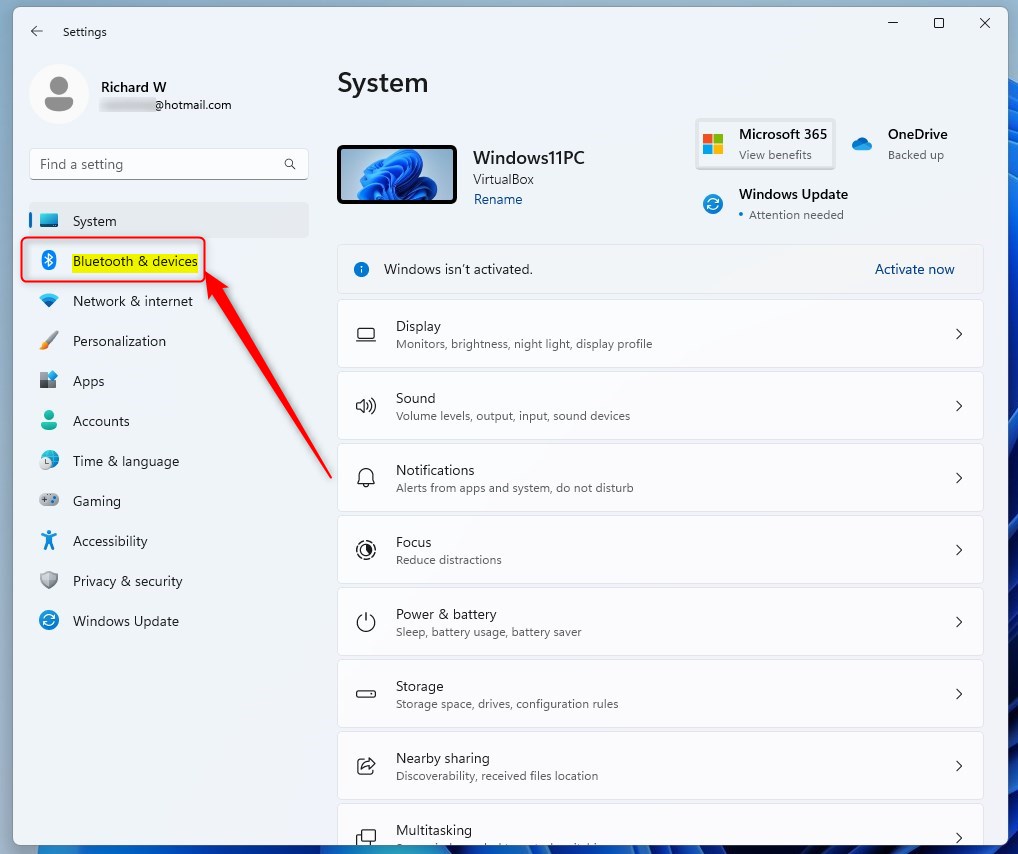
- Click Bluetooth & devices on the left side.
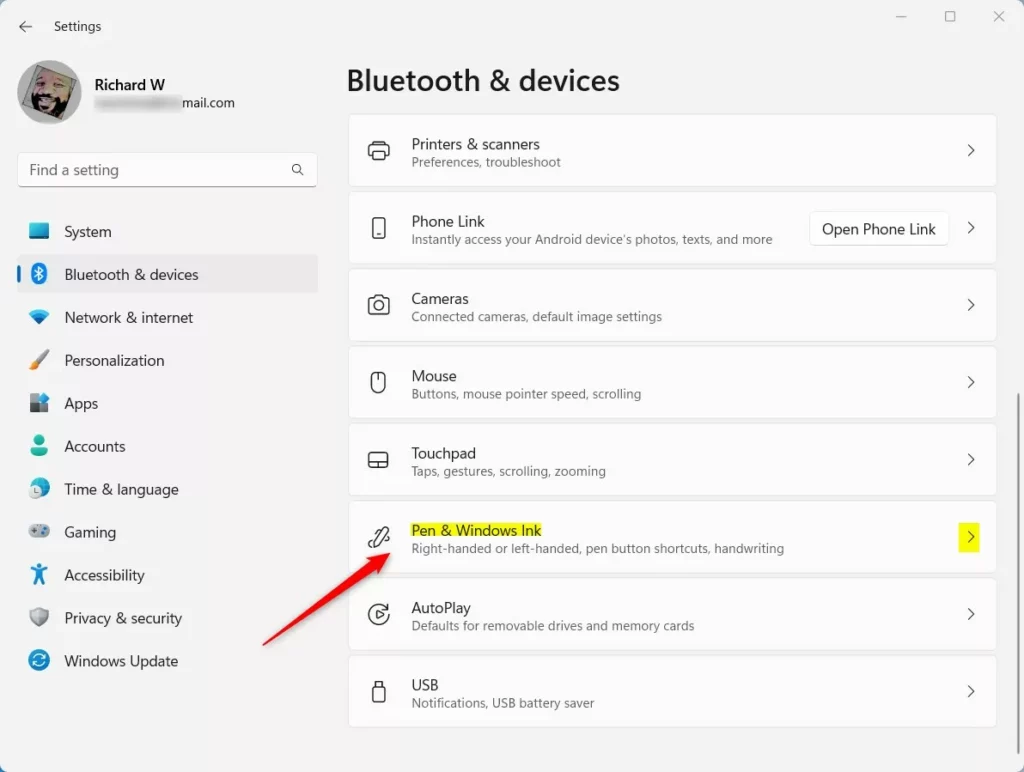
- Click the Pen & Windows Ink tile on the right.
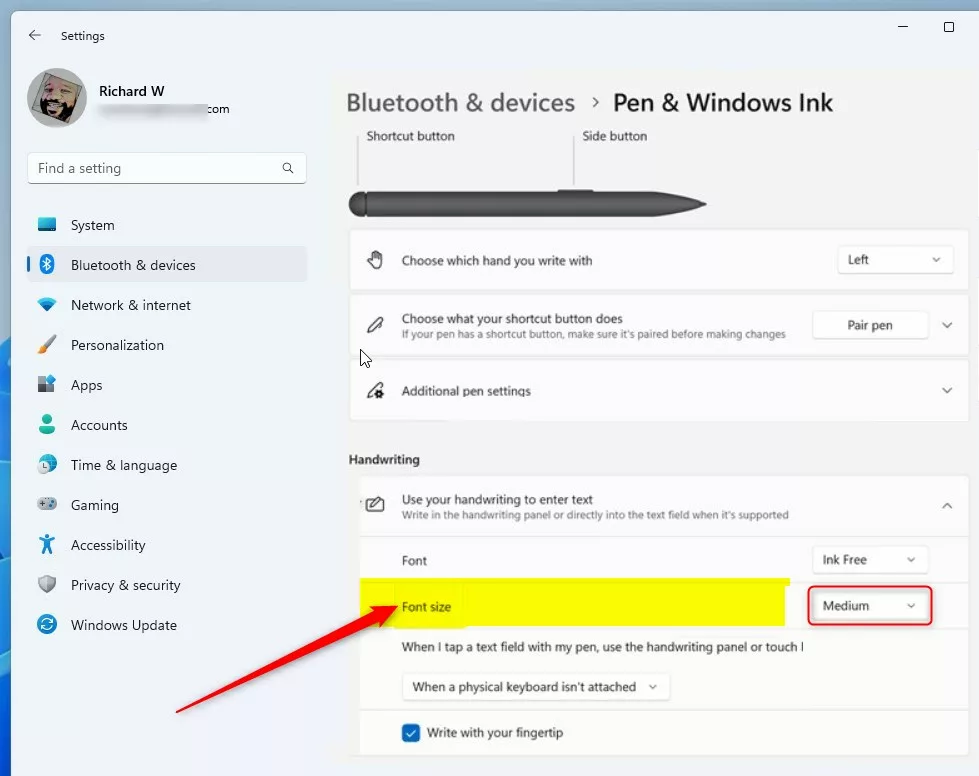
- Under the Handwriting section, click Use your handwriting to enter text to expand the menu.
- Select your preferred font size: Small, Medium (default), or Large.
Close the Settings app when you are finished.
Troubleshooting: Missing Settings and OS Discrepancies
If you do not see the font size options, your Windows 11 version might be outdated. Ensure you have the latest updates installed via Windows Update. Sometimes, the Pen & Windows Ink menu hides options if the Input Method Editor (IME) is not correctly configured for your language. Check your accessibility settings to ensure UI scaling is not interfering with the panel display.
Change the font size via Registry Editor
Note: This method requires admin privileges. Be careful when editing the registry.
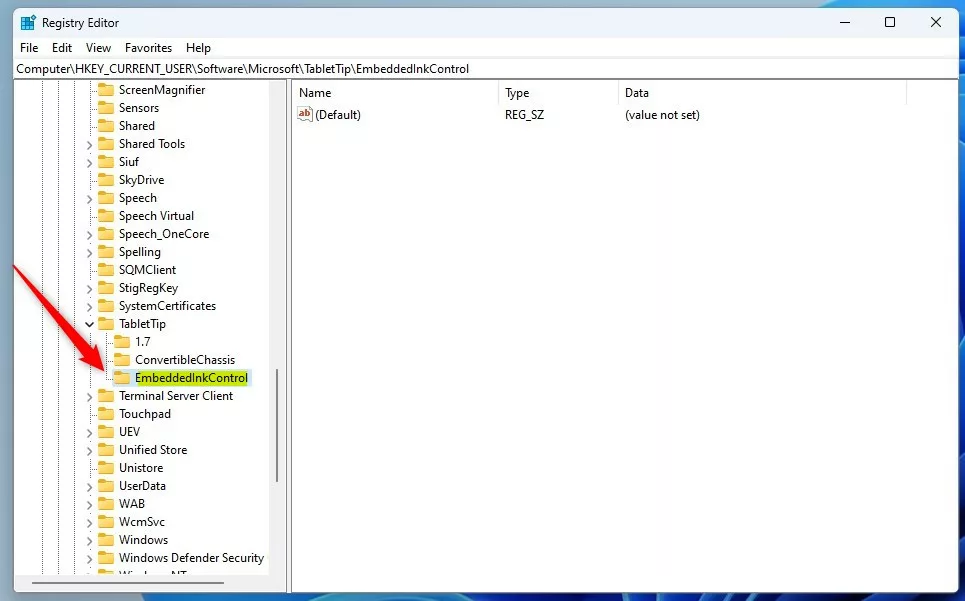
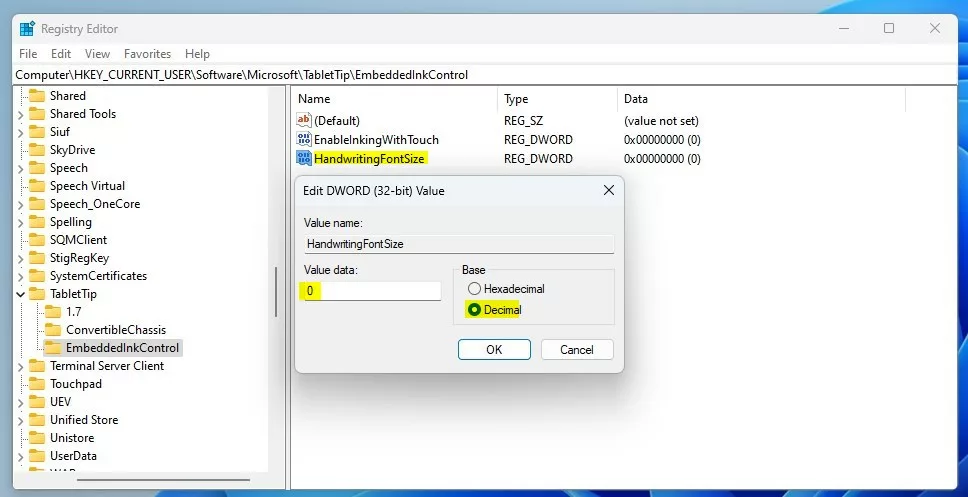
You can also use the Windows Registry Editor to change this setting. Open the Windows Registry and go to this path:
HKEY_CURRENT_USER\Software\Microsoft\TabletTip\EmbeddedInkControl
If you do not see the EmbeddedInkControl folder, right-click on TabletTip and create a new key named EmbeddedInkControl.
- Right-click in the empty space on the right side and select New > DWORD (32-bit) Value.
- Name the new value
HandwritingFontSize. - Double-click
HandwritingFontSizeand set the Base to Decimal. - Change the Value data to one of the following:
- Small:
0 - Medium:
1 - Large:
2
- Small:
Save your changes and restart your computer to apply them.
Summary
You can easily adjust the handwriting panel text size to small, medium, or large. You can do this through the Windows Settings app for a quick fix or the Registry Editor if you prefer advanced settings. These adjustments ensure your text is clear and easy to read on your device.
Why are there no font size options in my handwriting panel?
If options are missing, ensure your Windows 11 is fully updated. Sometimes, specific language packs or an incorrectly configured Input Method Editor (IME) can hide these settings. Try resetting your touch keyboard settings or checking for system file corruption using the system file checker tool.
Does changing the handwriting font size affect the system-wide font?
No, changing the handwriting font size is isolated to the handwriting recognition panel. It does not affect your system-wide font size, desktop icons, or other application text. It only changes how the text appears within the conversion box before it is inserted into your document.
How do I reset handwriting panel settings to default?
To reset, go to Settings > Bluetooth & devices > Pen & Windows Ink. Select the Medium size option to revert to the factory default. If using the registry, you can delete the HandwritingFontSize DWORD value and restart your computer to restore the default behavior.
Was this guide helpful?

About the Author
Richard
Tech Writer, IT Professional
Richard, a writer for Geek Rewind, is a tech enthusiast who loves breaking down complex IT topics into simple, easy-to-understand ideas. With years of hands-on experience in system administration and enterprise IT operations, he’s developed a knack for offering practical tips and solutions. Richard aims to make technology more accessible and actionable. He's deeply committed to the Geek Rewind community, always ready to answer questions and engage in discussions.


No comments yet — be the first to share your thoughts!