How to Override Default Input Method in Windows 11

You override the default input method in Windows 11 to permanently set your preferred keyboard layout, preventing Windows from automatically switching it.
This makes sure your computer uses the language or layout you’ve chosen every time you start typing, instead of one it defaults to.
This is especially useful if you frequently switch between languages, like English and Spanish, and find Windows constantly reverting to a layout you don’t want.
For example, if you always want your keyboard to be set to the US QWERTY layout even after installing multiple language packs, this setting is for you.
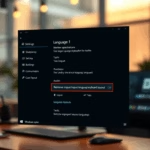
Go to Settings > Time & language > Typing > Advanced keyboard settings. Under “Override for default input method,” select your preferred language from the drop-down menu to permanently set your keyboard layout. This prevents Windows from automatically switching your input method.
Why override the default input method?
Windows often resets your keyboard to a default setting when you switch apps. Setting an override tells Windows to stick with your preferred choice. This stops the computer from guessing which language you want to use.
What happens when done?
Once you finish these steps, Windows will always use your chosen language and keyboard layout as the starting point. You will no longer have to manually switch back to your preferred keyboard every time you open a new program.
Understanding Input Method Editor (IME)
An Input Method Editor, or IME, is a program that helps you type characters for languages not on your regular keyboard, like Chinese or Japanese. If your IME settings aren’t right, typing can feel slow or wrong, but you can fix these in the Time & language settings.
How to override the default input method
You can easily override the default input method in Windows 11 through the Settings app if you’ve installed multiple languages.
When you go into the language options for each preferred language, you should be able to add an input keyboard layout.
- Open the Start menu and click Settings.
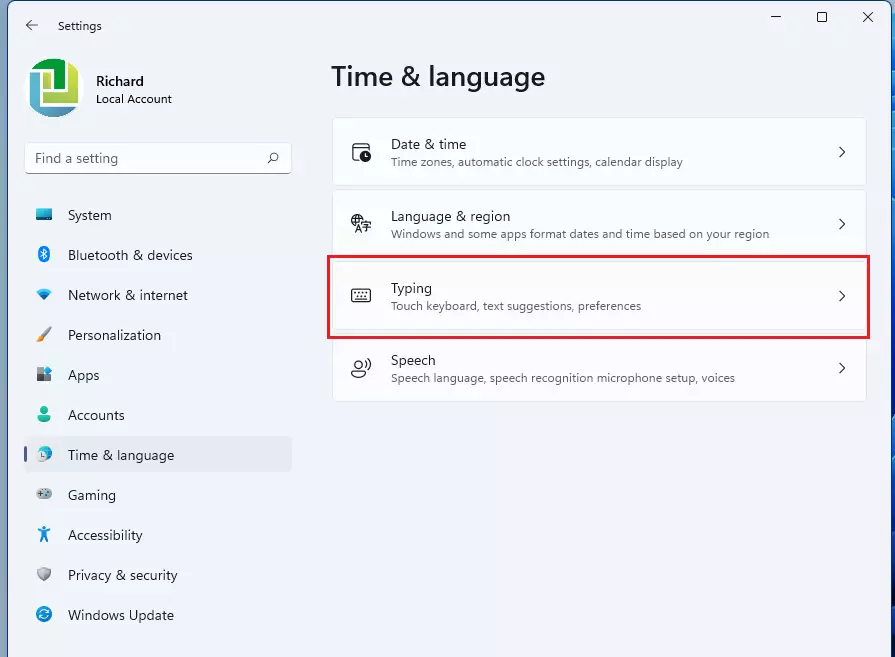
- Go to Time & language and select Typing.
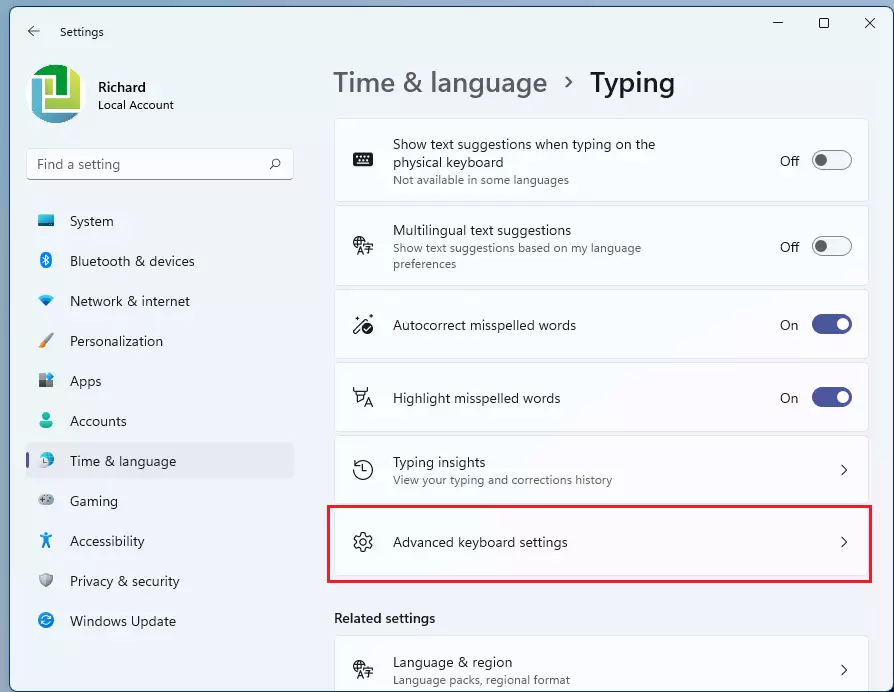
- Click the Advanced keyboard settings tile.
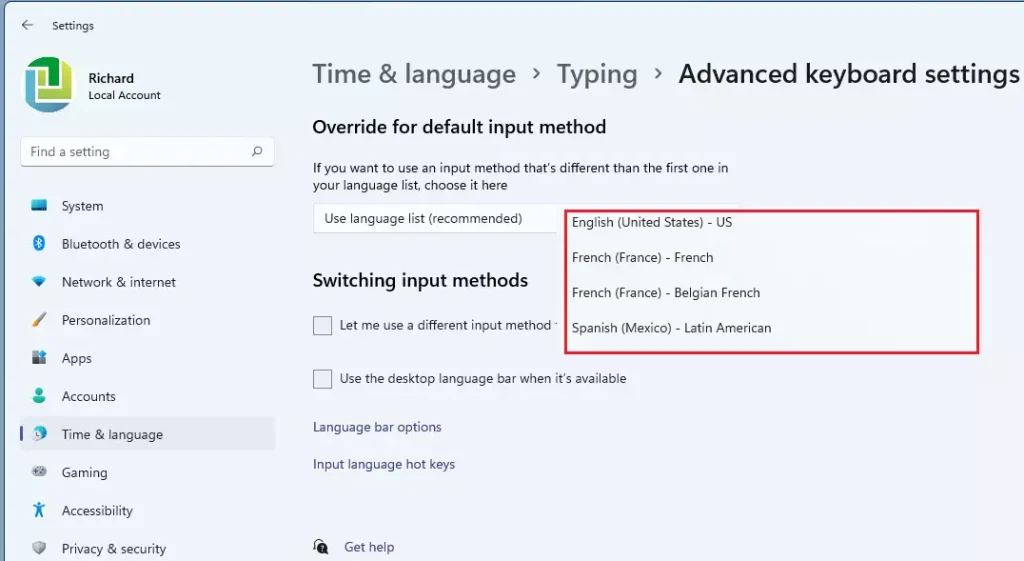
- Under the Override for default input method section, select your preferred language from the drop-down menu.
- You can now close the Settings app.
Note: While these steps don’t require elevated rights, changing system-wide language settings might need standard user account permissions.
Using Keyboard Shortcuts to Override
You can quickly switch between installed languages by pressing ⊞ Win+Space on your keyboard. This manual override is useful when you only need to type a few words in a different language without changing your permanent default settings.
Per-App Input Language Settings
Windows 11 allows you to set a different input method for every window. In Advanced keyboard settings, check the box that says Let me set a different input method for each app window. This is helpful if you use one language for email and another for coding.
Pro Tip: Disable the Language Bar
If the language bar on your taskbar is cluttering your screen, you can hide it. Go to Advanced keyboard settings and click Language bar options. Select Hidden to remove it from your desktop UI.
Registry-Level Overrides (Admin Required)
For advanced users, you can override the default input method in Windows 11 using the Registry Editor, but this requires administrator access and careful steps.
You can force a default layout via the registry. Open the Registry Editor (regedit) and navigate to HKEY_CURRENT_USER\Keyboard Layout\Preload. You can modify the string values here to set your preferred layout ID. Always back up your registry before making changes.
Summary
Setting a default input method override ensures your computer always uses the keyboard layout you prefer. This makes typing in different languages much faster and prevents your settings from changing unexpectedly. By following these steps, you keep your workflow smooth and consistent.
Why does 🪟 Windows 11 keep switching my input language?
Windows 11 often switches languages because it defaults to the language of the active application. If you have multiple keyboard layouts installed, Windows tries to match the layout to the app you are using. You can fix this by setting a specific override in the Advanced keyboard settings menu.
How do I remove an unwanted keyboard layout in 🪟 Windows 11?
To remove an unwanted layout, go to Settings, select Time & language, and click Language & region. Find the language pack containing the layout, click the three dots, and select Language options. Locate the keyboard section, click the three dots next to the layout, and select Remove.
Was this guide helpful?

About the Author
Richard
Tech Writer, IT Professional
Richard, a writer for Geek Rewind, is a tech enthusiast who loves breaking down complex IT topics into simple, easy-to-understand ideas. With years of hands-on experience in system administration and enterprise IT operations, he’s developed a knack for offering practical tips and solutions. Richard aims to make technology more accessible and actionable. He's deeply committed to the Geek Rewind community, always ready to answer questions and engage in discussions.
It doesnèt work. Look! I canèt get rid of the French setting and want to go to ENGLISH (US). Please help!