How to Install Input Language Keyboard in Windows 11

You install an input language keyboard in Windows 11 to easily type in multiple languages on your PC.
An input language keyboard is a collection of characters and typing conventions that lets you write in a language different from your default one. Windows 11 makes it simple to add these so you can switch between them effortlessly.
For instance, you might add a German keyboard layout to quickly input characters like ‘ä’ or ‘ß’. This entire process usually takes less than five minutes to complete in your Windows 11 settings.
Install a new input language keyboard by going to Settings > Time & language > Language & region. Click the three dots next to your language, select Language options, and then click Add a keyboard to choose your desired layout. You can then switch between keyboards using Windows key + Space.
Why Install a Language Keyboard?
You might need to install a language keyboard in Windows 11 to easily type in different languages for school, work, or talking with friends.
What happens when done? You will be able to toggle between different keyboard layouts using simple shortcuts or the taskbar, making it easy to write in multiple languages on the same machine without changing your entire system settings.
How to Install Language Keyboard in 🪟 Windows 11
Installing a language keyboard in Windows 11 is simple and lets you type in more languages without needing special permission.
- Open your computer settings by pressing Windows key + I or by clicking Start, then Settings.
windows 11 start settings - In the Settings menu, click on Time & language.
- Select the Language & region tile.
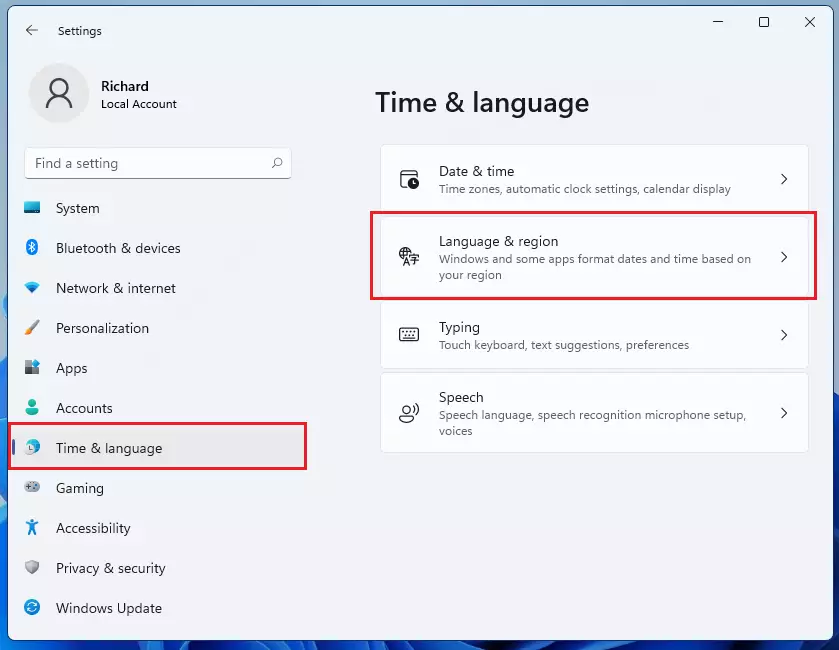
windows 11 display language change - Look for your preferred language in the list. Click the three dots (…) next to it and select Language options.

windows 11 change input language keybaord - Scroll down to the Keyboards section. Click the Add a keyboard button.
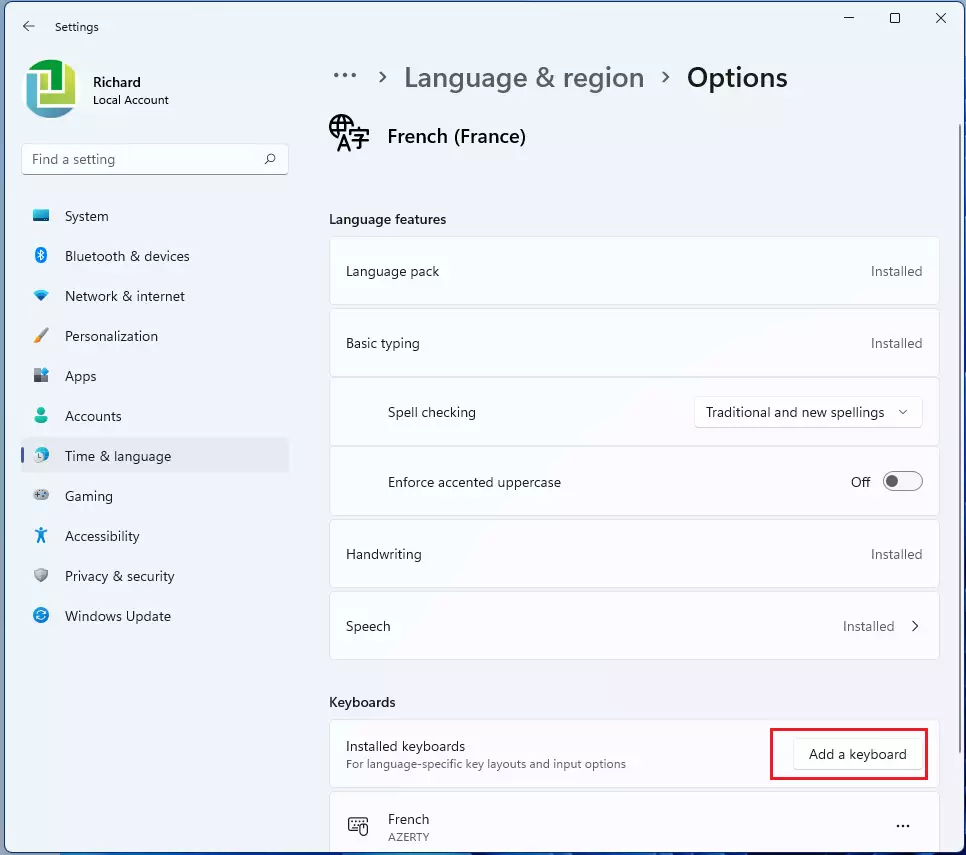
installed keyboards windows 11 buttons - Choose the keyboard layout you want from the list to install it.
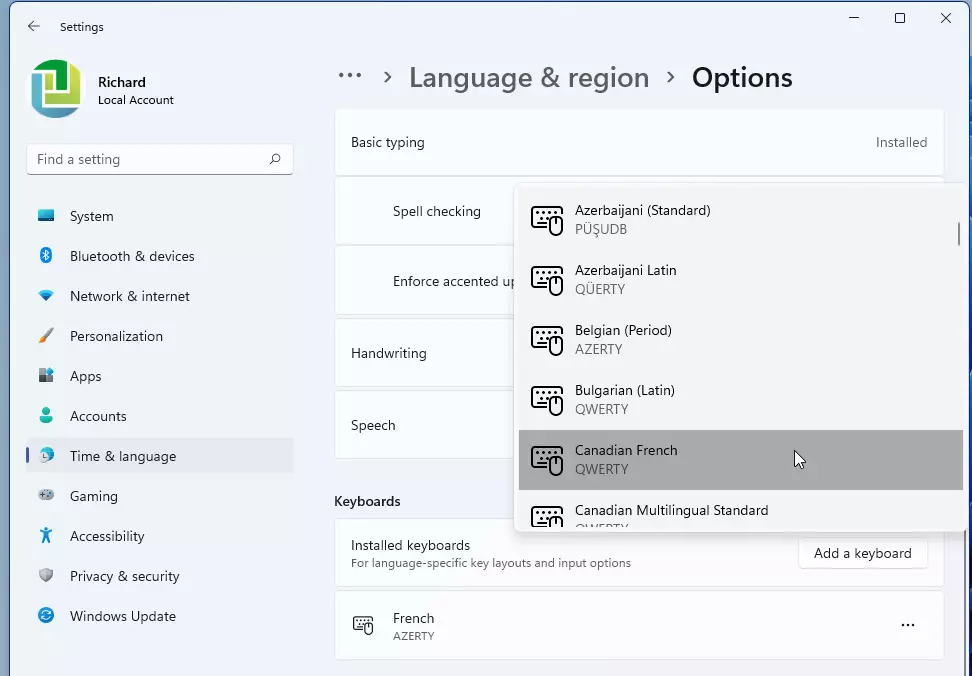
windows 11 install input language keyboard options
Once you install a language, the default keyboard for that language is usually added automatically. You can verify your new setup under the keyboard section for your preferred language. 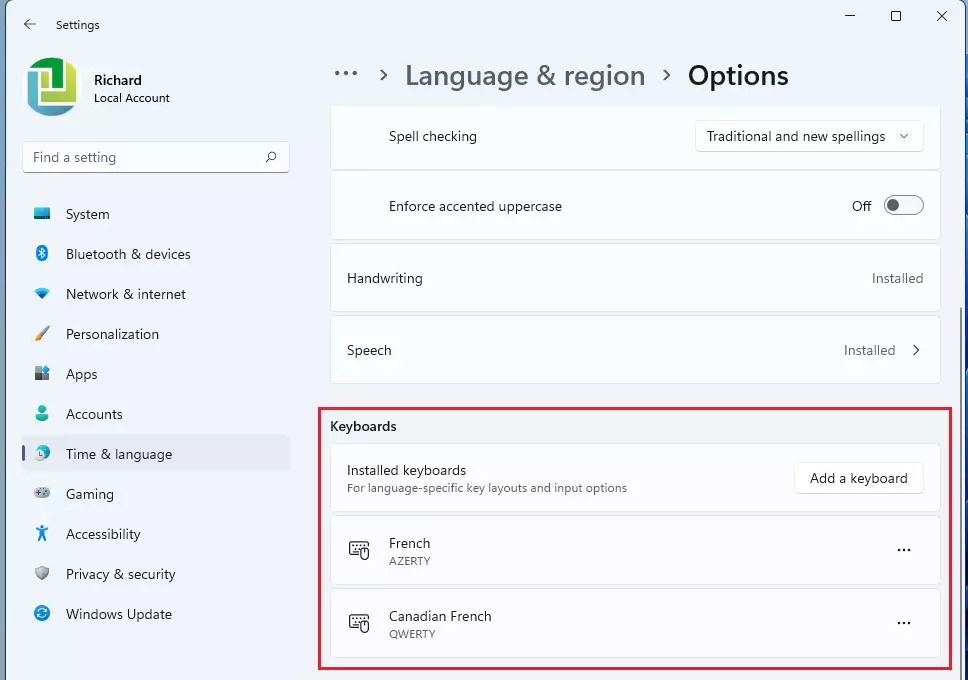
How to Switch Between Keyboards
Switching between your installed keyboards in Windows 11 is quick using either a keyboard shortcut or the language icon on your taskbar.
- Keyboard Shortcut: Press and hold the Windows key and tap the Spacebar to cycle through your installed input methods.
- Taskbar Icon: Click the language abbreviation (e.g., ENG or FRA) on the right side of your taskbar to select a different keyboard.
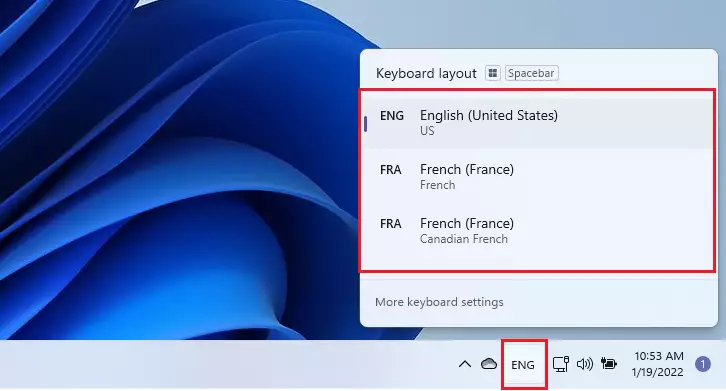
windows 11 switch keyboard input language taskbar
Display Language vs. Input Language
Your display language changes Windows menus, while your input language, or keyboard layout, only affects what you type.
How to Remove a Keyboard Layout
If you no longer need a specific layout, follow these steps:
- Go to Settings > Time & language > Language & region.
- Click the three dots (…) next to the language.
- Select Language options.
- Find the keyboard under the Keyboards section.
- Click the three dots (…) next to the keyboard and select Remove.
Summary
Adding a new keyboard layout in Windows 11 lets you type in other languages easily, and you can switch between them using shortcuts or the taskbar.
Why is my keyboard language not changing?
If your keyboard language is not changing, ensure you have multiple layouts installed in your settings. Try using the ⊞ Win+Space shortcut to toggle manually. If it still fails, restart your computer to refresh the Input Method Editor (IME) services or check for pending Windows updates.
Was this guide helpful?

About the Author
Richard
Tech Writer, IT Professional
Richard, a writer for Geek Rewind, is a tech enthusiast who loves breaking down complex IT topics into simple, easy-to-understand ideas. With years of hands-on experience in system administration and enterprise IT operations, he’s developed a knack for offering practical tips and solutions. Richard aims to make technology more accessible and actionable. He's deeply committed to the Geek Rewind community, always ready to answer questions and engage in discussions.


No comments yet — be the first to share your thoughts!