How to Add a Language in Windows 11

Here’s how to add another language to your Windows 11 computer.
Open Settings by pressing ⊞ Win+I, then navigate to Time & language > Language & region. Click “Add a language,” select your desired language, choose optional features, and click “Install.” Sign out and back in to set it as your display language.
Why Add a Language?
Adding a language in Windows 11 lets you see menus and settings in a language you understand, and it also helps with cool features like talking to your computer or having it read text aloud.
- Change Windows menus and settings to another language.
- Use speech features like talking to your computer or hearing it read text aloud.
- Type with the right keyboard layout for that language.
- Write by hand if your device supports it.
Steps to Add a Language
Open Settings
Press the Win + I keys on your keyboard to open the Settings app.
Go to Language Settings
Look for Time & language in the left sidebar and click it. Then, click Language & region in the main area. Or click this link to open directly: Open Language & region settings
Add a Language
Under Preferred languages, click the Add a language button.
Pick Your Language
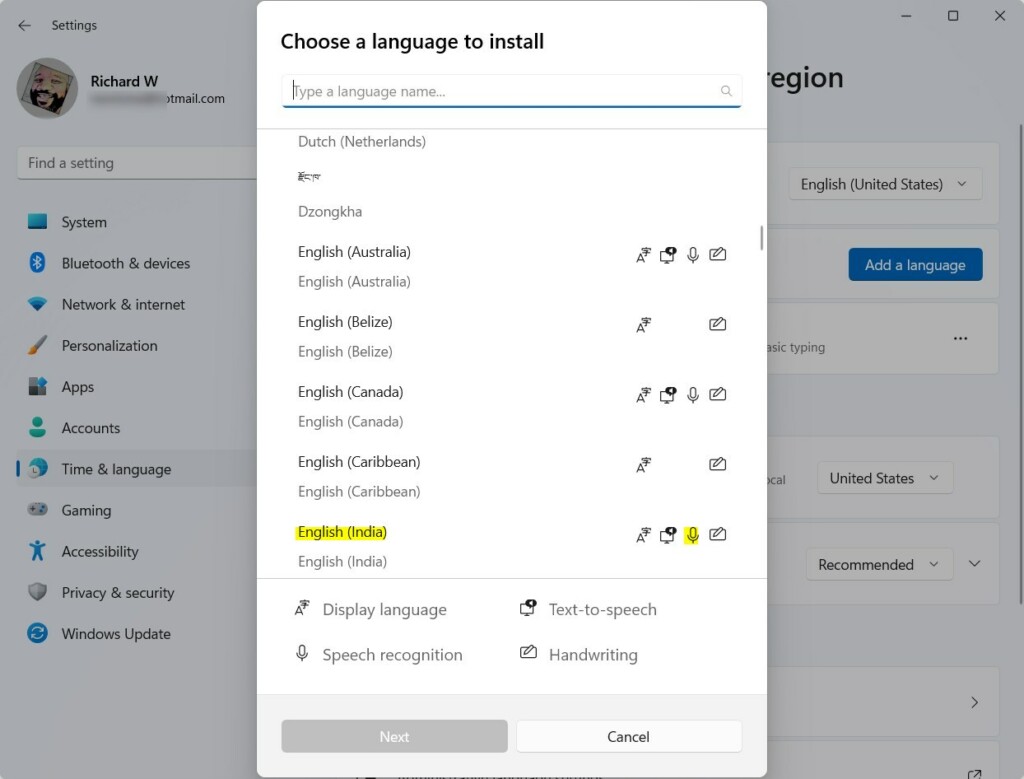
Find the language you’re looking for, like “English (United Kingdom)”. Select it, and then click Next.
Choose Optional Features
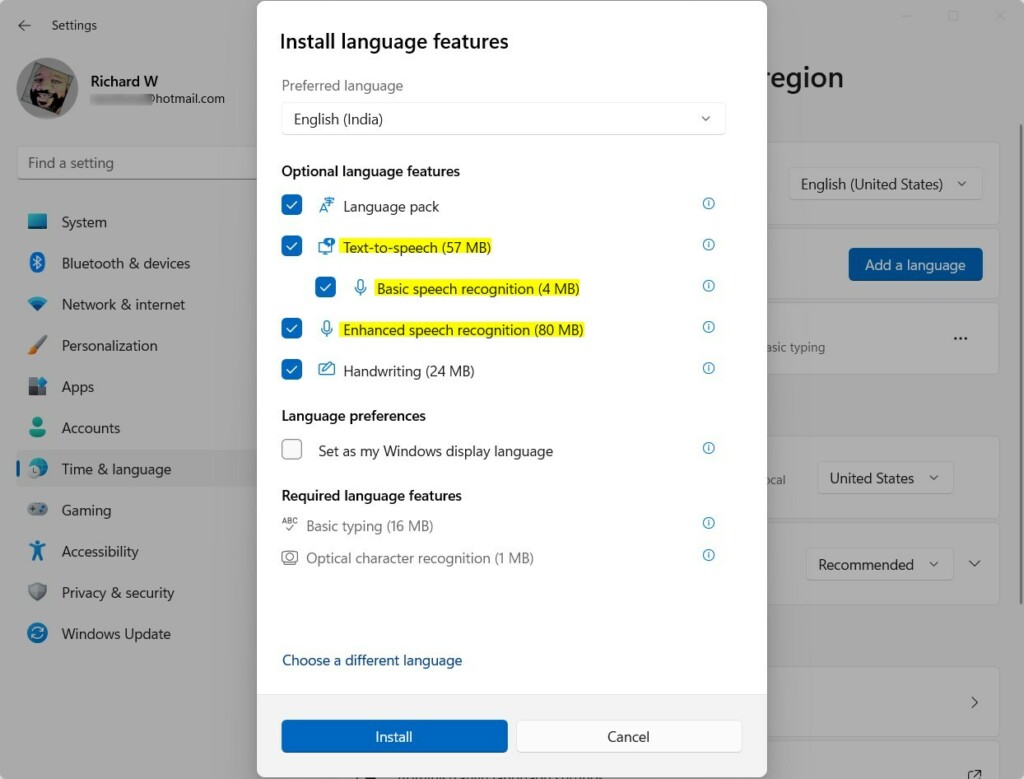
When you add a language in Windows 11, you can pick extra helpful features like a language pack to change menus, text-to-speech so Windows can read text aloud, and speech recognition to talk to your PC.
- Language pack: Changes Windows menus to this language.
- Text-to-speech: Lets Windows read text out loud.
- Speech recognition: Talk to your PC instead of typing.
- Handwriting: Write on your device and Windows will understand.
- Keyboard layout: Changes the keyboard to match the language.
After picking what you want, click Install.
Wait for Installation
Windows will download and set up the language and features you chose.
Set as Display Language (Optional)
Want Windows to actually use this language for menus and settings? Check Set as my Windows display language before installing. You’ll then need to sign out and sign back in to apply the change.
Important Notes
If you have the Windows 11 Single Language Edition, you can’t change the main display language without upgrading your Windows version first, but adding languages still gives you access to useful features like voice typing.
Adding languages can help you use Windows in your preferred language and enjoy features like voice typing and reading aloud.
Summary
- Open Settings with
Win + I. - Go to Time & language > Language & region.
- Click Add a language and pick your language.
- Choose extra features if you want (text-to-speech, keyboard, etc.).
- Click Install and wait for it to finish.
- Sign out and back in if you set the new language as your display language.
To add a language in Windows 11, first open Settings by pressing the Windows key and I together.
Learn More
Official Microsoft Guide: Install a Language in Windows 11
Change Display Language and Keyboard Settings
Download Voices for Text-to-Speech
How do I add more languages on 🪟 Windows 11?
To add more languages on Windows 11, go to Settings, then Time & language, and Language. Under Preferred language, select Add a language and type or scroll to find the one you want.
Why is my language bar missing?
Method 1: Add or remove Language Bar via Settings app Press ⊞ Win+I to open Settings. Go to Time & language > Typing > Advanced keyboard settings. Under Switching input methods: To show the Language Bar, select the checkbox for Use the desktop Language Bar when it's available.
Was this guide helpful?

About the Author
Richard
Tech Writer, IT Professional
Richard, a writer for Geek Rewind, is a tech enthusiast who loves breaking down complex IT topics into simple, easy-to-understand ideas. With years of hands-on experience in system administration and enterprise IT operations, he’s developed a knack for offering practical tips and solutions. Richard aims to make technology more accessible and actionable. He's deeply committed to the Geek Rewind community, always ready to answer questions and engage in discussions.



No comments yet — be the first to share your thoughts!